
Many macOS users want Notes to stay visible while they work, but the window often disappears behind Safari, PDFs, coding tools, design software, or online videos. This constant hiding breaks focus, especially when Notes is being used for TODO lists, reference text, study notes, or code snippets. Repeatedly bringing the Notes window back to the front becomes frustrating, and many people simply want a way to keep it in view while they switch between different tasks.
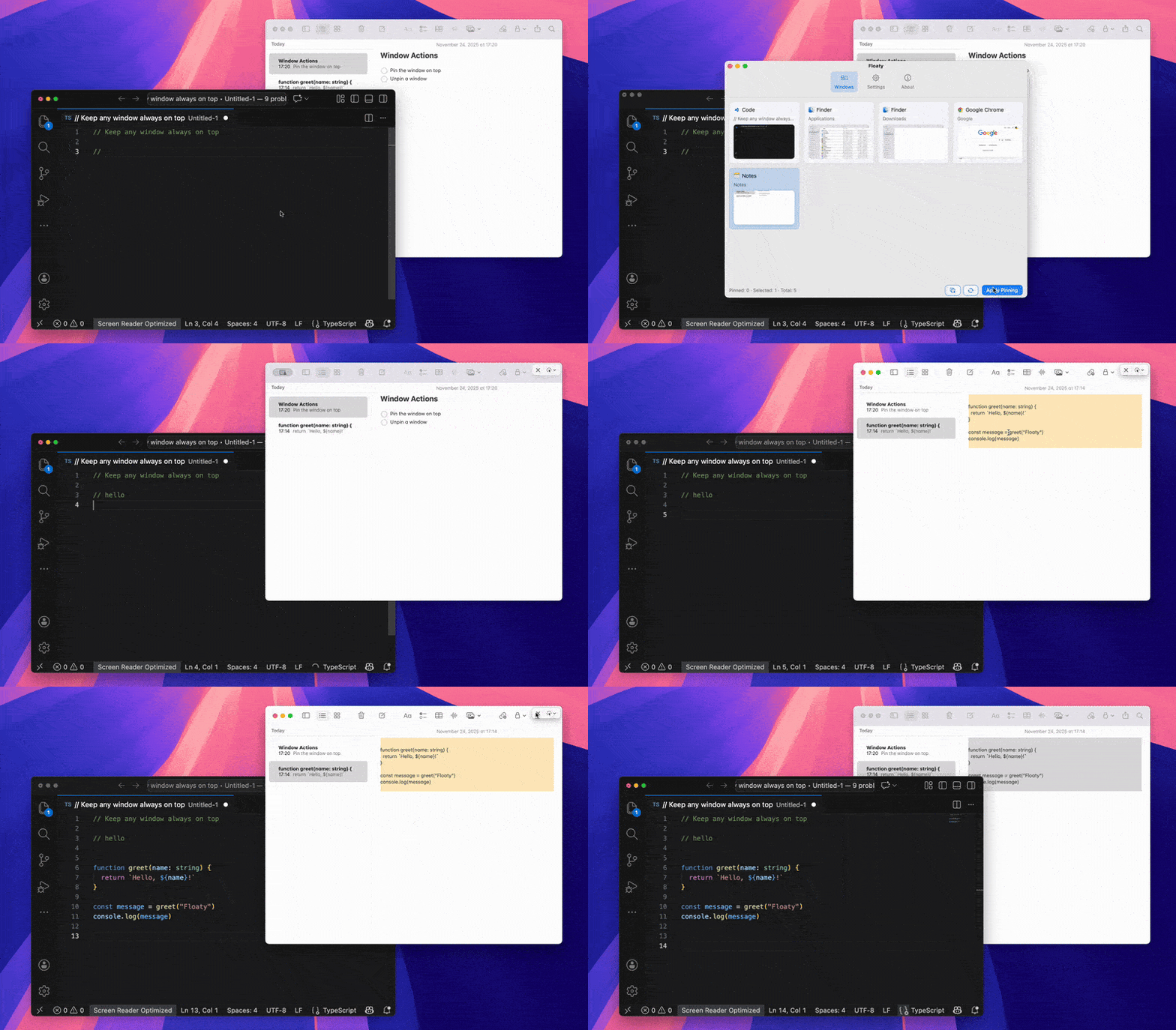
Here is a quick example of how this looks in a real workflow:
Why People Want Notes Always on Top
Users rely on Notes for quick writing, capturing ideas, or storing reference details. When researching online, writing documents, reading PDFs, watching videos, or coding, it becomes inconvenient if the Notes window keeps getting buried behind other applications. Keeping Notes always on top helps maintain focus and reduces constant window switching.
Common Real-World Scenarios
- Taking notes while watching online courses or tutorials
- Reading PDFs or textbooks and summarizing content into Notes
- Researching topics in Safari or Chrome while collecting key points
- Using Notes as a quick TODO panel during development
- Following coding tutorials while copying code into an editor
- Reviewing design assets while writing feedback in Notes
- Working on multiple screens while keeping Notes fixed on one side
How to Keep Notes Visible While Working
To keep the Notes window always on top, you can pin it above the workspace so it remains visible even when switching to Safari, PDF readers, VSCode, or other tools. Pinning Notes in place allows you to read and reference information continuously while working in another app. Notes can be positioned on the side of the screen, resized, or arranged as a small floating panel.
Using Floaty to Keep Notes Always on Top
Floaty allows the Notes window to remain always on top of other applications. After pinning Notes, the window stays visible while you type in VSCode, scroll through Safari, navigate PDFs, or organize files. You can adjust opacity to reduce visual distraction, move the window to any position, and enable click-through for tasks where you want Notes visible without blocking interaction. This setup is useful for studying, coding, research, writing, and daily multitasking.
Productivity Benefits
- Reduces repetitive window switching
- Keeps key information and reminders visible at all times
- Supports focused studying and writing
- Improves coding workflow with visible TODOs and reference snippets
- Helps maintain a clean and organized workspace
- Makes macOS multitasking more efficient
Conclusion
If you frequently use Notes while working across multiple apps, keeping the window always on top can significantly improve productivity. With a floating window setup, Notes becomes a stable reference panel that supports studying, coding, research, and creative work without being hidden behind other applications.