
Pinning a specific app window on macOS isn’t a single built-in feature. Depending on your setup, you may rely on window managers, automation tools, or dedicated utilities, each with different trade-offs. This guide walks through those options so you can choose the most practical way to keep an app visible while you work.
For users who need consistent app-level pinning across different workflows, dedicated always-on-top utilities are often the most reliable option. Tools like Floaty focus specifically on keeping selected app windows visible, without relying on layout hacks or complex automation.
Below are the exact steps and a few alternatives if you want more control.
This guide focuses specifically on pinning individual app windows, not managing all windows system-wide.
How to Pin a Window on Top on Mac
macOS treats every window the same: whichever one you clicked last gets to sit up front. That makes sense when you are actively typing in that app, but it breaks down when you need a “reference window” that stays visible while you work elsewhere.
People float windows because they:
- Follow live calls while note-taking in a different app
- Keep a checklist or OKR dashboard in sight throughout the day
- Watch tutorials while practicing the steps in another tool
- Monitor stock tickers, live dashboards, or chat threads without constant app flipping
Because macOS still lacks a system-level Always on Top toggle, you need to combine utilities (Floaty, Rectangle Pro) or screen management features (Stage Manager, Split View, Picture-in-Picture) to hold a window in place.
Pin Zoom or Browser Window Always on Top
Zoom is often the “reference” window during meetings, yet it disappears the moment you open Notion, Slides, or a PDF. Zoom windows often re-layer themselves when switching views or screen sharing, which is why shortcut-based “always on top” methods can break mid-meeting. Here’s a quick way to keep faces, reactions, or screen shares placed above everything else.
- Open Zoom and make sure the window you want (Gallery View, Speaker View, or the floating active speaker panel) is visible.
- Launch Floaty. From the window list, pick the Zoom process—it usually shows the meeting name.
- Click Apply Pinning. Zoom now floats above other apps, even when you type inside Notes, Safari, or VS Code.
- Resize Zoom to a compact panel. If you are sharing your screen, keep Zoom near the display edge so it doesn’t cover the content you are presenting.
- Optional: Turn on Floaty’s Opacity slider (50–70% works well) so Zoom stays visible but doesn’t block your work.
Alternative: Rectangle Pro includes an Always on Top shortcut (off by default). Bind it to something like Option+Command+T, then hit the shortcut while Zoom is active. Rectangle Pro can only pin one window per shortcut, so you must repeat it when you switch meetings.
Rectangle Pro’s “Always on Top” works as a one-time shortcut, not a persistent always-on-top rule — which is why it often needs to be reapplied.
Pin Notion Window on Top
Notion pages make great daily dashboards. To keep them visible:
- Set up Split View or Stage Manager if you simply want Notion side-by-side. This is still limited—clicking another app will demote Notion.
- For a true floating overlay, use Floaty.
- Focus the Notion window you want pinned (daily notes, CRM board, wikis, etc.).
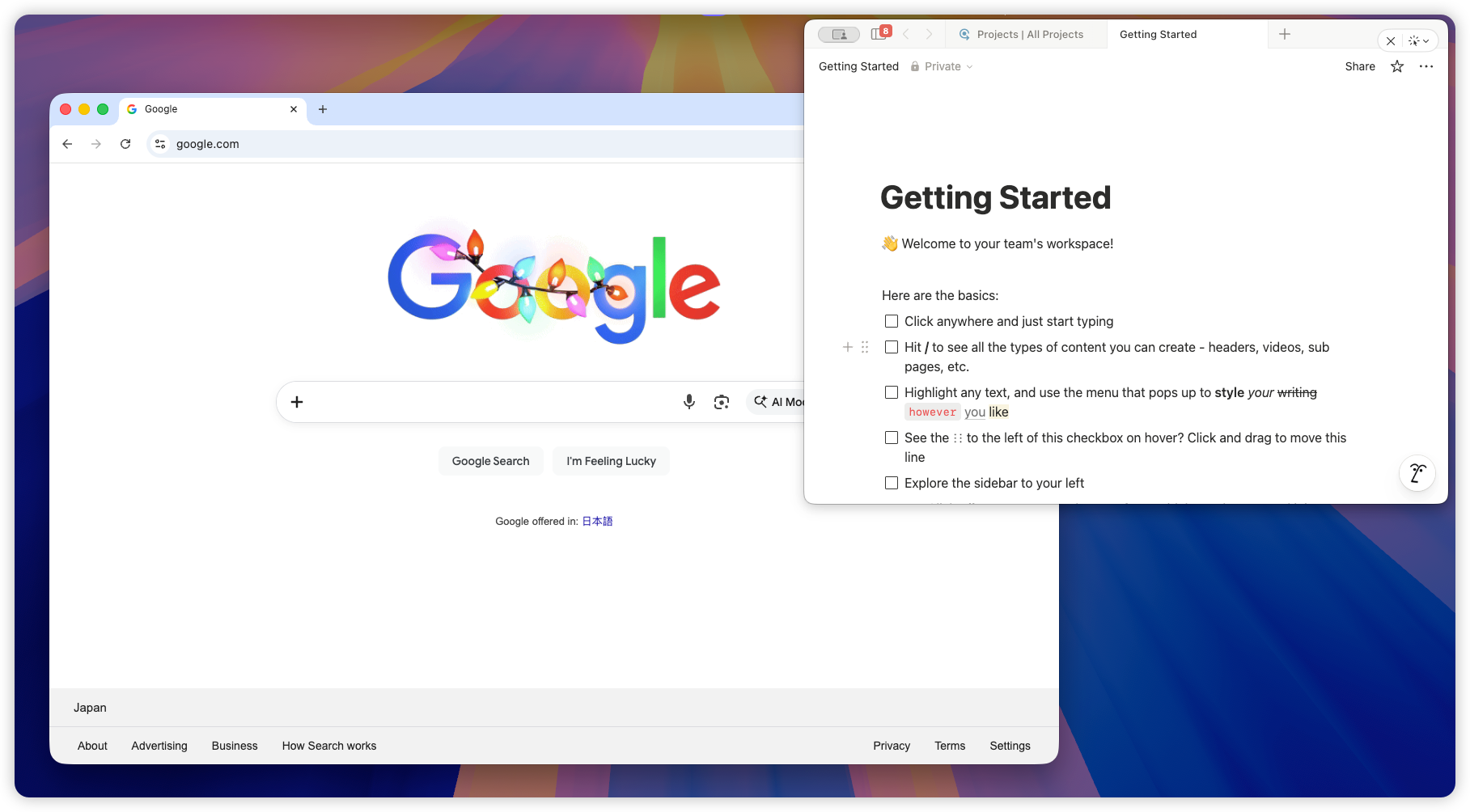
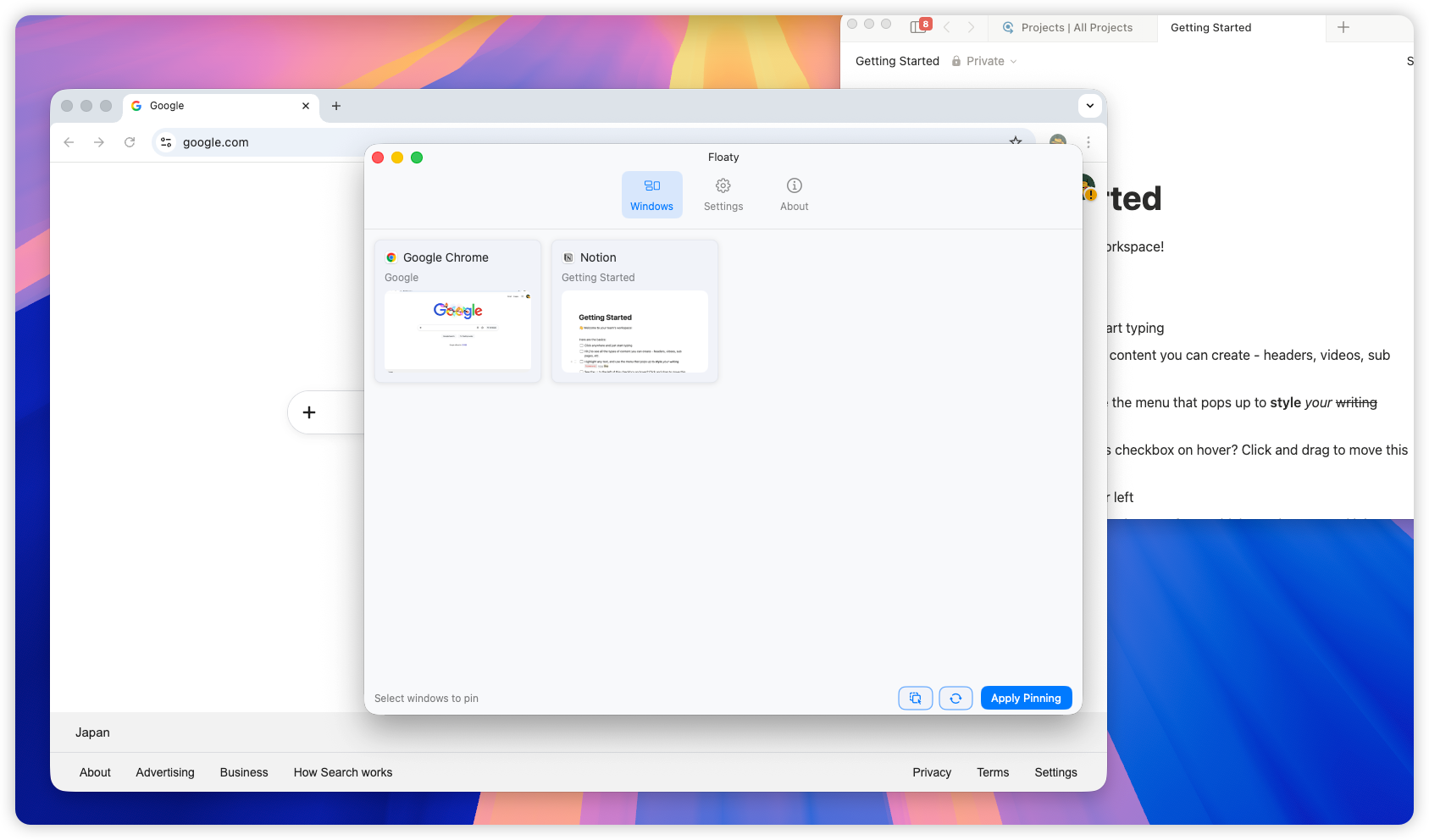
- Open Floaty, select the Notion window, and apply pinning.
- Choose Activation Mode → Click-through if you want to see Notion while interacting with the app underneath.
- Rectangle Pro shortcut method: give Notion focus, press your Always on Top shortcut. Rectangle Pro highlights the pinned window with a border so you can confirm it worked.
Tip: Many people duplicate their “Today” page, strip it down to a mini checklist, and resize the window to phone-width before pinning it. That keeps clutter low and helps avoid blocking stage areas in Figma or Final Cut.
Keep PDF or Preview Always Visible
When reviewing specs or research papers, PDF/Preview windows constantly lose foreground status. You have three options:
- Preview’s floating thumbnail: Set
View → Thumbnailsand tear off a page thumbnail. It’s small but helpful as a reference. - Picture-in-Picture: Works only for video, so it won’t pin static PDFs.
- Always-on-top tools: Floaty and Rectangle Pro treat Preview like any other app.
Floaty workflow:
- Open the PDF in Preview (or Acrobat).
- Select the window inside Floaty and click Apply Pinning.
- Reduce opacity so you can see design/color underneath while keeping the PDF legible.
- Use Floaty’s Focus follows pin option if you frequently switch between multiple floating documents.
This setup is perfect for design QA or copy editing where a checklist must hover while you work in Figma, Sketch, or Webflow.
Keep YouTube Always on Top
Keeping a YouTube tutorial in view is easiest via Picture-in-Picture (PiP), but PiP has trade-offs—no comments, smaller controls, and some creators disable it.
To keep the full YouTube window visible:
- In Safari or Chrome, open the video and pop it into a small window.
- Pin it using Floaty or Rectangle Pro so it stays above your IDE or design app.
- Combine with macOS Hot Corners or Mission Control to quickly sweep other windows out of the way when you need to drag content from the video description.
If you only need the video feed, Safari’s built-in PiP (right-click twice on the video → Enter Picture in Picture) is lightweight. You can still float the PiP mini-player with Floaty for extra assurance if you’re juggling many spaces.
One Tool to Rule Them All: Floaty
Floaty centralizes every always-on-top workflow so you don’t pile up partial tools.
- Pin unlimited windows, across desktops and Spaces.
- Store presets for apps you float daily (Zoom + Notion, Preview + Xcode, etc.).
- Adjust opacity and click-through per window so floating overlays stay visible without stealing input.
- Use global shortcuts to apply or release pinning without leaving the current app.
- See a menu bar list of everything that’s currently pinned—helpful when you’re multi-monitor.
If you want to keep multiple reference windows visible (Zoom + PDF + Notion), Floaty saves time compared to re-running Rectangle Pro shortcuts every time a window changes.
Ready to stop losing your windows behind others? Try Floaty free and keep your most important app on top—anytime, anywhere.
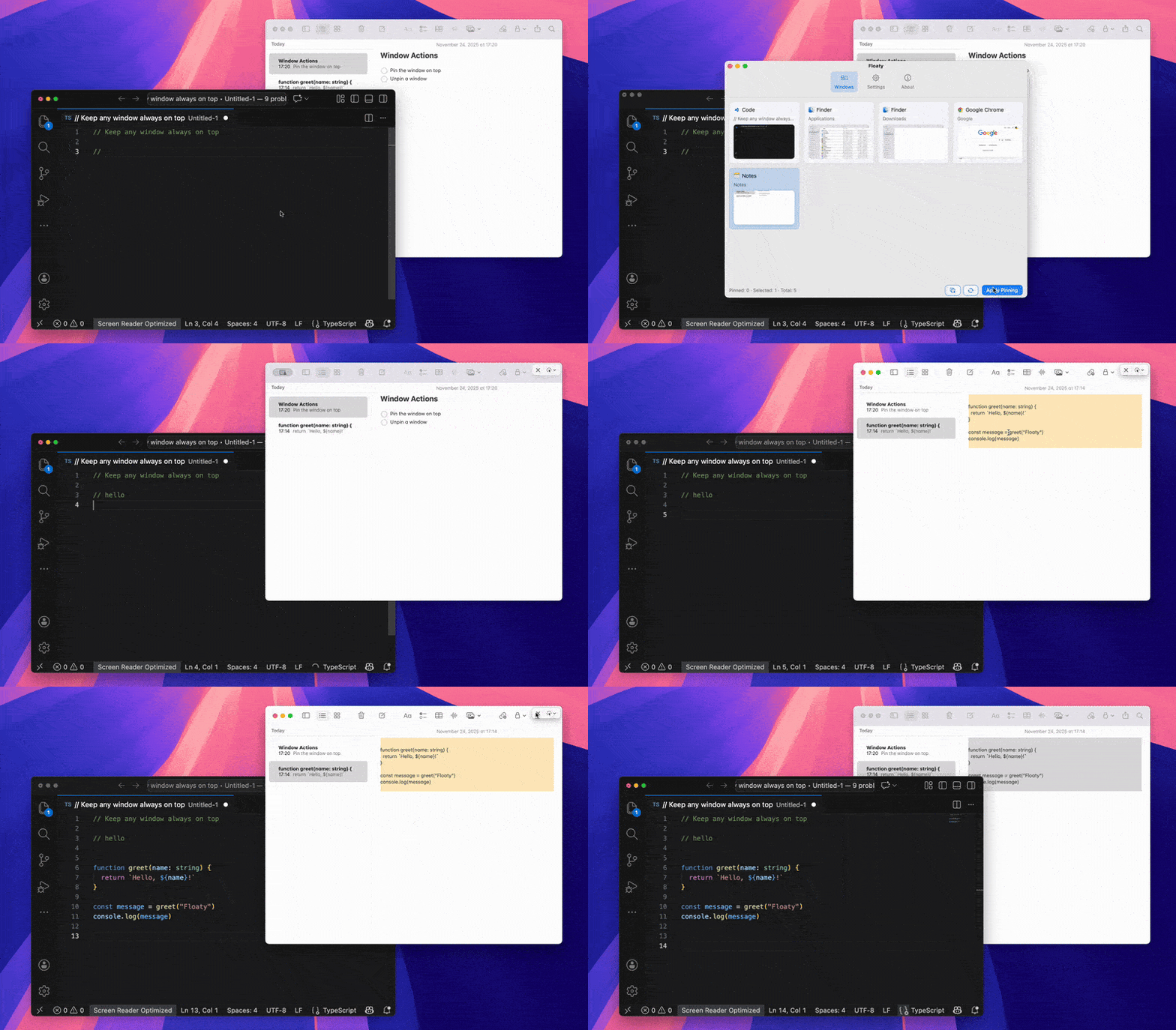
See Floaty in action: pin Apple Notes above VS Code, keep typing underneath, and never lose the reference window.
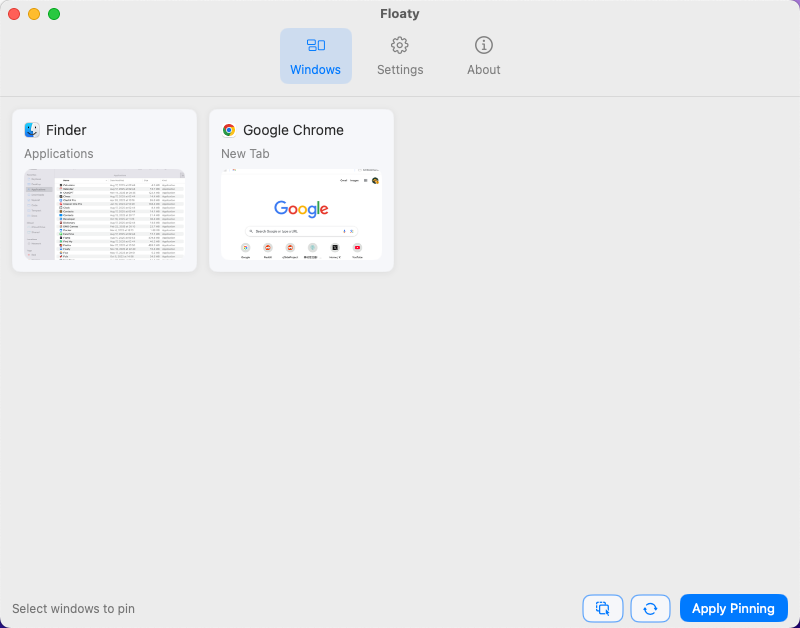
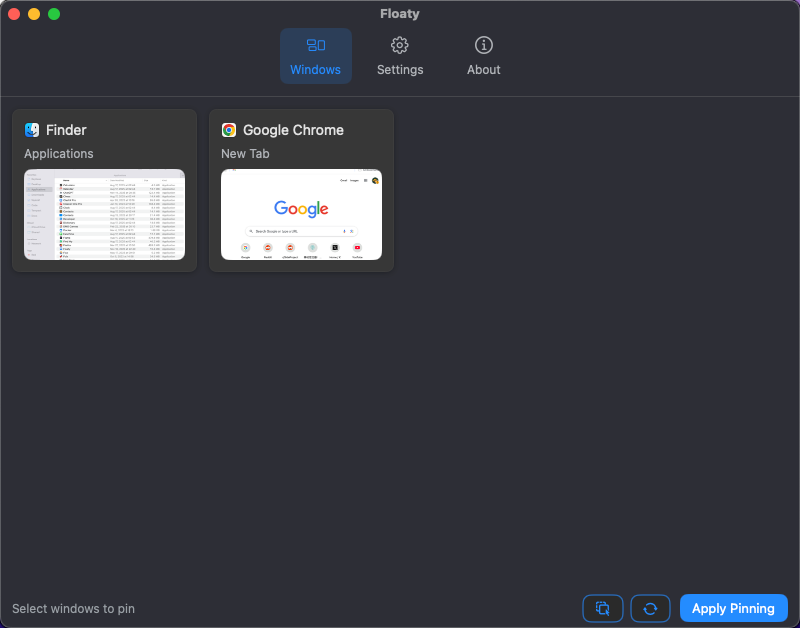
When you’re ready to pin additional apps, the main picker shows live previews so you can grab Finder, Chrome, Zoom, or anything else in a couple clicks.
Prefer dark mode? Floaty mirrors macOS appearance so the workflow feels native day or night.
Bonus: Keyboard Shortcuts for Window Pinning (macOS)
Power users eventually automate pinning so it becomes muscle memory. Here’s a quick setup:
- Floaty global toggle: In Floaty preferences, bind
⌃⌥⌘Fto toggle pinning on the frontmost window. - Rectangle Pro Always on Top: Assign
⌃⌥⌘T(or similar). When a window misbehaves, tap the shortcut to re-pin it. - BetterTouchTool / Raycast: Trigger Floaty’s global toggle from a custom gesture or command palette so you can pin whichever window you’re using without hunting for menus.
- Stages/Spaces navigation: Combine Mission Control and Stage Manager shortcuts with the pinning shortcuts so you can jump Spaces without losing sight of the floating windows.
Once shortcuts are in place, pinning becomes as natural as resizing or snapping a window.
FAQ
Can you really keep a window always on top on Mac? Not natively. As of 2026, macOS still doesn’t provide a system-level always-on-top toggle.
Does macOS Sonoma or Sequoia add a native Always on Top option? No. Even in 2026, macOS still leaves window layering to third-party utilities.
Can I pin multiple windows at once? Yes. Floaty lets you select several windows and apply pinning together. Rectangle Pro requires you to activate each window and run the shortcut per window.
Will pinning slow down my Mac or break Stage Manager? Pinning has negligible performance impact. Stage Manager works alongside Floaty—pinned windows simply stay visible when you switch stages.
What about security-sensitive apps like banking or password managers? Some apps block external automation. In those cases, pinning may fail. Floaty falls back gracefully and lets you know the OS denied access.
Does Floaty work on Apple Silicon and Intel? Yes, Floaty is a Universal build optimized for both Apple Silicon and Intel Macs running macOS 12 or newer.
Keep Every Window Visible with Floaty
If your goal is to pin one or two app windows occasionally, lightweight solutions may be enough. If pinned windows are part of your daily workflow, a dedicated always-on-top utility provides a more predictable experience.
👉 Upgrade to Floaty Pro — unlock multi-window pinning, opacity, click-through, auto-unpin, and pro presets.
Need more multitasking ideas? Dive into these guides: