
Running a hybrid meeting on macOS often feels like chasing windows: the moment you click back to slides or Safari, the agenda and transcript vanish. Apple still hasn’t shipped a native “always on top” toggle for docs or notes, so you end up googling “keep window always on top mac” or “pin window mac” in the middle of a call. This guide lays out a practical, repeatable way to keep agenda and reference panes visible throughout the meeting so you can stay focused on hosting instead of window wrangling.
Hybrid meetings expose how fragile context is on macOS. You’re presenting slides, following a live transcript, checking action items, and maybe DM’ing the co-host—all while the call window buries whatever you need next. The queries teams keep googling (“keep window on top mac,” “pin window mac,” “always on top mac”) exist because they expect macOS to make persistent overlays easy. Until Apple ships that button, you need a repeatable system.
This guide shows how to turn Floaty into your hybrid-meeting command center: fix the pain points, capture action items without losing the call, and package the whole workflow so anyone on your team can replicate it in minutes.
If you’re looking for a general solution that works across apps on macOS, see the full overview of always-on-top options here.
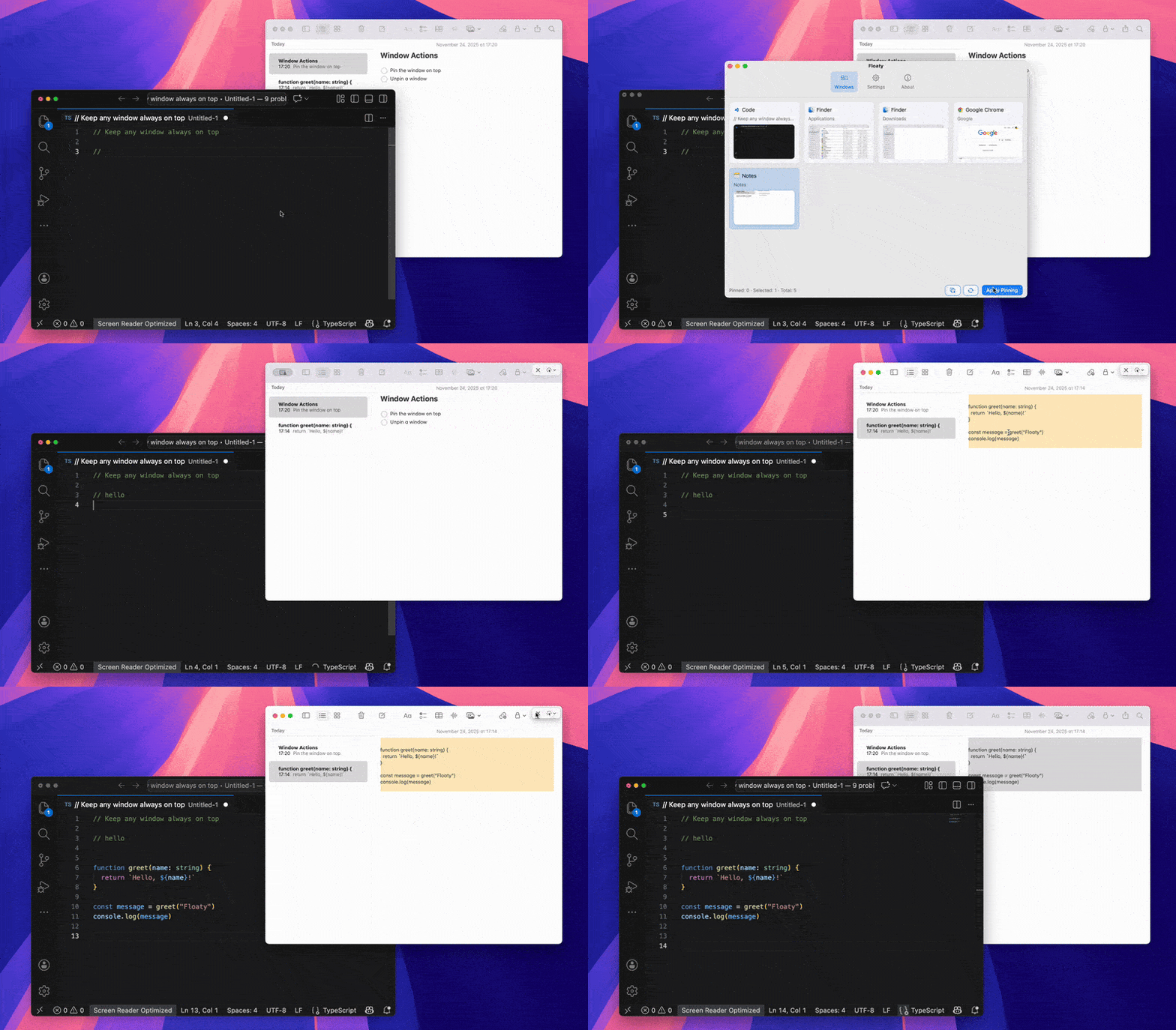
Why hybrid-meeting windows collide
The problem isn’t lack of focus—it’s window competition. During a call, you might simultaneously juggle:
- A shared deck in Keynote/PowerPoint
- Meeting agenda or doc in Notion, Obsidian, or Google Docs
- Live transcript or AI assistant
- Chat, polls, timers, QA sheets, or OBS controls
macOS optimizes for switching, not for “stay visible no matter what.” The moment you Command-Tab back to slides or the browser, your agenda and transcript disappear. Stage Manager and Split View help with layout, but—as we explained in our Notion overlay guide—they cannot guarantee your note window stays fixed on top when you click elsewhere. How to Keep Notion Always on Top on macOS digs deeper into that limitation.
Ways to keep agenda windows always on top on macOS
- Built-in macOS layouts (Stage Manager / Split View): Useful for keeping two panes side by side, but they fail the moment you need chat, docs, and slides simultaneously. They don’t actually pin a window; they just rearrange space.
- Automation and advanced tools: You can script layouts with Shortcuts, BetterTouchTool, or window managers, but you still rely on macOS focus rules. Once another app is active, the “pinned” doc drops behind unless the automation tool injects additional overlays.
- Dedicated always-on-top utilities: These apps (Floaty included) piggyback on Accessibility + WindowServer APIs to guarantee a window stays visible, often adding opacity, click-through, and per-window status indicators. That reliability is what hybrid meetings demand.
What built-in tools can’t do
- Stage Manager / Split View: great for two panes, useless once you need chat, docs, and slides concurrently.
- Picture-in-Picture: amazing for video players, irrelevant for docs or agenda pages.
- Zoom’s “Always show toolbar”: keeps Zoom controls handy but doesn’t pin external references.
To build a dependable hybrid-meeting cockpit, you need purpose-built overlays with visual indicators, opacity control, and click-through so you can work in the app behind the overlay. That’s exactly what Floaty offers.
The Floaty hybrid-meeting workflow
Among all approaches, dedicated always-on-top utilities offer the most predictable behavior during live meetings—especially when multiple windows compete for focus.
1. Prep your reference windows
Open the artifacts you absolutely can’t lose: agenda doc, AI transcript, QA tracker, maybe a timer. Resize them to slim vertical panels so they take minimal space when floated.
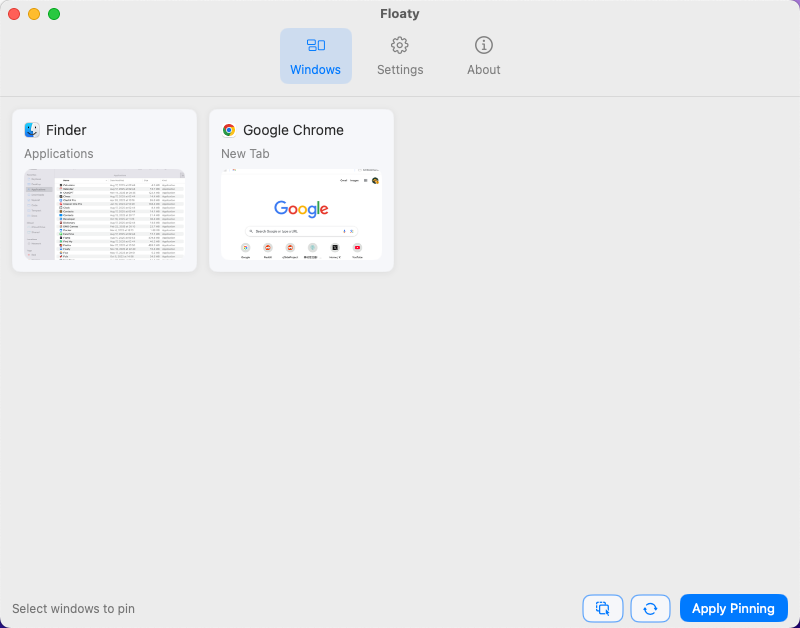
2. Launch Floaty and pick the windows
Open Floaty’s window list, select each reference window, and hit Apply Pinning. The macOS WindowServer now treats those panes as persistent overlays, so you can return to your deck or demo app without losing sight of what matters.
3. Fine-tune the overlays
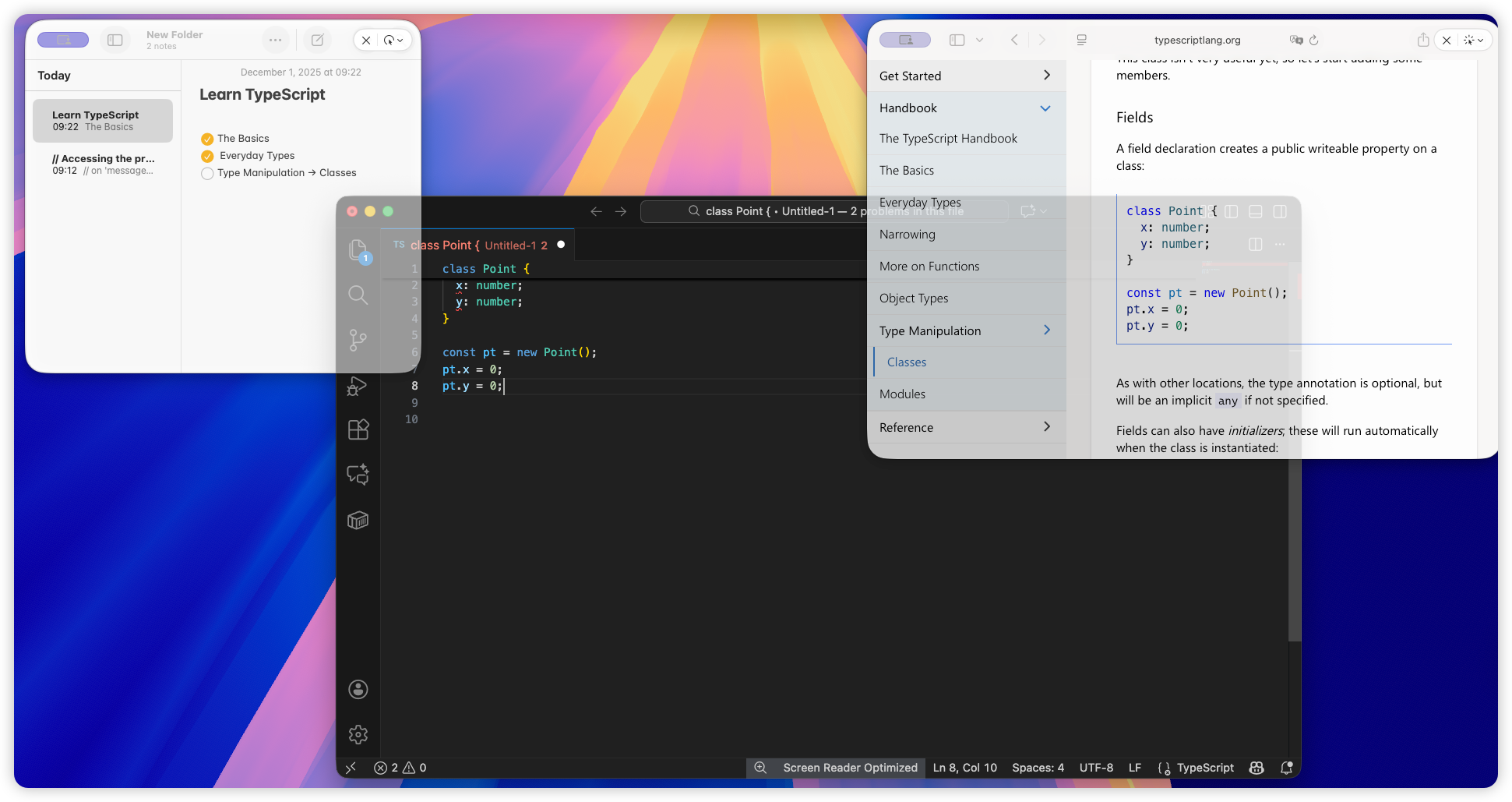
- Opacity: Drop the panel to ~65% opacity when you need to read text over a slide without blocking it.
- Click-through: Enable click-through for passive references (agenda, timer) so mouse clicks pass to the app underneath.
- Activation mode: Keep one window fully interactive (live notes) and set the rest to “None” so they never steal focus mid-presentation.
4. Manage multiple monitors and layouts
Floaty respects whichever display a pinned window lives on. Park the agenda on your secondary monitor, keep chat/transcript floating near Zoom, and leave the main screen for the deck. If you’re presenting from one laptop screen, use narrower windows and corner pinning to avoid covering key slide areas.
5. One-key toggles
Assign a Floaty global hotkey to toggle pinning or opacity for rapid adjustments mid-call. Power users often map these shortcuts via Raycast or BetterTouchTool; see the automation section below for ideas.
Real-world playbooks
Host or facilitator
- Keep the master agenda pinned so you can steer the conversation without tabbing away.
- Float the action-item tracker alongside Zoom to log owners in real time.
- Use click-through on the agenda so you can still annotate slides while seeing the outline.
Presenter or trainer
- Pin your demo script or checklist over the app you’re showcasing.
- Keep a translation panel (for bilingual audiences) semi-transparent near the slide area.
- Park OBS or streaming controls on a second monitor so transitions stay smooth.
Ops and producers
- Run a timer overlay for each segment, visible to the host but invisible to the audience.
- Float a troubleshooting FAQ so you can answer chat questions instantly.
- Keep Slack or Teams DMs pinned but click-through so you can glance at escalation notes without leaving the call.
Permissions cheat sheet
Always-on-top utilities rely on Accessibility (to observe window focus) and Screen Recording (to capture thumbnails for overlay previews). Grant those permissions once in macOS System Settings → Privacy & Security, then relaunch Floaty. If compliance teams ask why they’re needed, point them to our upcoming deep dive on macOS permissions—or summarize it like this: Floaty processes window metadata locally and never uploads meeting content.
Layer in automation and shortcuts
Want “pin agenda” to be as easy as hitting one Stream Deck key? Combine Floaty with:
- Shortcuts automations: Trigger Floaty via shell/URL actions to pin specific apps when a meeting starts.
- Raycast scripts: Build a “Pin current window” command that calls Floaty and confirms status inline.
- BetterTouchTool gestures: Map trackpad corners or keyboard chords to toggle click-through or opacity.
For a broader productivity stack that pairs nicely with Floaty, read our 2025 Mac Productivity Apps Guide.
Who this setup is for (and who it’s not)
Best fit
- Hosts and facilitators who must juggle agendas, transcripts, and action items live.
- Trainers, demo leads, and sales engineers who reference scripts while presenting.
- Producers running timers, QA sheets, or translation feeds alongside Zoom/Meet.
Not ideal
- Passive attendees who only need to watch and listen.
- People who never capture notes or action items during calls.
- Anyone working exclusively on iPad or iPhone (this workflow is macOS-only).
Checklist for your next hybrid meeting
- Open agenda, transcript, action tracker, chat, and timer.
- Launch Floaty → select those windows → Apply Pinning.
- Set opacity (50–70%), enable click-through for passive panes.
- Arrange overlays on the display(s) you’ll use during the call.
- Map quick toggles (hotkey, Raycast, Stream Deck) before showtime.
- Start the meeting knowing nothing critical will vanish.
Related reading
- How to Keep Zoom Always on Top on macOS While You Work
- How to Keep Notion Always on Top on macOS
- The 2025 Mac Productivity Apps Guide
If you’re looking for a general solution beyond meetings, read our complete guide on how to keep any window always on top on macOS.
When people search “keep window on top mac” or “pin window mac,” they’re really trying to protect their meeting flow. Floaty turns that intent into a system: your agenda, transcript, and live action log stay visible, and your focus stays on delivering a great hybrid experience.
For a lightweight, system-wide always-on-top workflow, you can also visit the Floaty homepage.