
Introduction
This guide shows how to watch YouTube while working on Mac and keep the video always on top so it stays visible while you switch between apps:
- Understand why macOS pushes YouTube behind other windows.
- Use the built-in Picture-in-Picture shortcut for the quickest fix.
- Pin the entire browser window when you need the full interface.
These methods help when you are coding along with a tutorial, taking notes for class, following a design walkthrough, or referencing a repair guide while your hands stay busy elsewhere.
Why YouTube Doesn’t Stay on Top on Mac
macOS intentionally treats every window equally. When you click away from Safari or Chrome, the system demotes that window so the new app you touched becomes visible. Stage Manager and Split View shuffle layouts more gracefully, but the same “active app on top” rule still applies. There is no global “always on top” toggle in System Settings, so YouTube vanishes the instant you need to type somewhere else.
Apple built Picture-in-Picture (PiP) as a workaround. PiP extracts only the video element and turns it into a floating tile. That solves quick “youtube always on top mac” requests, yet it strips away transcripts, playlists, and everything else that lives outside the player. If you are curious about the broader landscape of how people keep a window always on top on macOS, the same limitations show up there too. When your workflow depends on those controls—or if you want to float non-video apps—you need a more flexible solution.
Method 1: Use Picture-in-Picture in Your Browser
The built-in PiP shortcut lets you drag a miniature video above other apps. It is baked into Safari, Chrome, Arc, Edge, Brave, and most Chromium-based browsers, so you can keep video always on top mac style without installing anything.
- Open your video and let it start playing.
- Trigger PiP. In Safari, control-click twice on the player until “Enter Picture in Picture” appears. In Chrome, right-click twice or use the media control icon near the address bar.
- Place the tile in a corner that blocks the least workspace.
- Resize within limits. mac picture in picture youtube mode offers a few preset sizes—pick whatever keeps captions readable.
- Click the tile whenever you want to jump back to the full tab.
PiP shines for passive watching—music videos, keynote streams, or tutorials you mostly listen to. But there are trade-offs:
- It only shows the video. Chapters, comments, and transcripts disappear.
- Controls are minimal, with no playlist picker or quick scrub.
- Some websites disable PiP altogether.
- The tile sticks to a fixed aspect ratio.
If your goal is simply to watch youtube while working mac for background content, PiP is fine. If you need to interact with step-by-step instructions, copy commands, or browse timestamps, you will want something more flexible.
Method 2: Pin the YouTube Window Always on Top on Mac
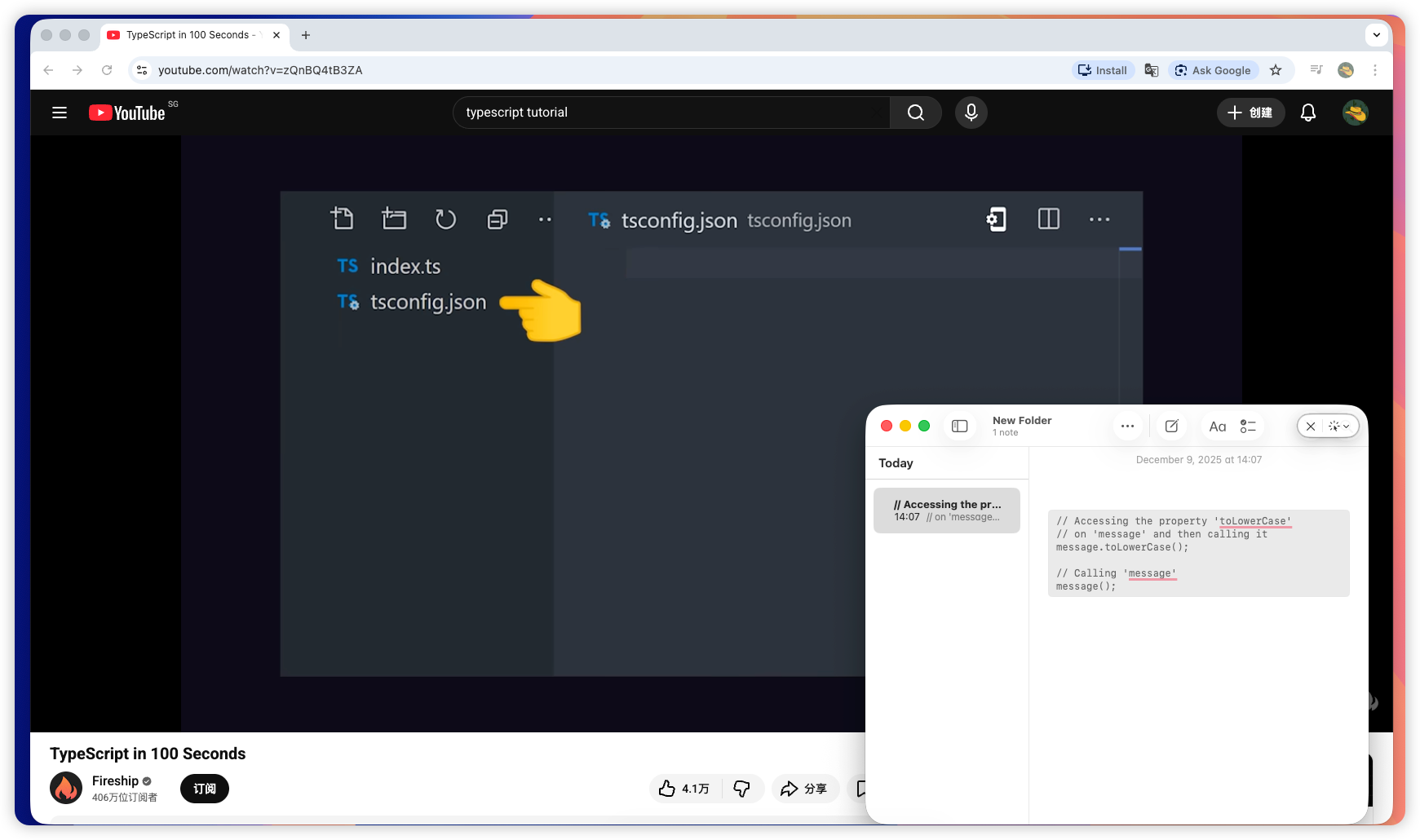
When you need the entire page—not just the player—pin the full browser window so it refuses to hide. Utilities such as Floaty use macOS accessibility APIs to mark any window as “always on top,” giving you a floating YouTube window mac workflow that keeps comments, transcripts, and controls in view.
How Pinning Works
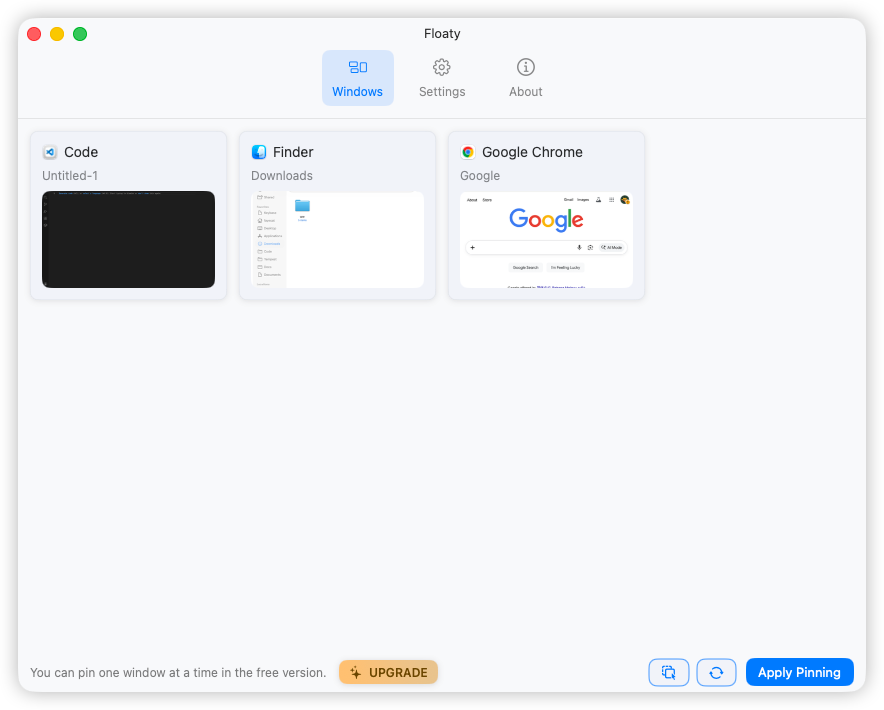
- Install Floaty (free download) and grant Accessibility access the first time it launches.
- Open your video in Safari, Chrome, or any other browser.
- Click the Floaty menu bar icon to see your current windows.
- Select the browser window or tab that holds YouTube.
- Hit “Apply Pinning.” Floaty highlights the window so you know it is locked in place.
- Resize and place it anywhere. Dock it to an edge or overlap it with partial transparency if you are on Floaty Pro.
- Unpin with one click when you are done.
Because Floaty targets windows rather than media elements, the same workflow covers Twitch streams, recorded webinars, documentation tabs, PDFs, and native apps. Floaty Pro even lets you pin multiple windows—perfect for keeping Notes beside YouTube—making it the most reliable way to keep video always on top mac without hacks. If you need a deeper walkthrough on how to pin any app window on macOS, that guide pairs well with this tutorial.
Why Pinning Beats PiP
- Full interface access. You never lose transcripts, chapters, or description links.
- Multi-tab workflows. Queue an entire playlist, switch to Stack Overflow, and the same window stays pinned.
- Totally resizable. Stretch it to mimic a small monitor or shrink it to PiP size.
- Works beyond video. Float the same window when you switch to a notion doc, a code preview, or an interactive lab.
- Advanced controls. Floaty Pro adds transparency, click-through, global hotkeys, and multi-window support for complex setups.
In short, Floaty turns “youtube always on top mac” from a niche problem into a repeatable workflow. You get a proper floating workspace that moves with you, perfect for anyone who relies on rich video interfaces while multitasking.
When This Is Useful
The floating workflow pays off whenever multitasking involves instructions or side-by-side comparisons:
- Coding tutorials. Keep VS Code, a terminal, and the floating player visible so you can pause and copy commands without space-jumping.
- Design or motion lessons. Overlay the YouTube window atop Figma and compare reference frames instantly.
- Studying for exams. Pin lecture videos while you type summaries in Notes or Notion and highlight timestamps in the transcript.
- Professional training and webinars. Float the broadcast next to docs or chat so you can respond to teammates in real time.
- DIY builds and studio setups. Prop the video near your parts list to double-check wiring, measurements, or lighting diagrams.
When you minimize window shuffling, you save real minutes each session. The instructions stay only a glance away, and the brainpower usually spent hunting for the video can go back into the work itself.
Conclusion
macOS still lacks a universal “always on top” checkbox, so the default behavior will always hide YouTube when you click into another app. PiP is a helpful first step for casual viewing, but it strips away the rest of the interface and only works for media players. When your workflow demands transcripts, chat, comments, or simultaneous reference material, the better move is to pin the entire window.
Floaty makes that upgrade painless. A single shortcut locks your YouTube window above everything else, effectively creating a custom floating youtube window mac setup. You can keep the tab in full view, add transparency for a layered layout, and even float additional windows when your tasks get complex. The result: you truly can watch youtube while working mac-style without sacrificing focus.
Try the PiP method when you just need background viewing. When the project is hands-on, pin the window with Floaty, keep video always on top mac, and enjoy a calmer multitasking routine.
Keep YouTube visible while you work
Floaty turns any Mac window into a floating PiP-style panel, so your YouTube tutorials, notes, and timelines are always within reach. Keep a browser tab pinned for transcripts, float your note-taking app on top, or stack multiple overlays when deep in study mode.
👉 Download Floaty — Free
👉 Upgrade to Floaty Pro — unlock multi-window pinning, opacity, and click-through controls.