
If you want to pin a window on top on Mac, macOS will not give you a built-in switch. The frontmost window changes whenever you click another app, so your reference window can disappear right when you need it.
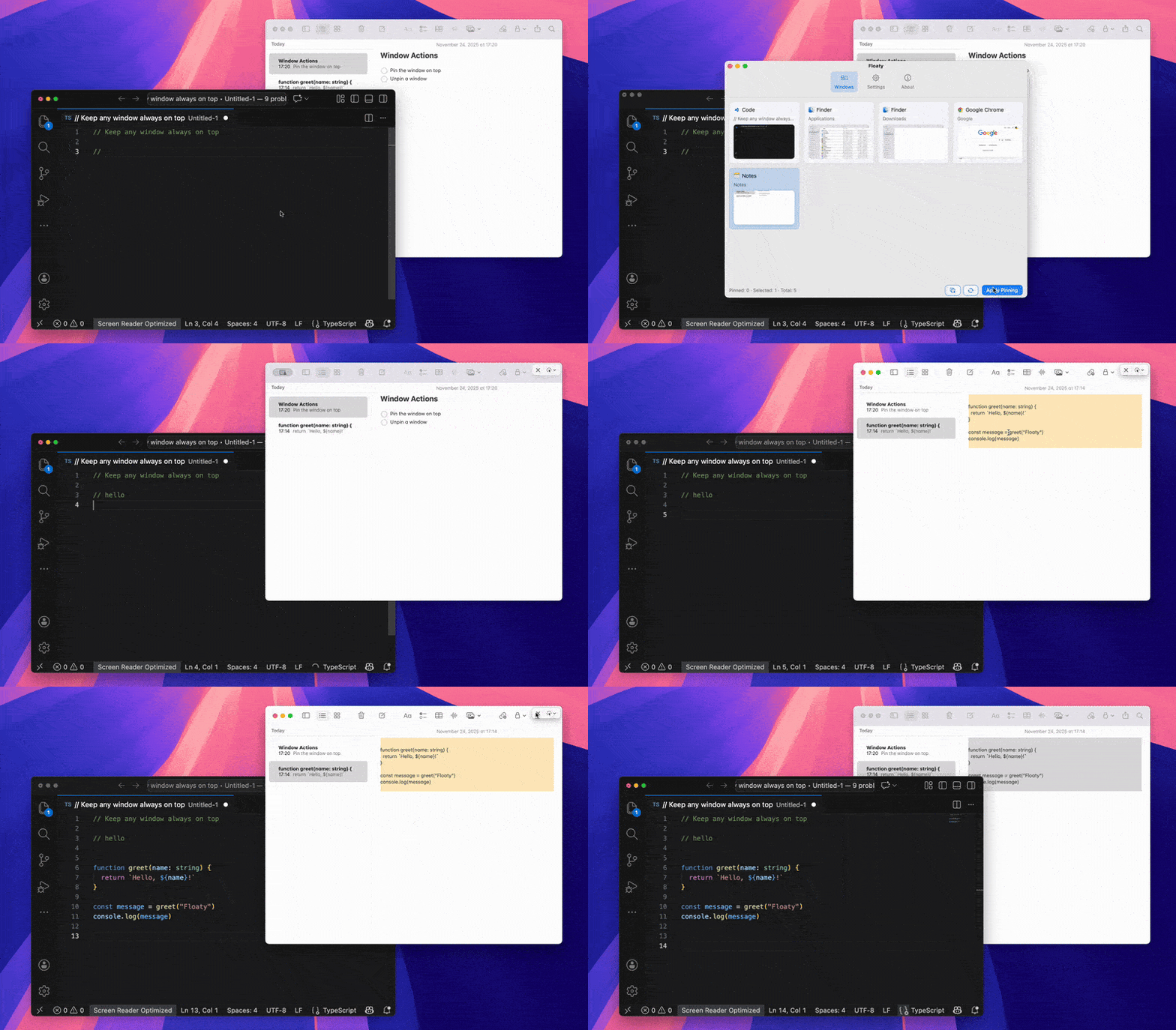
The most direct fix is to use Floaty to pin the specific app window you want to keep visible.
Quick Steps
- Open the Mac app window you want to pin.
- Open Floaty from the menu bar.
- Select the window from Floaty’s window list.
- Click Apply Pinning.
- Keep working in another app while the pinned window stays on top.
Download Floaty for Mac if you want to try the workflow now.
Can You Pin a Window on Mac Without an App?
Not for normal app windows.
macOS includes Split View, Stage Manager, Mission Control, Spaces, and Picture-in-Picture, but none of those gives every app a true “pin this window above others” button.
Picture-in-Picture can float a video. Split View can place two apps side by side. Stage Manager can group apps. But if you want a normal window like Notes, Preview, Chrome, ChatGPT, Zoom, Finder, or Terminal to stay visible while you work in another app, you need a utility.
For the broader comparison of all methods, read the Always On Top for Mac guide.
How to Pin Any App Window with Floaty
Use this when you want one specific app window to stay visible.
1. Open the Window You Want to Pin
Open the app and make sure the exact window is visible. This can be a browser window, meeting window, PDF, notes window, AI assistant, or terminal.
2. Choose the Window in Floaty
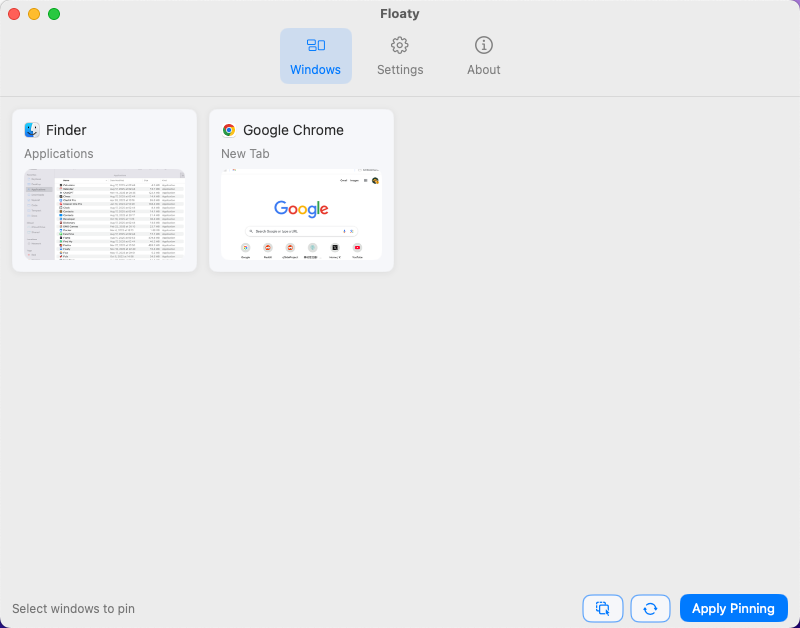
Open Floaty from the menu bar and pick the window from the live window list.
3. Apply Pinning
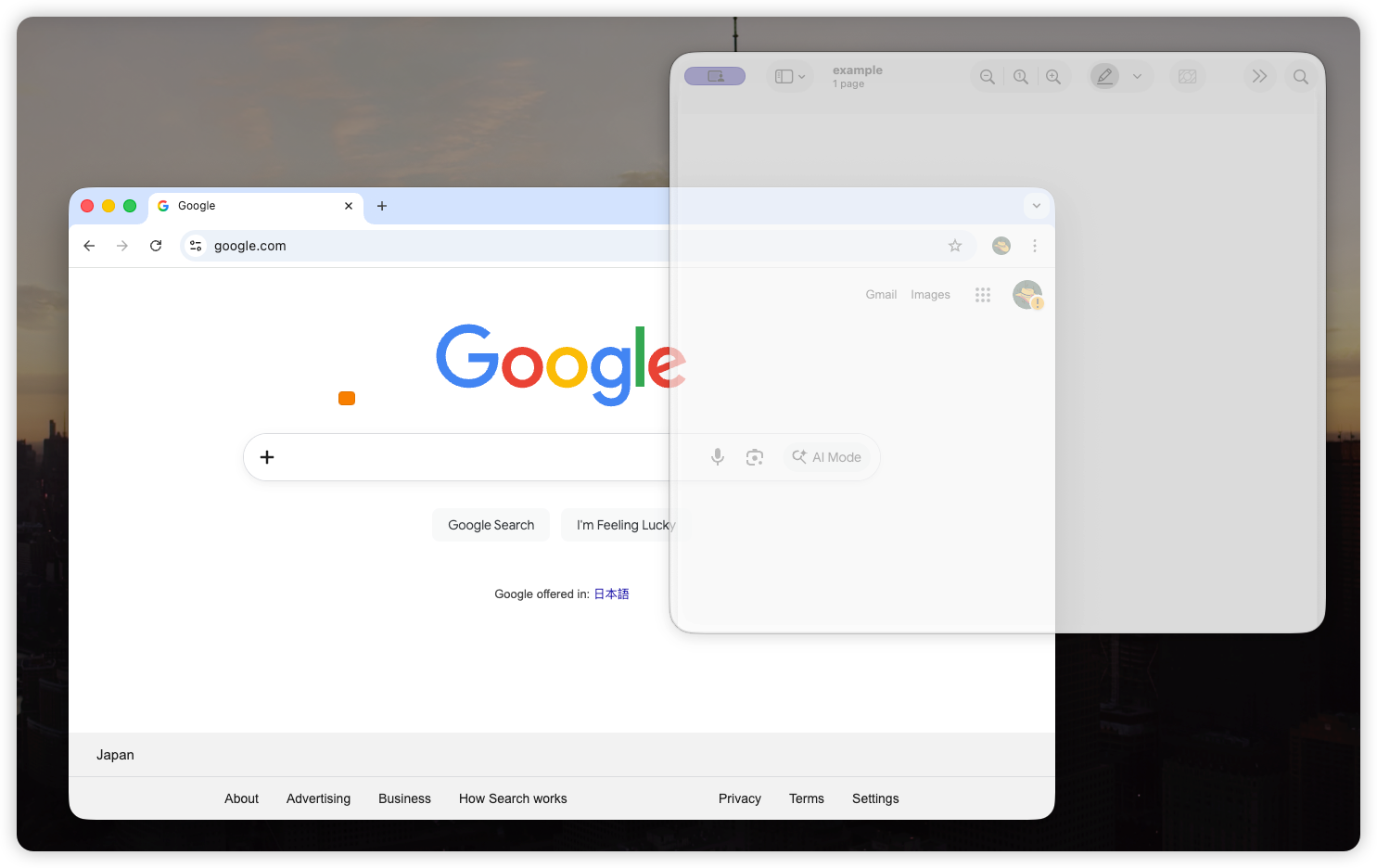
Click Apply Pinning. The selected window stays above your other normal app windows while you continue working.
4. Adjust Opacity or Click-Through
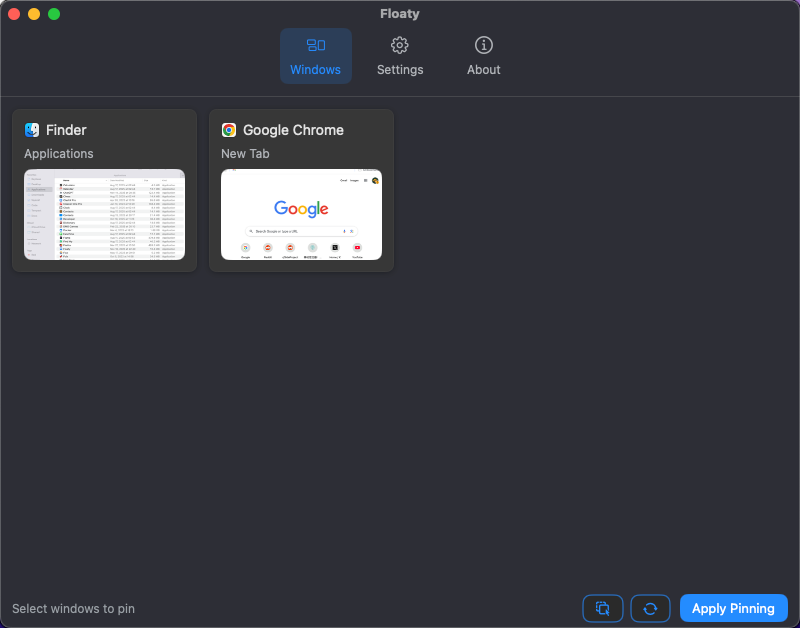
If the pinned window blocks too much of your screen, lower its opacity. If you want to see the floating window while clicking the app underneath, use click-through.
This is useful when you are pinning reference material, not actively typing inside the pinned window.
Common Windows People Pin on Mac
Pin ChatGPT or Claude While Coding
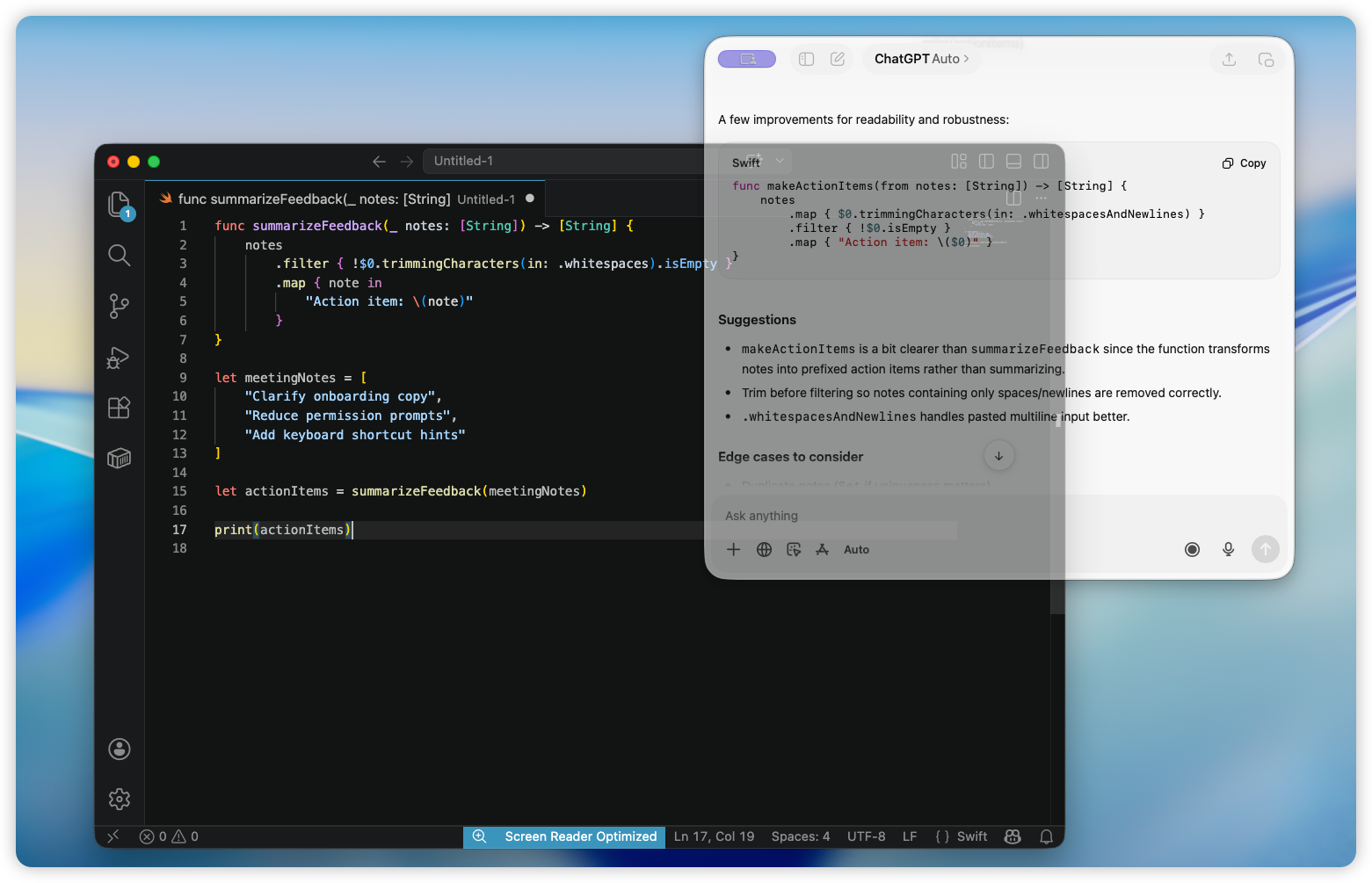
Keep ChatGPT, Claude, documentation, or a browser reference visible next to VS Code, Xcode, Terminal, or Cursor. This helps when you want to compare code, paste snippets, or follow a debugging explanation without switching windows.
Read the ChatGPT and Claude always-on-top guide.
Pin a PDF or Preview Window
Pin a research paper, spec, legal document, design brief, or book page above your writing or editing app. This is one of the strongest single-monitor workflows because it keeps source material visible without shrinking both windows into an awkward split view.
Read the PDF and Preview always-on-top guide.
Pin Notes During a Zoom Meeting
Keep Apple Notes, Notion, or an agenda visible during Zoom or Google Meet. You can keep talking points on screen while typing in another app.
Read the Notes always-on-top guide or the Zoom always-on-top guide.
Pin YouTube or a Browser Window
Picture-in-Picture is fine when you only need the video. Floaty is better when you want the full browser window, transcript, comments, playlist, documentation page, or tutorial controls to stay visible.
Read the guide to watching YouTube while working on Mac or the Chrome and Safari always-on-top guide.
Floaty vs Rectangle Pro for Pinning Windows
Rectangle Pro can pin a window on top, and it is a good option if you already use it for snapping, resizing, and keyboard shortcuts.
The difference is focus.
| Tool | Best for | Pinning experience |
|---|---|---|
| Floaty | Pinning one or more app windows with clear controls | Built around always-on-top, opacity, click-through, and live window selection |
| Rectangle Pro | Window snapping and layout management | Always-on-top is one feature inside a larger window manager |
| BetterTouchTool | Gestures, triggers, and advanced automation | Powerful, but usually more setup than a simple pin workflow |
| Picture-in-Picture | Videos | Works for video only, not full app windows |
If you want a deeper comparison, read Rectangle Pro vs Floaty.
If you are choosing between a snapping tool and a dedicated pinning tool, read Magnet vs Floaty.
If you are considering a broader automation tool, read BetterTouchTool vs Floaty before deciding whether you need triggers and gestures or just a focused pinning workflow.
Tips for Better Window Pinning on Mac
- Use a normal window instead of macOS fullscreen mode when possible.
- Resize the pinned window before pinning so it does not cover your main work.
- Use opacity for reference windows like PDFs, notes, and dashboards.
- Use click-through when you want to see a window but interact with the app underneath.
- Pin fewer windows than you think you need; one strong reference window is usually better than a cluttered screen.
Troubleshooting
The pinned window disappears in fullscreen mode
Fullscreen apps live in separate macOS Spaces. For the most predictable pinning behavior, keep your main app in a normal window or use Split View instead of true fullscreen.
I do not see the window in Floaty
Make sure the app window is open and visible, then check that Floaty has Accessibility and Screen Recording permissions in macOS System Settings.
A security-sensitive app will not pin
Some apps, especially banking, DRM, password, or protected content apps, can block external window control. In those cases, macOS may prevent pinning.
Rectangle Pro pinning does not feel persistent
Rectangle Pro’s always-on-top behavior is useful, but it is shortcut-based and part of a broader window manager. If you mainly want a dedicated pinned-window workflow, Floaty is usually more direct.
FAQ
How do I pin a window on top on Mac?
Open the window, select it in Floaty, and click Apply Pinning. The window stays visible above your other normal app windows.
Can I pin any app window on macOS?
Most normal app windows can be pinned. Some protected apps may block automation or screen access, and fullscreen Spaces can limit overlay behavior.
Can macOS pin windows on top of others by default?
No. macOS does not include a native always-on-top toggle for normal app windows.
Can I pin multiple windows at the same time?
Yes. Floaty can keep multiple windows pinned, which is useful for workflows like Notes plus Zoom, ChatGPT plus documentation, or PDF plus writing.
What is the easiest app to pin windows on Mac?
Floaty is the easiest choice if your main goal is pinning windows. Rectangle Pro and BetterTouchTool can also help, especially if you already use them for broader Mac automation or window management.
Keep Your Most Important Window Visible
Floaty is made for the simple moment when one window should not disappear behind everything else.
Related Guides
- Always On Top for Mac: Keep Any Window Visible
- Single Monitor Productivity on Mac: Work Faster Without a Second Display
- Best Picture-in-Picture Alternatives for Mac
- How to Create a Floating Window on Mac
- Magnet vs Floaty: Window Snapping vs Always-On-Top on Mac
- BetterTouchTool vs Floaty: Always-On-Top Windows on Mac
- How to Keep Any Window Always on Top on macOS
- Pin Window on Mac: the macOS Always on Top playbook
- How to Keep PDF and Preview Always on Top on Mac
- How to Keep Notes Always on Top on Mac
- How to Keep Chrome or Safari Always on Top on Mac