
Quick Answer
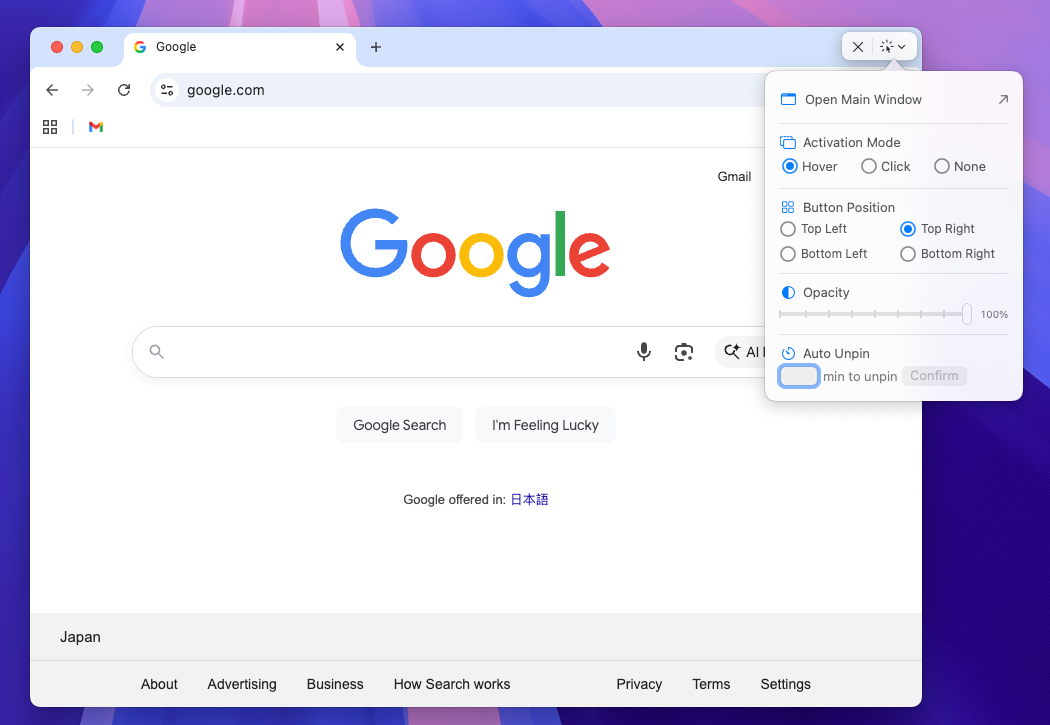
macOS does not include a universal always-on-top switch for normal Chrome, Safari, Arc, Edge, or Brave windows.
You have three practical options:
- Use Picture-in-Picture when you only need a video to float.
- Use Split View or Stage Manager when the browser only needs to sit beside one app.
- Use Floaty when you want the full browser window to stay above your active workspace.
For the most flexible setup, move the important tab into its own browser window, select that window in Floaty, and click Apply Pinning. The browser stays visible while you code, write, review a document, watch a tutorial, monitor a dashboard, or follow a web meeting.
Why Browser Windows Keep Disappearing
Chrome and Safari are often not the main task. They are the reference layer around the task.
You might be editing code while reading documentation, writing a report while checking a source, watching a tutorial while practicing in another app, or keeping a dashboard open while working in a spreadsheet. The problem is simple: as soon as you click into VS Code, Xcode, Pages, Figma, Terminal, Preview, or Numbers, the browser window can fall behind the active app.
That is the intent behind searches like Chrome always on top Mac, Safari always on top Mac, pin browser window Mac, and keep browser window on top Mac. People are usually not asking for a full window manager. They want one browser window to stay visible.
For the broader macOS behavior, read the guide to keeping any window always on top on Mac.
Built-In Options and Their Limits
| Method | Best for | Limit |
|---|---|---|
| Picture-in-Picture | Floating a video player | Shows only the video, not the full page |
| Split View | Browser beside one app | Rigid layout; not a floating window |
| Stage Manager | Grouping browser and app windows | Good for organization, not true always-on-top behavior |
| Separate browser window | Isolating the important tab | Still falls behind when another app takes focus |
| Floaty | Pinning a full browser window | Requires Accessibility and Screen Recording permissions |
Picture-in-Picture is useful for YouTube and other video pages, but it strips away comments, transcripts, playlists, dashboards, docs, form fields, and browser controls. If your workflow needs the full page, pinning the full browser window is the better fit.
For a video-specific workflow, use the YouTube always-on-top guide. This article focuses on the full browser window.
How to Keep Chrome or Safari Always on Top
1. Move the important tab into its own window
Floaty pins windows, not individual tabs. If your useful page is buried in a busy tab set, drag it into a separate Chrome, Safari, or Arc window first.
This is worth doing even if you only have one display. A dedicated browser window is easier to identify, resize, pin, and unpin.
2. Resize the browser before pinning
For docs, chats, dashboards, and tutorials, a smaller browser window usually works better than a full-size one.
Try one of these shapes:
| Browser content | Good window shape |
|---|---|
| Documentation | Narrow side panel |
| Dashboard or chart | Medium floating panel |
| ChatGPT, Claude, or Perplexity | Tall assistant panel |
| Google Meet or web call | Compact corner window |
| YouTube transcript or course page | Wide but short panel |
The goal is to keep the browser readable without letting it dominate the app underneath.
3. Select the browser window in Floaty
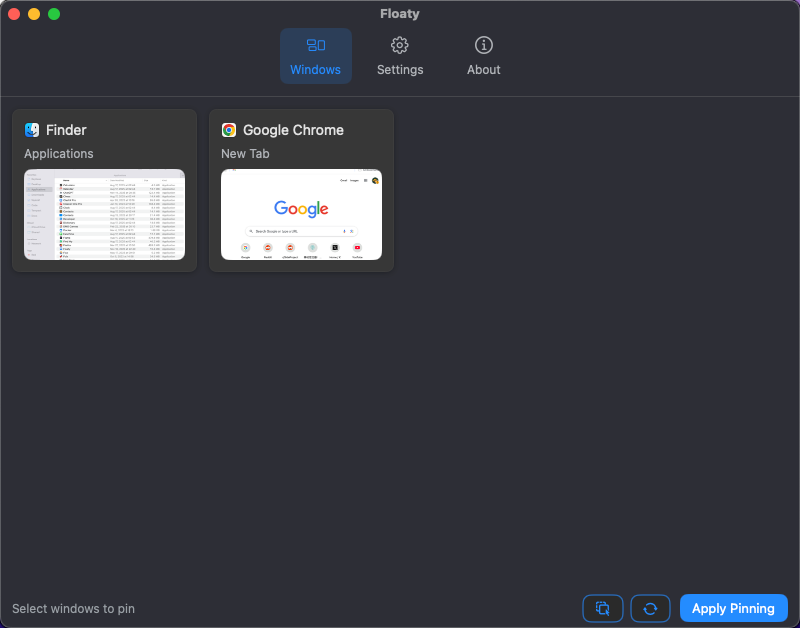
Open Floaty from the menu bar and choose the Chrome, Safari, Arc, Edge, or Brave window from the live window list. If several browser windows are open, use the preview to pick the correct one.
4. Apply pinning
Click Apply Pinning. The browser window now stays above normal Mac windows while you keep working in another app.
This is useful when the page is reference material rather than the active workspace. You can keep typing in the editor, spreadsheet, design tool, or document while the browser remains visible.
5. Use opacity or click-through when the browser is passive
Some browser windows should be visible but not constantly interactive. A dashboard, transcript, reference doc, or checklist may work better as a passive overlay.
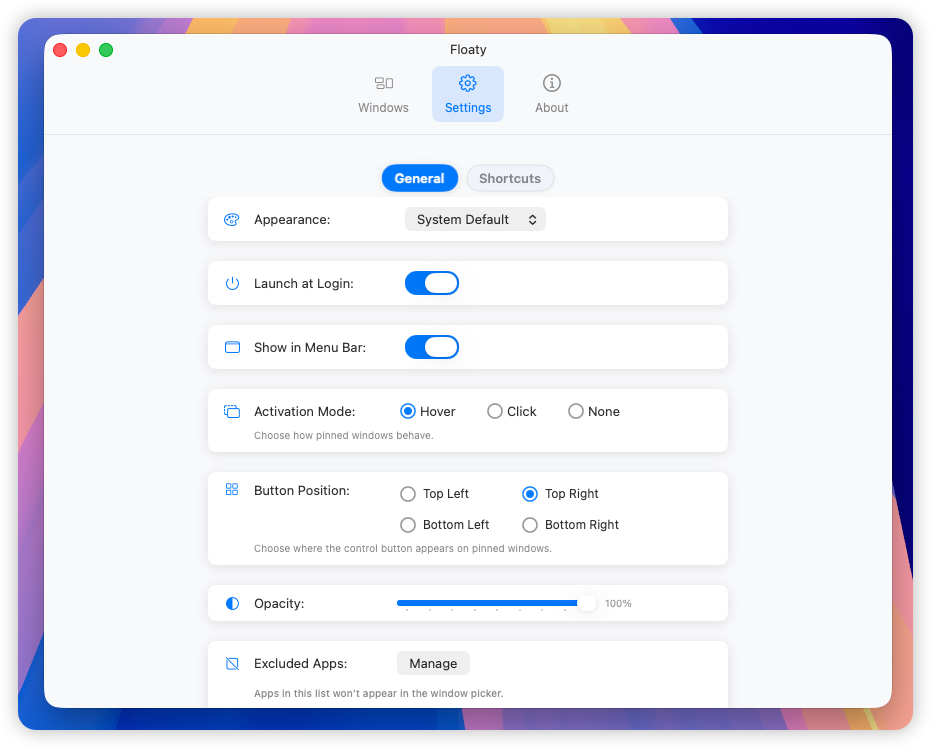
Floaty Pro can lower opacity so the browser does not block your workspace visually. Click-through helps when you want to see the browser but send pointer input to the app underneath.
Browser Workflows That Benefit Most
Documentation beside VS Code, Cursor, or Xcode
Developer docs usually live in the browser, while the actual work happens in an editor or IDE. Pinning Chrome or Safari keeps the exact API reference, framework docs, Stack Overflow answer, or internal wiki page visible while you edit.
If Terminal output is also part of the loop, pair this with the Terminal always-on-top workflow.
ChatGPT or Claude in a browser window
Many people use ChatGPT, Claude, Perplexity, Gemini, or other AI tools inside Chrome or Safari instead of a desktop app. Move the chat into its own browser window, pin it, and keep it beside your document, code, PDF, or design file.
For the full AI setup, read the ChatGPT and Claude always-on-top guide.
Web dashboards and monitoring pages
Analytics, product metrics, CI dashboards, status pages, trading screens, and admin panels are often useful as glanceable context. Pinning the browser turns the page into a small live panel while the rest of the desktop stays usable.
Use opacity carefully here. Dashboards with large numbers and charts can handle more transparency than dense documentation.
Google Meet, browser calls, and shared screens
Not every call happens in Zoom. If you use Google Meet, Around, Whereby, or another browser-based meeting tool, pinning the browser window can keep the call visible while you take notes, review a document, or check a private agenda.
For native Zoom meetings, use the dedicated Zoom always-on-top guide.
Browser PDFs and research sources
Many PDFs open directly in Chrome or Safari. Pinning the browser works well for papers, contracts, specs, forms, and source documents that need to stay visible while you write or review something else.
For Preview, Acrobat, and document-specific workflows, see the PDF and Preview always-on-top guide.
Tutorials with the full page visible
PiP is fine when you only need the video. Pin the full browser window when you need the transcript, comments, course navigation, description links, or chapter markers. This is especially useful for coding tutorials, product walkthroughs, repairs, recipes, and online courses.
Tips for a Cleaner Browser Overlay
- Keep one task per pinned browser window.
- Move the useful tab into its own window before pinning.
- Hide bookmarks or sidebars if they waste space.
- Avoid true macOS full-screen Spaces for the main app; normal windows are more predictable.
- Use opacity only when the text remains readable.
- Use click-through for passive dashboards, not for pages you need to click often.
- Unpin the browser when the task is done so it does not stay in the way.
Privacy and Permissions
Floaty uses Accessibility permission to manage windows and Screen Recording permission to show local window previews. These permissions help Floaty identify the right Chrome, Safari, or browser window on your Mac.
Floaty does not upload your browser tabs, page contents, documents, dashboards, AI chats, meeting content, or screen contents.
Try Floaty with Your Browser
If your browser is part of your working context, keeping it visible can remove a lot of window switching.
Download Floaty Free to pin one browser window. Upgrade to Floaty Pro when you want multiple pinned browser windows, opacity, click-through, auto-unpin, and advanced shortcuts.
FAQ
Can Chrome stay always on top on Mac by itself?
Not as a universal browser-window behavior. Chrome can use Picture-in-Picture for supported videos, but keeping the full Chrome window above other Mac apps requires a window-level tool.
Can Safari stay always on top on Mac?
Safari supports Picture-in-Picture for videos, but normal Safari windows do not have a general always-on-top switch. Use Split View for side-by-side work or Floaty when the full Safari window needs to stay above another app.
Can I pin a single browser tab?
Floaty pins windows, not individual tabs. Move the tab into its own Chrome, Safari, or Arc window first, then pin that window.
Does this work with Arc, Edge, Brave, or Firefox?
Usually yes. Floaty pins normal macOS windows, so the same workflow works for most browsers as long as macOS exposes the browser window normally.
Can I keep a browser window and another app on top together?
Yes. Floaty Pro supports multiple pinned windows, so you can keep a browser doc and a Notes window, PDF, Terminal, AI assistant, or meeting window visible together.