
Terminal is one of those windows you do not always want to focus, but you often need to see.
You start a dev server, run tests, tail logs, watch Docker output, SSH into a box, or keep a build process running. Then you click back into VS Code, Cursor, Xcode, Safari, or a browser preview, and the Terminal window disappears behind the real work.
That is why developers search for things like Terminal always on top Mac, keep Terminal visible while coding, pin Terminal above VS Code, or iTerm always on top Mac. The goal is not to redesign the entire desktop. It is simpler: keep one useful Terminal window visible while the editor, browser, or design tool remains active.
Quick Answer
macOS does not include a native always-on-top toggle for Terminal, iTerm2, Warp, or other normal app windows.
The closest developer-friendly workflow is to use Floaty:
- Open Terminal, iTerm2, Warp, or another terminal app.
- Start the command you need to watch.
- Select that terminal window in Floaty.
- Pin it above your editor, browser, or simulator.
- Optional: use opacity or click-through when the terminal should act like a passive log overlay.
For the broader macOS background, read Always On Top for Mac: Keep Any Window Visible. For a general app-by-app walkthrough, see How to Pin Any Window on Top on Mac.
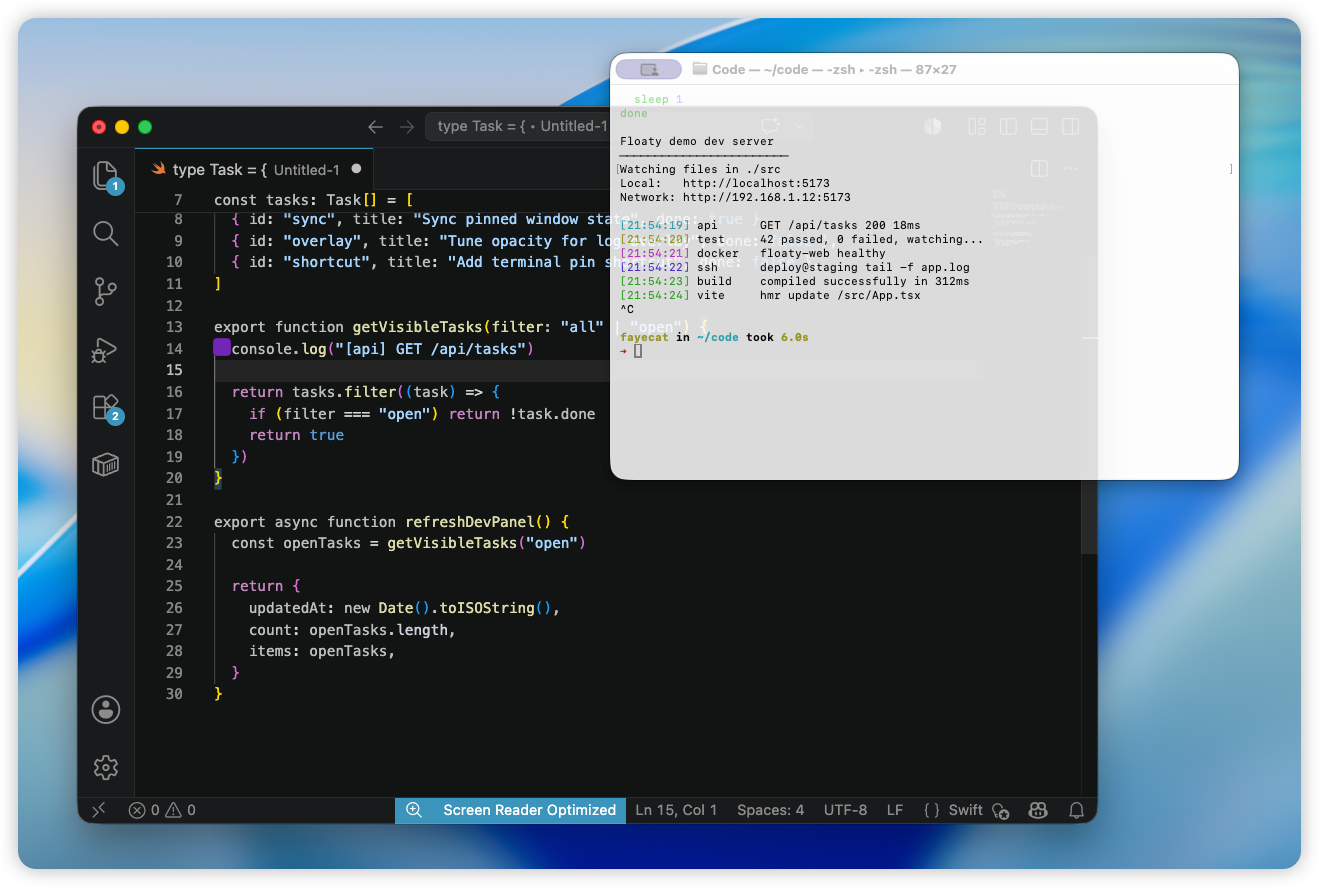
Why Developers Want Terminal to Stay Visible
Terminal is often a status panel for whatever you are building.
Common examples:
npm run dev,pnpm dev, Vite, Next.js, Astro, Rails, Django, or Laravel logstail -fapplication logs during debuggingdocker compose logswhile a local stack is runningpytest,vitest,cargo test,go test, or XCTest output- SSH sessions for deployments, monitoring, or remote debugging
top,htop,btop,watch, or other live command output- Local tunnel, webhook, queue worker, or background job logs
When those logs disappear, you lose the feedback loop. You edit code, switch back to Terminal, scan output, switch back to the editor, switch back to the browser, and repeat. It is a tiny interruption, but it happens all day.
Keeping Terminal on top turns it into a lightweight dashboard. You can keep typing in your editor while the command output stays visible nearby.
Why macOS Does Not Solve This Natively
Terminal has useful display options, but they are not the same as always-on-top.
You can adjust fonts, colors, profiles, background opacity, tabs, and window groups. iTerm2 and Warp add their own workflow features. But macOS still treats terminal windows like normal app windows: when another app becomes active, the terminal can fall behind it.
macOS offers a few adjacent features:
| macOS feature | What it helps with | Why it is not enough |
|---|---|---|
| Split View | Editor and Terminal side by side | Rigid layout, not a floating log panel |
| Stage Manager | App grouping | Terminal can still move out of view when switching contexts |
| Spaces | Separate desktops | Useful for organization, but not for one visible overlay |
| Terminal opacity | Makes the terminal background transparent | Does not keep the terminal above other apps |
If the real requirement is “keep this Terminal window visible above my coding workspace,” you need a window-pinning tool.
Mac Options for Keeping Terminal Visible
There are three realistic approaches.
| Option | Best for | Trade-off |
|---|---|---|
| Split View or manual layout | Simple editor + terminal setups | Breaks down when you need a browser, docs, simulator, or AI assistant too |
| Window managers | Developers already using snapping and keyboard layouts | Always-on-top is usually a secondary feature |
| Floaty | Turning Terminal into a floating log/status panel | Focused on pinning rather than full layout automation |
Window managers are still useful. If you already live inside Rectangle Pro, BetterTouchTool, or another shortcut-heavy setup, their pinning options may be enough. But if your goal is specifically to keep a terminal window visible while coding, Floaty is more direct.
A Floaty Workflow for Terminal
Here is the simple setup.
- Open Terminal, iTerm2, Warp, or your preferred terminal app.
- Run the command you want to monitor, such as a dev server, test watcher, or SSH session.
- Open Floaty from the menu bar.
- Pick the terminal window from the window list.
- Apply pinning.
- Resize the terminal into a compact log panel.
- Keep coding in VS Code, Cursor, Xcode, Safari, or another app.
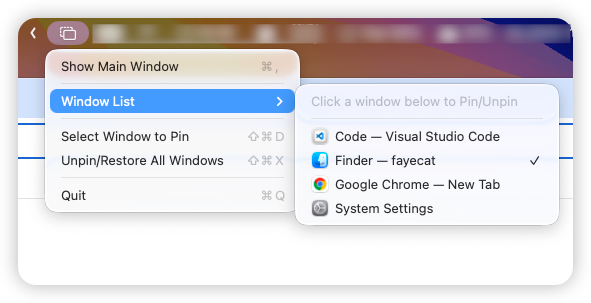
This keeps the terminal visible without turning your whole desktop into a fixed layout. You can move it, resize it, unpin it, or switch it out for another terminal session when the task changes.
Where Opacity and Click-Through Help
For developer workflows, always-on-top is only the first step. The pinned window also has to stay out of the way.
Opacity helps when Terminal is useful but not the main focus. A semi-transparent log panel can sit over a browser preview, documentation page, simulator, or editor without fully hiding what is underneath.
Click-through helps when the terminal is acting as a passive status layer. You can keep logs visible while clicks, drags, and text selection go to the app underneath. That is useful when you want to watch a build, test runner, or server output without accidentally focusing Terminal every time your pointer crosses it.
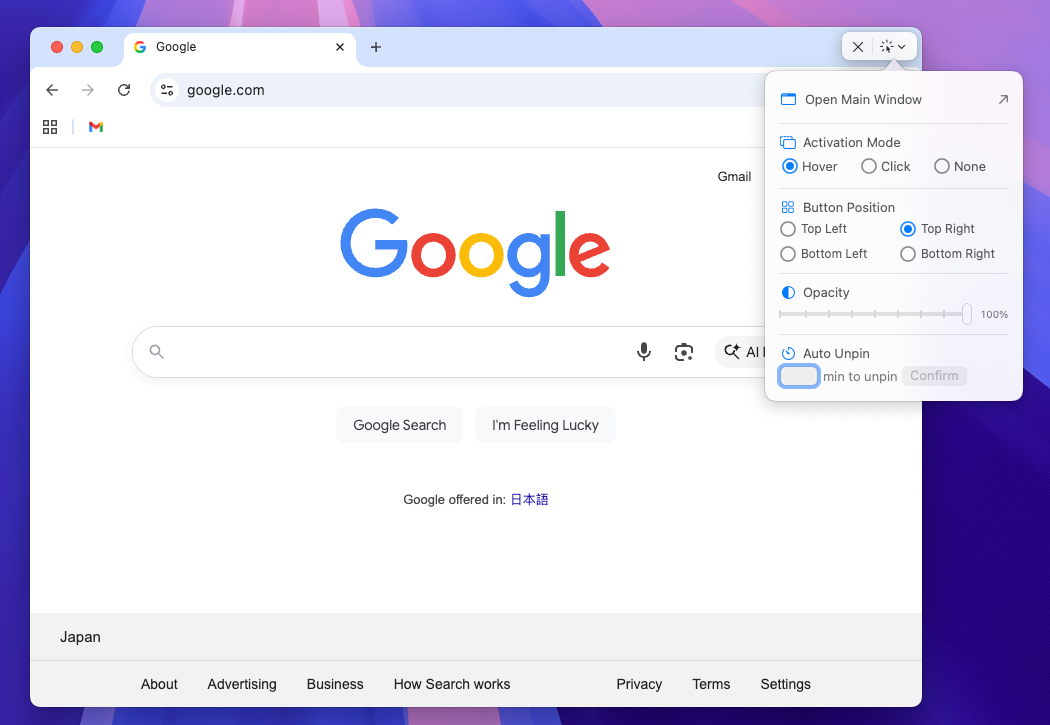
The best setup depends on the task:
| Workflow | Floaty setting that helps |
|---|---|
| Watching dev server logs while editing | Pin Terminal, moderate opacity |
| Monitoring a long-running test suite | Pin Terminal, keep it narrow |
| Reading docs while watching command output | Pin Terminal above the browser |
| Debugging UI while watching local logs | Opacity or click-through |
| Pairing AI, Terminal, and editor | Pin the terminal and AI assistant as separate references |
Developer Setups That Work Well
Terminal Above VS Code or Cursor
This is the classic setup. Keep your editor active and let Terminal sit as a compact panel showing npm run dev, test output, or local server logs. When an error appears, you can react without hunting for the terminal window.
If you also use ChatGPT or Claude while coding, pair this with the ChatGPT and Claude always-on-top guide. A common setup is editor in the center, AI assistant on one side, and Terminal logs pinned near the bottom or edge.
Terminal Above a Browser Preview
Frontend work often means moving between the browser and the terminal. Keep the browser active for inspection, interaction, and reloads while your build output stays visible above it.
This works especially well with Vite, Next.js, Astro, Remix, Rails, Phoenix, or any framework where the terminal prints warnings, compilation errors, or route output.
SSH Session Above Documentation
When you are deploying, checking logs, or debugging a remote service, keep the SSH session pinned while reading docs, dashboards, or issue reports. The terminal remains visible, but the browser stays active.
Docker Logs Above a Local Dashboard
If you are running a multi-service stack, a pinned terminal can show docker compose logs while you interact with an admin panel, API docs, local app, or database UI.
Test Runner Above Xcode or an IDE
For XCTest, Jest, Vitest, Pytest, Cargo, Go, or any watch-mode runner, a pinned terminal becomes a test status panel. You can keep changing code while failures and passes remain visible.
Tips for a Cleaner Terminal Overlay
- Use a dedicated terminal window for the command you want to pin.
- Resize the pinned window into a narrow log panel instead of covering the whole editor.
- Increase terminal font size slightly if you use opacity.
- Avoid true macOS full-screen Spaces for the main app; normal windows are more predictable for overlays.
- Unpin Terminal when the command is finished so your desktop returns to normal.
- Use multiple pinned windows only when each one has a clear job, such as Terminal + AI assistant or Terminal + docs.
FAQ
Can Mac Terminal stay always on top by itself?
Not as a universal macOS behavior. Terminal can change its appearance, profile, and transparency, but macOS does not include a native always-on-top toggle for normal Terminal windows.
Does this work with iTerm2 or Warp?
Yes, as long as the terminal app exposes a normal macOS window that Floaty can select and pin. The same workflow applies to Terminal, iTerm2, Warp, and similar terminal apps.
Can I keep Terminal above VS Code?
Yes. Open the terminal session you want to monitor, select it in Floaty, and pin it. You can keep typing in VS Code, Cursor, or Xcode while the terminal output remains visible.
Does opacity make Terminal hard to read?
It depends on your font, theme, and background. For logs, moderate opacity often works well. For dense output or long stack traces, keep opacity higher so text remains readable.
Can I pin Terminal and ChatGPT at the same time?
Yes. Floaty Pro supports multiple pinned windows, which is useful for developer workflows that combine an editor, terminal logs, browser docs, and an AI assistant.
Try Floaty with Your Developer Workflow
If Terminal is part of your coding loop, keeping it visible can remove a surprising amount of window switching. Floaty lets you turn Terminal into a lightweight floating status panel without forcing your whole desktop into a rigid layout.
Related guides: