
If you are moving from Windows to Mac, one small workflow can feel strangely missing: keeping a window always on top.
On Windows, many people are used to pinning a meeting window, reference document, calculator, browser tab, or AI assistant above everything else. Some users get this behavior from Microsoft PowerToys Always On Top, some from other Windows utilities, and some from apps that include their own floating mode. The exact tool matters less than the habit: one window stays visible while you keep working somewhere else.
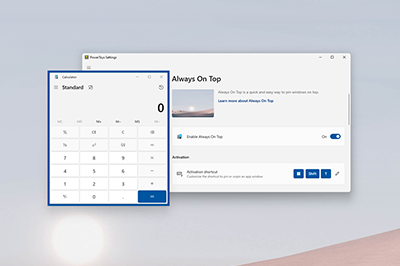
On macOS, the habit does not transfer cleanly. You can use Split View, Stage Manager, Spaces, or Picture in Picture, but none of those gives you a universal “keep this app window above all other windows” shortcut.
That is where Mac always-on-top alternatives come in. You can use a window manager, a video-only Picture in Picture workaround, or a focused pinning tool like Floaty.
Quick Answer for Windows Switchers
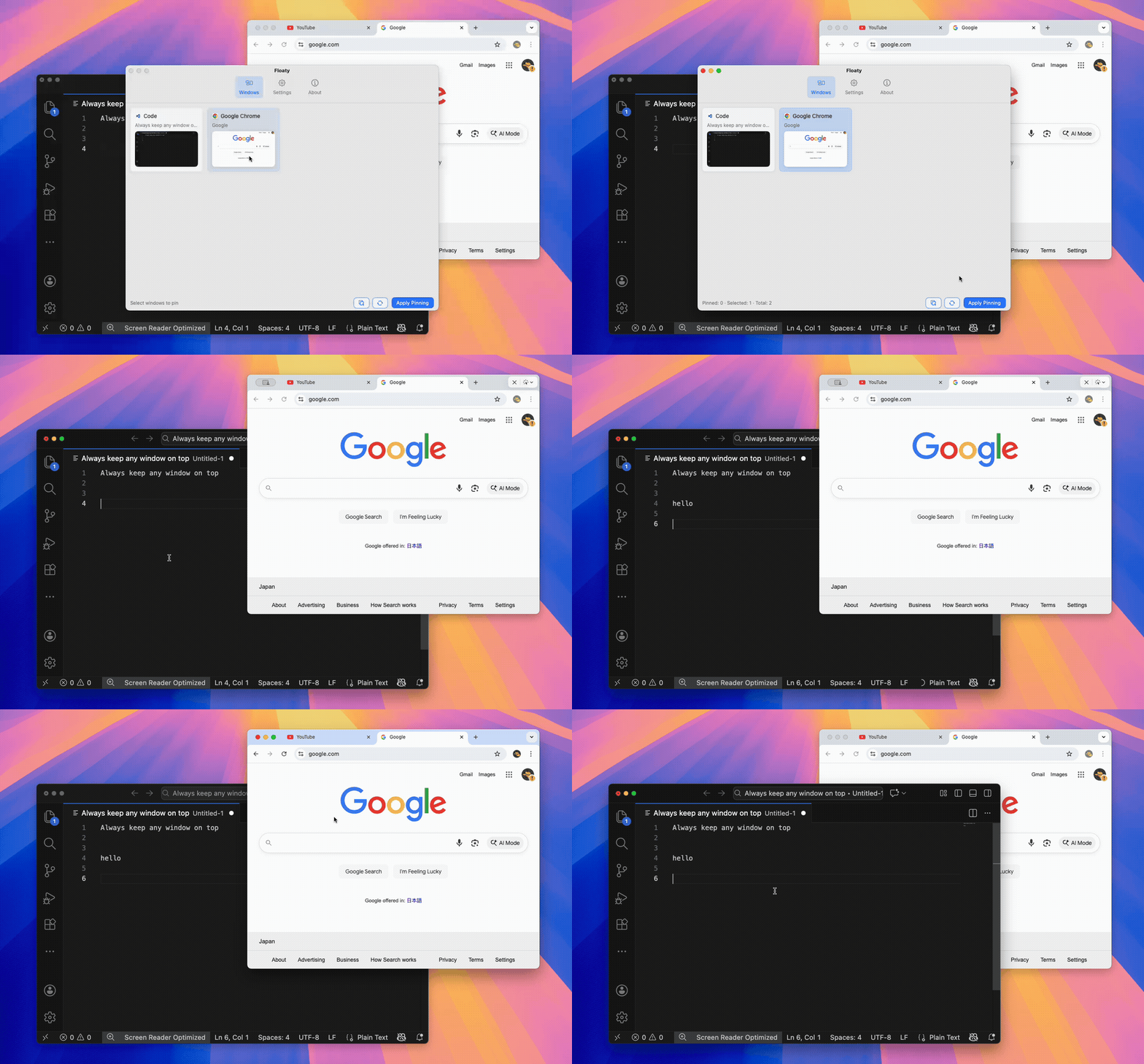
If you only want the short version: macOS does not have a built-in Always on Top shortcut like many Windows users expect. Floaty fills that gap by letting you pin a Mac app window above other apps, then unpin it when you are done.
For the wider macOS comparison, read Always On Top for Mac: Keep Any Window Visible. If you want the full step-by-step tutorial for specific apps like Zoom, Notion, Chrome, and Preview, use How to Pin Any Window on Top on Mac.
Why Windows Users Look for Always-on-Top Tools on Mac
The need usually shows up during real work, not while exploring settings.
You are taking notes in Notion and want the video call to stay visible. You are coding and want documentation or ChatGPT beside the editor. You are filling out a form and need a PDF, email, or spreadsheet to remain in view. On Windows, an always-on-top shortcut may already be part of your muscle memory.
Windows switchers usually describe the problem in a few different ways:
- how to keep a window always on top on Mac
- keep a window on top on Mac like Windows
- always on top Mac shortcut
- pin window on top Mac
- PowerToys Always On Top for Mac
- always-on-top app for Mac after switching from Windows
The wording changes, but the intent is the same: “I need this one window to stay visible while I work somewhere else.”
Does macOS Have a Native Always-on-Top Setting?
No. macOS does not include a built-in always-on-top toggle for normal app windows.
macOS has several window-management features, but they solve adjacent problems:
| macOS feature | What it helps with | Why it is not the same |
|---|---|---|
| Split View | Put two apps side by side | It changes the layout instead of pinning one window above others |
| Stage Manager | Group active apps and reduce clutter | A window can still disappear when you switch stages or apps |
| Spaces | Separate work across desktops | It organizes desktops, but does not float one selected window |
| Picture in Picture | Keep supported videos visible | It mostly works for video, not arbitrary app windows |
So if you want the Windows-style always-on-top behavior on Mac, you need a third-party alternative.
Mac Alternatives to Windows Always on Top
Once you know macOS does not include a native equivalent, the realistic alternatives fall into three groups.
| Mac option | Best for | Trade-off |
|---|---|---|
| Picture in Picture | Videos, lectures, and tutorials | Only works for supported video players, not normal app windows |
| Window managers | People already using snapping, tiling, and shortcuts | Pinning is often a secondary feature inside a larger tool |
| Floaty | Keeping normal Mac app windows above everything else | Focused on pinning rather than full desktop layout management |
For many Windows switchers, Floaty is the closest match to the old mental model: choose a window, keep it above the rest, and remove the pin when you are done.
A Deeper Look at Floaty
Floaty is built for one job: keeping important Mac windows floating above other apps.
It is not a full Windows productivity suite replacement. It does not try to copy every PowerToys feature, window layout tool, launcher, color picker, or keyboard remapper. Floaty focuses on the one workflow people are asking for here: pin this window so it stays on top.
Beyond basic pinning, Floaty adds controls that make floating windows more practical on a real Mac desktop:
- Pin a selected window above other apps
- Pick windows from the menu bar
- Keep multiple reference windows visible when needed
- Adjust opacity so a reference can stay visible without covering your workspace
- Use click-through when a pinned overlay should not steal mouse input
- Apply the workflow to browsers, Preview, Finder, Zoom, Notion, VS Code, and other everyday apps
- Unpin quickly when the task is done
That makes it a clean fit for Windows users who are not looking for a giant window manager. They just want the missing always-on-top behavior on macOS.
How to Keep a Window Always on Top on Mac
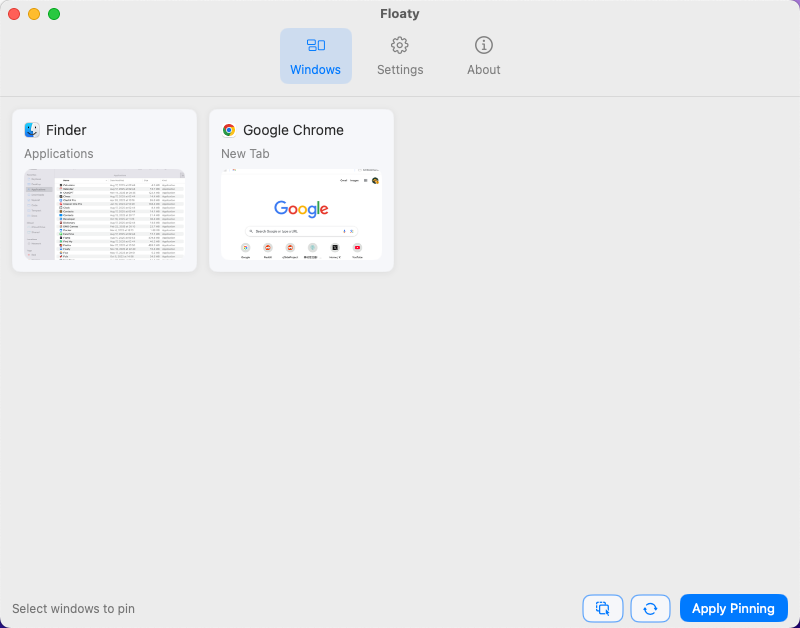
Here is the simple Floaty workflow:
- Download and open Floaty.
- Grant the macOS permissions requested during setup.
- Open the window you want to keep visible.
- Choose the window from Floaty, or use your configured shortcut.
- Pin it above the rest of your desktop.
- Keep working in another app while the pinned window stays visible.
This gives you the same basic mental model many people know from Windows: choose the important window, keep it visible, and remove the pin when you are finished.
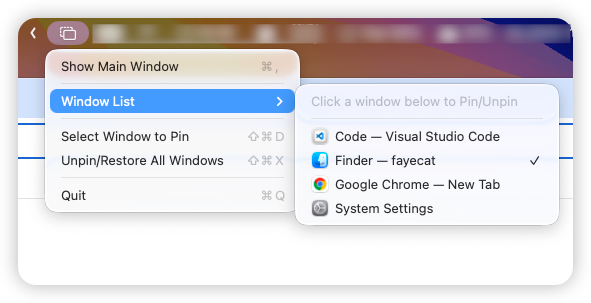
For a broader walkthrough, read How to keep any window always on top on macOS. For a more detailed app-by-app tutorial, the main guide to pinning any app window always on top on macOS covers Zoom, Notion, PDFs, YouTube, and browser windows.
Common Windows-to-Mac Pin-Window Workflows
Keep a Meeting Window Visible
If you came from Windows, you may be used to pinning Teams, Zoom, or a browser-based meeting while working in another app. On Mac, Floaty can keep a meeting window visible while you type notes, edit slides, check a document, or follow a shared screen.
This is helpful when you need to keep:
- Speaker view visible while taking notes
- A shared screen visible while implementing changes
- Captions or reactions visible during a call
- A meeting agenda above your main workspace
Keep ChatGPT, Claude, or a Browser App on Top
AI assistants are a natural always-on-top use case. You ask a question, keep the answer visible, and work in another app without losing the thread.
Floaty can help keep ChatGPT, Claude, Perplexity, documentation, or a browser-based tool visible beside:
- VS Code, Xcode, Cursor, or JetBrains IDEs
- Notion, Obsidian, Apple Notes, or Google Docs
- Figma, Sketch, Final Cut, or other creative tools
- Excel, Numbers, dashboards, or internal web apps
For the dedicated setup, read Keep ChatGPT and Claude always on top on Mac.
Keep a PDF, Preview Window, or Spec Visible
Many Windows users are used to keeping a reference file above the active app. On Mac, this comes up constantly with Preview, PDFs, contracts, product specs, research papers, and QA checklists.
Floaty is useful when you want:
- A product spec above Figma
- A research paper above Notes
- A contract above a browser form
- A checklist above a staging site
- A design brief above Xcode or VS Code
If PDFs are your main use case, see How to keep PDF and Preview always on top on Mac.
Keep a Tutorial or Video Window Visible
Picture in Picture works for many videos, but it is limited. It often removes the page context, comments, playlist, transcript, or controls you may still need.
Floaty helps when you want the whole browser window to stay visible, not just the video frame. That makes it useful for tutorials, online courses, product walkthroughs, live dashboards, and documentation videos.
Why Not Just Use Split View or Stage Manager?
Split View and Stage Manager are useful, but they are not always-on-top tools.
Use Split View when you want two apps in a fixed side-by-side layout. Use Stage Manager when you want to organize groups of apps. Use Picture in Picture when you only need a supported video player.
Use Floaty when one specific window should stay visible even while you interact with another app.
That distinction matters. Always-on-top is not just a layout preference; it is a reference workflow. The pinned window is not necessarily the main app. It is the context you do not want to lose.
What About Rectangle Pro or BetterTouchTool?
Rectangle Pro and BetterTouchTool can also be useful, especially if you already use them.
| Tool | Best fit |
|---|---|
| Rectangle Pro | You already use Rectangle and want pinning inside a broader window manager |
| BetterTouchTool | You enjoy custom gestures, triggers, and automation |
| Floaty | You want a focused always-on-top tool for Mac |
If your real goal is simply “keep this window on top,” a dedicated tool is usually easier to understand and maintain.
For a wider comparison of tool categories, read Best macOS tools to pin windows always on top or the full macOS always-on-top landscape guide.
FAQ
Can Mac keep windows always on top like Windows?
Not with a built-in system setting. macOS does not include a universal always-on-top shortcut for normal app windows.
What should Windows users use on Mac for always-on-top windows?
Floaty is a dedicated Mac app for pinning windows above other apps. It is designed for the always-on-top workflow rather than broad window management.
Is Floaty a PowerToys replacement for Mac?
No. Floaty is not a replacement for the full Microsoft PowerToys suite. It only covers the always-on-top / pin-window behavior that some Windows users know from PowerToys.
Can I pin multiple windows on Mac?
Yes. Floaty supports workflows where more than one window needs to stay visible.
Does Floaty work with browser windows?
Yes. Floaty works well with common browser workflows, including Safari, Chrome, Arc, browser-based AI assistants, dashboards, documentation, and web apps.
Try Floaty for Always-on-Top Windows on Mac
If you moved from Windows to Mac and miss the ability to keep one window above everything else, Floaty is built for that exact gap.
It keeps the promise simple:
- Choose the window that matters
- Pin it above the rest
- Keep working in another app
- Unpin it when the context is no longer needed
More guides for Mac multitasking:
- macOS always-on-top landscape guide
- How to Pin Any Window on Top on Mac
- Pin Window on Mac: the macOS Always On Top playbook
- How to keep any window always on top on macOS
- macOS multitasking workflow with floating windows
- Keep YouTube always on top on macOS
Source note: this article references Microsoft’s official PowerToys Always On Top documentation for the Windows shortcut and feature behavior.