
Quick Answer
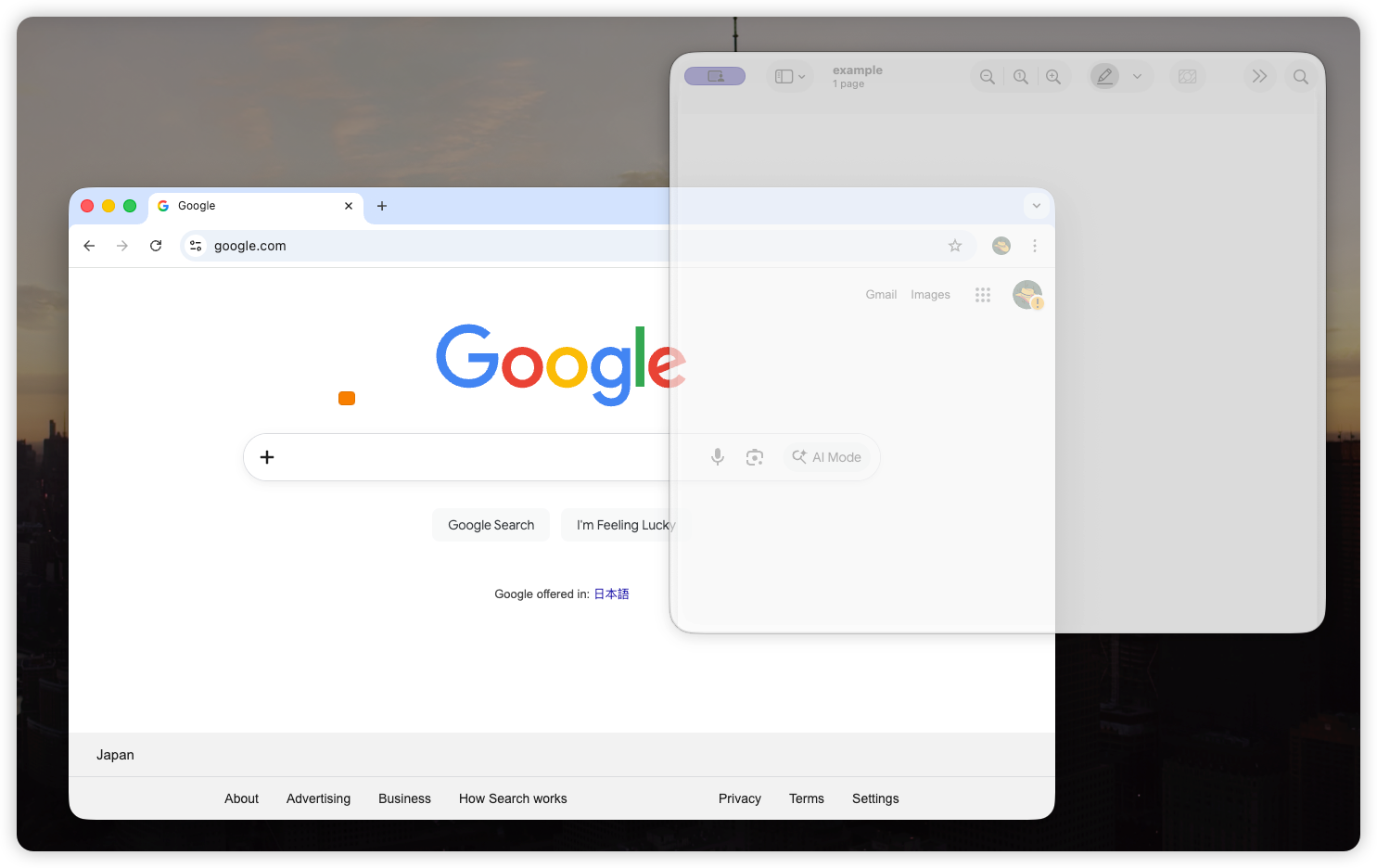
The fastest way to keep a PDF always on top on Mac is to pin the Preview, Acrobat, browser, or PDF reader window with Floaty:
- Open the PDF in Preview, Acrobat, Safari, Chrome, or your preferred PDF app.
- Launch Floaty.
- Select the PDF or Preview window from the live window list.
- Click Apply Pinning.
- Move or resize the PDF so it stays visible while you write, code, study, or design.
That gives you a floating PDF window on Mac without scripts, old plugins, or disabling security settings. Floaty works best with normal macOS windows; true full-screen Spaces are isolated by macOS, so use a regular windowed layout or Split View for the most reliable result.
Why Preview Does Not Stay on Top
Preview is great for reading and marking up PDFs, but it behaves like any other Mac app. When you click into Pages, Word, VS Code, Xcode, Figma, Safari, or Notes, macOS brings that app forward and lets Preview fall behind it.
That is the problem behind searches like preview always on top mac, keep pdf always on top mac, and pin pdf window mac. The PDF is not the main task; it is the reference you need to keep visible while the real work happens somewhere else.
macOS does not include a native “always on top” switch for Preview. Split View and Stage Manager can help arrange windows, but they do not turn a PDF into a persistent overlay. Once your workflow needs the document to stay visible while another app is active, you need a window-level pinning tool.
For the broader background, see the full guide to keeping any window always on top on Mac.
What Works for PDF Always-on-Top
| Method | Best for | Limits |
|---|---|---|
| Split View | Reading a PDF beside one app | Fixed layout, not really always on top |
| Stage Manager | Keeping groups of apps nearby | Inactive windows can still get hidden |
| Picture-in-Picture | Video only | Does not work for static PDFs or Preview |
| Rectangle Pro or window managers | Users already using layout shortcuts | Pinning is usually a secondary feature |
| Floaty | Pinning Preview, Acrobat, browser PDFs, specs, and research docs | Requires Accessibility and Screen Recording permissions |
If you simply want two apps side by side, Split View is fine. If you want a PDF, contract, API spec, textbook, or design reference to stay above the app you are using, Floaty is the more direct fit.
How to Pin a PDF Window on Mac
1. Open the PDF you need
Open the document in Preview, Adobe Acrobat, PDF Expert, Safari, Chrome, or another PDF reader. Floaty pins the app window, so the same workflow works for most PDF tools as long as macOS exposes the window normally.
2. Select the PDF in Floaty
Open Floaty from the menu bar and choose the PDF or Preview window from the window list. The live preview helps you pick the right document when several PDFs are open.
3. Apply pinning
Click Apply Pinning. The PDF stays above other normal windows while you type, annotate, compare, or reference content in another app.
4. Adjust position, opacity, or click-through
For dense work, resize the PDF into a narrow side panel or small reference card. Floaty Pro adds per-window opacity and click-through, which is useful when you want a formula, diagram, checklist, or spec visible without blocking clicks in the app underneath.
5. Unpin when you are done
When the document is no longer needed, release pinning from Floaty or use your shortcut. The PDF returns to normal macOS window behavior.
For the same workflow with other apps, read the How to Pin Any Window on Top on Mac guide.
When a Floating PDF Helps Most
Studying and note-taking
Keep a textbook, research paper, lecture slide deck, or worksheet visible while writing in Notes, Notion, Obsidian, Word, or Google Docs. This avoids the constant loop of opening Preview, finding your place, switching back, and losing the source again.
Coding with documentation
PDFs are still common for API manuals, architecture diagrams, datasheets, SDK docs, and internal specs. Pinning the document keeps the exact paragraph or diagram in sight while you work in VS Code, Xcode, Terminal, or a browser.
Design and QA reviews
Designers often compare layouts against exported specs, brand rules, accessibility notes, or screenshots. A floating Preview window lets the reference stay visible while Figma, Sketch, Webflow, or a browser remains active.
Contracts, invoices, and forms
When copying details from a statement, contract, receipt, or invoice into another app, a pinned PDF reduces mistakes because the source never disappears behind the destination window.
Multiple reference documents
Floaty Free is enough for one pinned PDF. Floaty Pro is better when you need multiple floating PDF windows, for example a paper plus notes, a spec plus checklist, or two contracts side by side.
Why Not Use Old Hacks?
Old Mac always-on-top tools and plugin hacks often depended on injection, unsupported APIs, or security bypasses. Those approaches are brittle on modern macOS, especially on Apple Silicon and managed work machines.
For PDFs, that risk is not worth it. A PDF workflow should be boring and reliable: open the document, pin it, keep working. Floaty uses standard macOS permission flows and runs locally, so you do not need to disable SIP or install abandoned plugins.
Try Floaty with Your Next PDF
If you frequently read, write, code, review, or study with PDFs, pinning Preview is one of the fastest ways to reduce window switching on Mac.
Download Floaty Free and pin one PDF window. Upgrade to Floaty Pro when you want multiple pinned windows, opacity, click-through, auto-unpin, and advanced shortcuts.
FAQ
Does macOS have a built-in always-on-top option?
No. macOS does not include a native always-on-top toggle for normal app windows, including Preview and most PDF readers.
Can Preview keep a PDF always on top by itself?
No. Preview can show thumbnails, annotations, and multiple documents, but it does not have a persistent “keep this window above other apps” setting.
Will this work in full screen mode?
Not reliably. macOS true full-screen mode puts apps into separate Spaces, which limits how floating overlays can behave. For a stable PDF always-on-top workflow, keep the main app in a normal window or use Split View instead.
Is Floaty safe to use?
Floaty uses macOS Accessibility and Screen Recording permissions so it can detect, preview, and manage windows locally. It does not upload your PDF content or screen contents.
Can I pin multiple PDF windows?
Yes. Floaty Pro can keep multiple PDF, Preview, Acrobat, browser, or document windows pinned at the same time.
Does this help for Preview annotations too?
Yes. Keeping Preview always on top makes it easier to reference highlights, comments, signatures, and page details while editing a document, spreadsheet, design file, or codebase in another app.
Can I pin PDFs opened in Chrome, Safari, or Acrobat?
Usually yes. Floaty pins windows, not file types, so it can work with browser PDF tabs and third-party PDF readers when macOS exposes them as normal windows.