
Quick Answer
There are three practical ways to keep notes visible on Mac:
- Use Apple Notes’ own Keep on Top option when you only need one Apple Notes note in a separate window.
- Use Stickies if you only need a simple floating sticky note.
- Use Floaty if you want Notion, Obsidian, Bear, a browser note, or any notes window to stay above your active work with opacity, click-through, and multiple pinned windows.
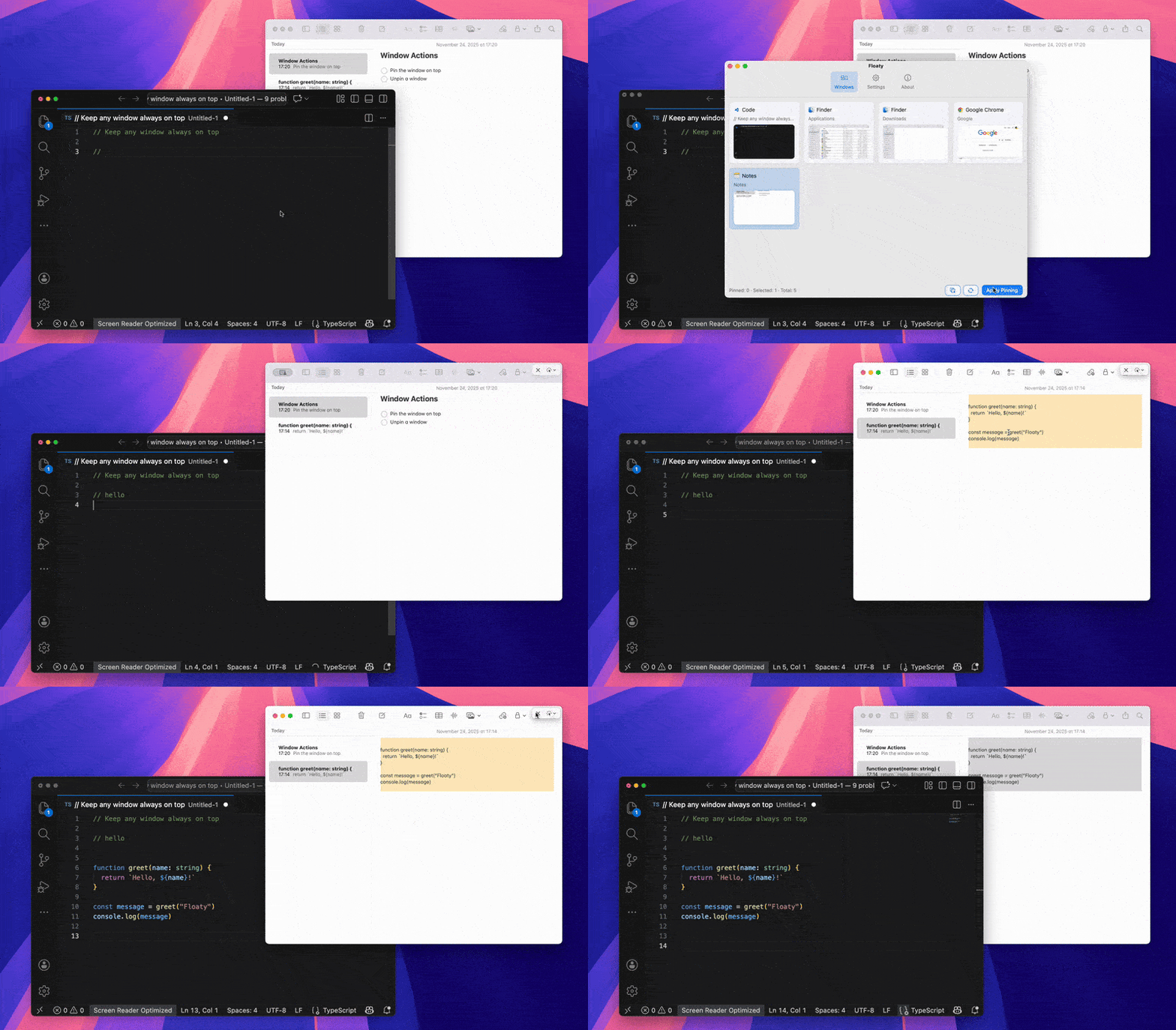
For Apple Notes, open the note in its own window and look under the Window menu for Keep on Top or Float on Top. For a more flexible notes workflow, open the note window, choose it in Floaty, and click Apply Pinning. The note stays visible while you code, write, research, watch a tutorial, read a PDF, or stay in a meeting.
Why Notes Keep Getting Lost
Notes are usually not the main task. They are the checklist, meeting agenda, lecture summary, product requirement, code snippet, or reminder that supports the main task.
That is exactly why they disappear so often. You click into Safari, VS Code, Xcode, Zoom, Preview, Figma, or Google Docs, and the note you were using as context falls behind the active app.
This is the problem behind searches like notes always on top Mac, floating notes Mac, and keep notes visible Mac. Most people are not trying to build a complex window-management system. They just want the one note they need to remain in sight.
For the broader macOS behavior, see the guide to keeping any window always on top on Mac.
Apple Notes vs Stickies vs Floaty
| Method | Best for | Limits |
|---|---|---|
| Apple Notes note window | One Apple Notes note that should float while you work | Works only inside Apple Notes and depends on using a separate note window |
| Apple Notes pinned notes | Keeping important notes at the top of the Notes list | Pinning a note in Apple Notes does not keep the window above other apps |
| Quick Note | Capturing a quick thought | Not built for persistent reference beside another app |
| Stickies | Small sticky notes that can float | Too limited for larger notes, synced research, or app-specific workflows |
| Split View / Stage Manager | Keeping notes beside one app | Rigid layout; notes can still feel buried in busier workflows |
| Floaty | Pinning any notes app window above your workspace | Requires Accessibility and Screen Recording permissions |
There are two different ideas people call “pinning” in Apple Notes. Apple’s own Pin Note feature keeps a note at the top of the notes list, which is useful for organization but different from keeping a window above other apps. A separate Apple Notes window can also be kept on top from the Window menu on supported macOS versions.
Stickies is the other built-in option, and Apple documents Window > Float on Top for sticky notes. That said, Stickies is best for small scraps. If your real notes live in Notion, Obsidian, Bear, Craft, a browser doc, or a markdown editor, you need a window-level approach.
How to Keep Apple Notes Always on Top
1. Open the note in its own window
Open Apple Notes and choose the note you want visible. Open it in a separate note window so it is easy to identify, resize, and keep away from the main Notes library.
For daily use, narrow notes work better than huge note windows. A compact checklist, meeting agenda, or scratchpad is easier to keep beside your main work.
2. Try the native Keep on Top option
With the separate note window active, open the Window menu and look for Keep on Top or Float on Top. If you only need one Apple Notes note to stay visible, this may be enough.
This native path is the cleanest answer for simple Apple Notes workflows. The limits show up when you want the same behavior for Notion, Obsidian, browser notes, PDFs, AI chat windows, or when you need opacity and click-through.
3. Use Floaty when you need more control
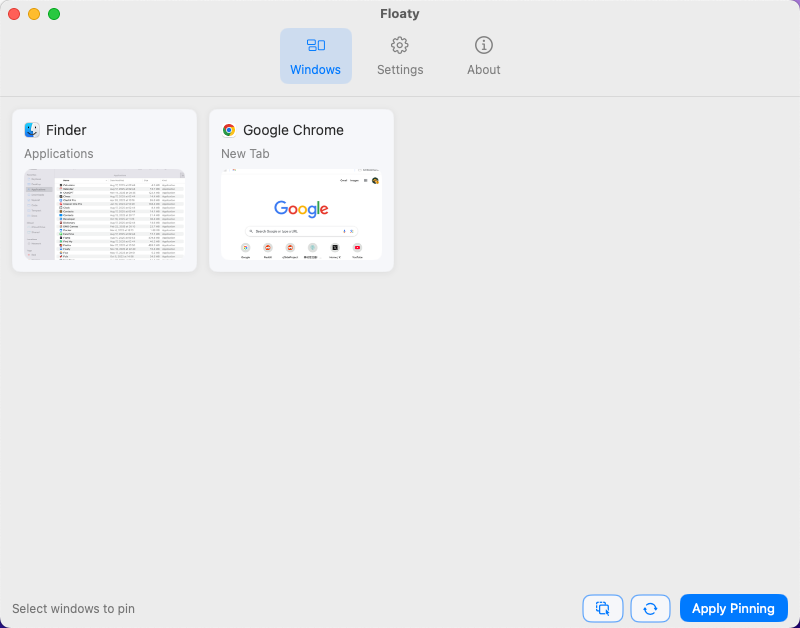
Open Floaty from the menu bar and choose the note window from the live window list. This can be Apple Notes, Notion, Obsidian, Bear, Craft, a browser note, or another app you use as a scratchpad.
If you keep several notes or apps open, use the preview to pick the right one.
4. Apply pinning
Click Apply Pinning. Your note stays visible above other normal Mac windows while you work in another app.
5. Resize it into a side panel
Move the note to a corner or side of the screen. For coding, writing, and meetings, a narrow vertical panel usually works better than a wide document window.
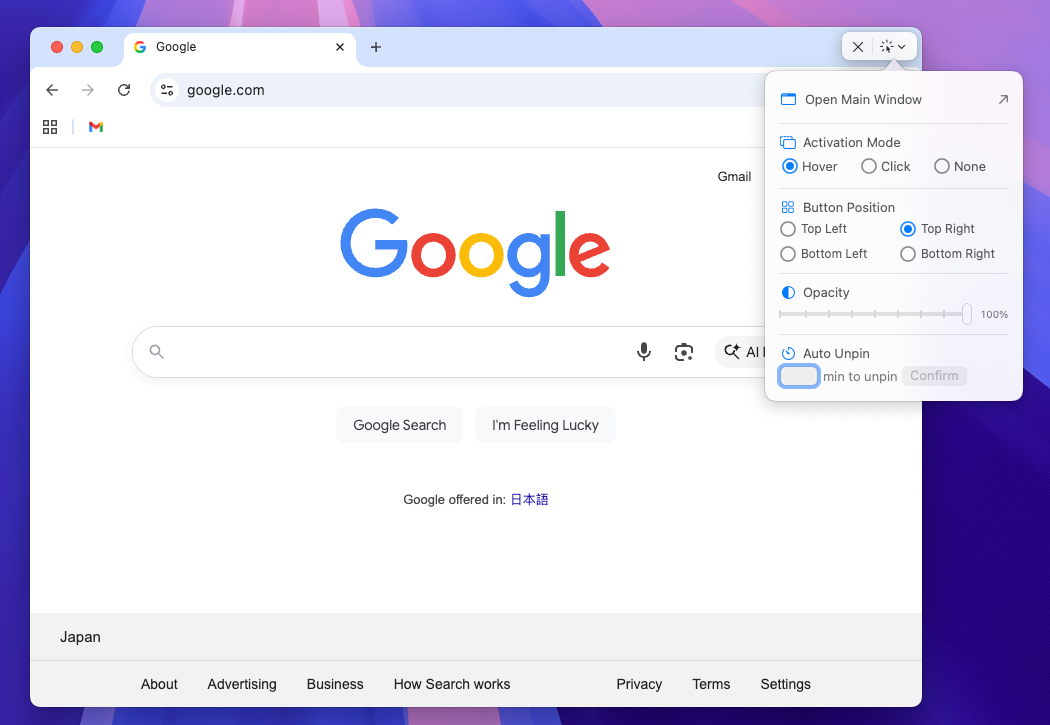
6. Use opacity or click-through for passive notes
If the note is only a reminder, checklist, or reference, Floaty Pro can make it less intrusive. Lower the opacity so it does not visually dominate the workspace, or use click-through when you want the note visible but do not want accidental clicks to focus it.
Notes Workflows That Benefit Most
Coding with a TODO list
Keep a short checklist above VS Code, Xcode, Terminal, or a browser. This is useful for refactor steps, bug notes, API details, or a small list of things to verify before shipping.
Studying with a lecture or PDF
Keep notes visible beside a video lesson, textbook, research paper, or worksheet. If your source is a document, the PDF and Preview always-on-top guide shows how to pin the PDF too.
Meetings and calls
Pin a private agenda, talking points, or action-item list beside Zoom or Google Meet. You can stay visually present in the call while your notes remain available. For the meeting window itself, see how to keep Zoom always on top on Mac.
Writing and drafting
Keep an outline, quote list, or editing checklist beside Google Docs, Pages, Word, Notion, or a CMS. The note becomes a small working memory layer instead of another window to chase.
AI-assisted work
If you use ChatGPT or Claude, notes often sit between the AI answer and the actual document. Pinning Notes, Notion, or Obsidian can keep your prompt checklist or source notes visible while the AI window and main app stay in the workflow. For that setup, read the ChatGPT and Claude always-on-top guide.
Tips for Better Floating Notes
- Keep the note narrow and scannable.
- Put the most important checklist or reference at the top.
- Avoid true macOS full-screen Spaces; normal windows or Split View are more reliable.
- Use opacity only when the note is still readable.
- Turn click-through on for passive reference notes, not for notes you are actively editing.
- Unpin the note when the task is done so your desktop returns to normal.
Privacy and Permissions
Floaty uses Accessibility permission to manage windows and Screen Recording permission to show local window previews. These permissions help Floaty identify and pin the right note window on your Mac.
Floaty does not upload your Apple Notes, Notion pages, Obsidian vault, browser content, or screen contents.
Try Floaty with Your Notes
If your notes are part of your working memory, keeping them visible can remove a lot of small interruptions.
Download Floaty Free to pin one notes window. Upgrade to Floaty Pro when you want multiple pinned notes, opacity, click-through, auto-unpin, and advanced shortcuts.
FAQ
Can Apple Notes stay always on top by itself?
Yes, for a single Apple Notes note window on macOS versions where the Notes Window menu includes Keep on Top or Float on Top. Apple’s Pin Note feature is different: it keeps a note at the top of the notes list, not above other apps. For Notion, Obsidian, browser notes, opacity, click-through, or multiple pinned references, use a window-level tool.
Can Stickies stay on top on Mac?
Stickies can work as a lightweight floating note option, but it is limited compared with Apple Notes, Notion, Obsidian, or a full note-taking workflow.
Can I keep Notion or Obsidian notes always on top?
Yes. Floaty pins normal Mac windows, so the same approach works for Apple Notes, Notion, Obsidian, Bear, Craft, browser notes, and many markdown editors.
Does this work over full-screen apps?
Not reliably. macOS true full-screen mode places apps in separate Spaces, which limits floating overlays. Use normal windows or Split View for the most stable notes workflow.
Can I pin notes and a PDF at the same time?
Yes. Floaty Pro supports multiple pinned windows, so you can keep notes and a PDF, ChatGPT window, Zoom call, or browser reference visible together.