
Quick Answer
The easiest way to keep ChatGPT or Claude always on top on Mac is to pin its browser or desktop app window with Floaty:
- Open ChatGPT, Claude, or another AI assistant in a normal Mac window.
- Launch Floaty.
- Select the AI window from Floaty’s window list.
- Click Apply Pinning.
- Place the pinned window beside your editor, document, browser, or research material.
The assistant now stays visible while you keep working in another app. For example, you can leave Claude’s refactor notes above VS Code, keep a ChatGPT outline beside Google Docs, or compare an AI summary with the PDF it came from.
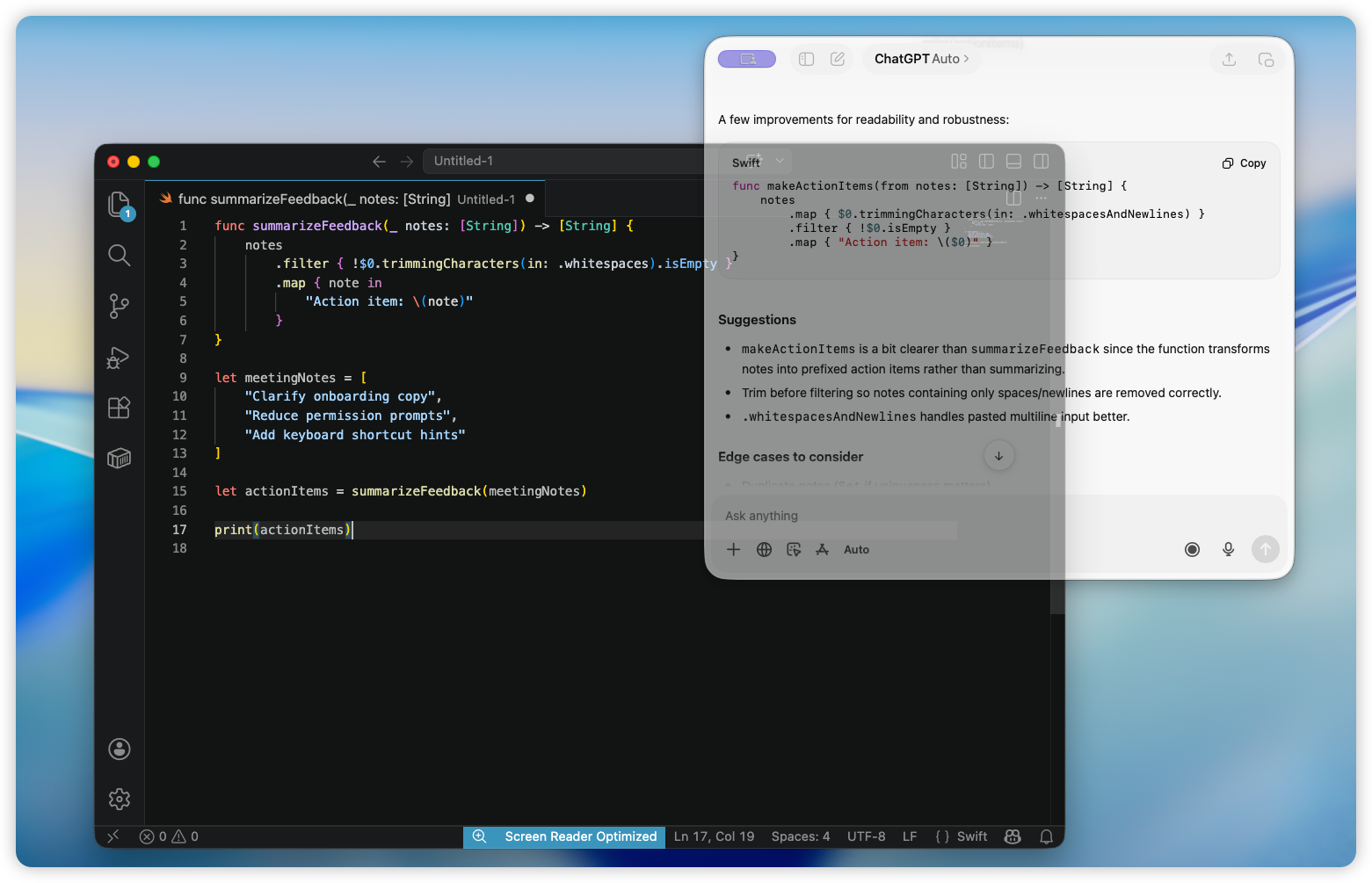
Why AI Windows Get Buried on Mac
ChatGPT and Claude often behave less like “apps” and more like working notes. You ask a question, compare an answer, copy a draft, or keep a prompt open while doing the real work somewhere else.
The problem is that macOS treats the AI window like any other window. The moment you click into VS Code, Xcode, Safari, Pages, Figma, Notion, Preview, Slack, or Mail, the assistant can disappear behind the app you are using.
That is why people search for ChatGPT always on top Mac, Claude always on top Mac, floating ChatGPT window Mac, or pin ChatGPT window Mac. The goal is not to reorganize the whole desktop. It is simply to keep one useful answer visible while the main task stays active.
For the general macOS background, read the broader guide to keeping any window always on top on Mac.
What Works and What Does Not
| Method | Best for | Limits |
|---|---|---|
| Split View | Two fixed side-by-side windows | Rigid layout, not a floating assistant |
| Stage Manager | Switching between grouped apps | The assistant can still get hidden |
| Picture-in-Picture | Video players | Does not work for normal AI chat windows |
| Window managers | Users already using shortcut-heavy layouts | Pinning is usually one feature inside a larger tool |
| Floaty | Keeping ChatGPT, Claude, or another AI window visible above your workspace | Requires macOS Accessibility and Screen Recording permissions |
If you only want a static two-column layout, Split View is fine. If you want ChatGPT or Claude to behave like a small reference panel that can float over the active app, a focused pinning tool is the cleaner fit.
How to Pin ChatGPT or Claude on Mac
1. Open the AI assistant window
Open ChatGPT, Claude, Perplexity, Gemini, or another assistant in a browser window or desktop app window. If you use a browser, move the chat into its own window first. That makes it easier to identify and keeps the pinned panel separate from unrelated tabs.
2. Choose the window in Floaty
Open Floaty from the menu bar and pick the AI assistant window from the live window list. The preview helps you select the right browser or app window when several similar windows are open.
3. Apply pinning
Click Apply Pinning. The chat stays above other normal windows while you keep typing, reading, designing, or coding somewhere else.
4. Resize it into a reference panel
A narrow side panel usually works best. Keep enough width to read the answer, but avoid covering the main workspace. For writing and coding, placing the chat on the right side of the screen feels closest to a second monitor.
5. Use opacity or click-through when needed
Floaty Pro adds opacity and click-through. Opacity helps when an answer is useful but visually in the way, such as a code suggestion over an editor or a checklist over a draft. Click-through helps when the chat is only a passive reference and you want pointer input to go to the app underneath.
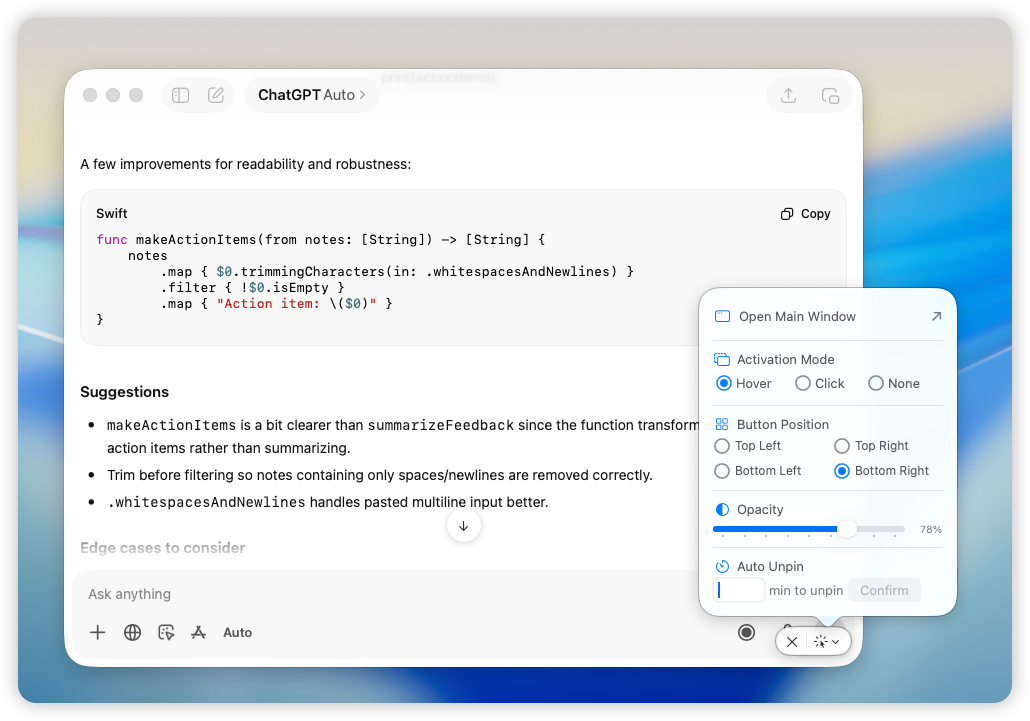
Useful AI Workflows
Coding with ChatGPT or Claude
Keep the chat visible beside VS Code, Xcode, Terminal, or a browser. You can compare generated code, keep an explanation open, or track a debugging plan without repeatedly switching windows. A common pattern is to keep Claude’s refactor suggestions visible while you edit the actual function in VS Code.
If Terminal logs are part of the same workflow, read the developer guide to keeping Terminal on top on Mac while coding.
For a broader developer setup, see the macOS multitasking workflow guide.
Writing and editing
Pin a draft, outline, title list, or editing checklist beside Pages, Google Docs, Notion, Obsidian, Word, or your CMS. This keeps the suggestion in view while your main document remains active.
If Notion is part of the workflow, the Notion always-on-top guide pairs well with this setup.
Research with PDFs and web pages
AI summaries are much easier to verify when the source stays nearby. Pin the chat next to Preview, Acrobat, Safari, or Chrome so a paper, contract, spec, or long web page stays visible beside the answer.
For document-heavy workflows, read the PDF and Preview always-on-top guide.
Meetings and planning
Keep a transcript, summary, or action-item draft visible beside Zoom, Meet, Slack, or a planning document. It becomes a small reference panel instead of another window you have to hunt for.
Studying and learning
Pin an explanation beside a course video, lecture notes, or textbook. This is useful when you want a concept explained while still looking at the source material.
Tips for a Cleaner AI Overlay
- Keep ChatGPT or Claude in a separate browser window so it is easy to select.
- Use short prompts and compact answers when the pinned panel is narrow.
- Avoid true macOS full-screen Spaces for the main app; normal windows or Split View are more predictable.
- Use opacity when the assistant covers useful content.
- Unpin the AI window when you are done so your desktop returns to normal.
Privacy and Permissions
Floaty needs Accessibility permission to manage windows and Screen Recording permission to show local window previews. These permissions are used on your Mac so Floaty can identify and pin the right window.
Floaty does not upload your ChatGPT, Claude, PDF, browser, or screen content.
Try Floaty with Your AI Workflow
If ChatGPT or Claude is part of your daily work, keeping the chat visible can remove a surprising amount of window switching.
Download Floaty Free to pin one ChatGPT or Claude window. Upgrade to Floaty Pro when you want multiple pinned windows, opacity, click-through, auto-unpin, and advanced shortcuts.
FAQ
Can ChatGPT stay always on top on Mac by itself?
Not in the general case. macOS does not provide a native always-on-top toggle for normal app or browser windows, so you need a window pinning tool if you want ChatGPT to stay visible above other apps.
Can Claude stay always on top on Mac?
Yes, if Claude is open in a normal browser or desktop app window that macOS exposes to Floaty. Select the window in Floaty and apply pinning.
Does this work with browser tabs?
Floaty pins windows, not individual tabs. If ChatGPT or Claude is in a browser tab, move it into its own browser window first for the cleanest workflow.
Will this work over full-screen apps?
Not reliably. macOS true full-screen mode places apps in separate Spaces, which limits floating overlay behavior. Use normal windows or Split View for a stable always-on-top workflow.
Can I pin an AI assistant and a PDF at the same time?
Yes. Floaty Pro supports multiple pinned windows, so you can keep an AI assistant and a PDF, Notion page, browser doc, or Zoom window visible together.