
If you want to create a floating window on Mac, the right method depends on what kind of window you mean.
For a video, macOS already has Picture-in-Picture. For two fixed apps side by side, Split View can be enough. But if you want a normal app window such as Notes, Preview, ChatGPT, Terminal, Safari, Chrome, Zoom, or a PDF to stay visible while you work in another app, you need an always-on-top window tool.
That is the difference this guide focuses on: video floating windows vs normal app floating windows.
Quick Answer
The fastest way to create a floating window on Mac is:
- Use Picture-in-Picture if the floating window is only a video.
- Use Split View if you only need two apps side by side.
- Use Stage Manager if you want grouped app switching.
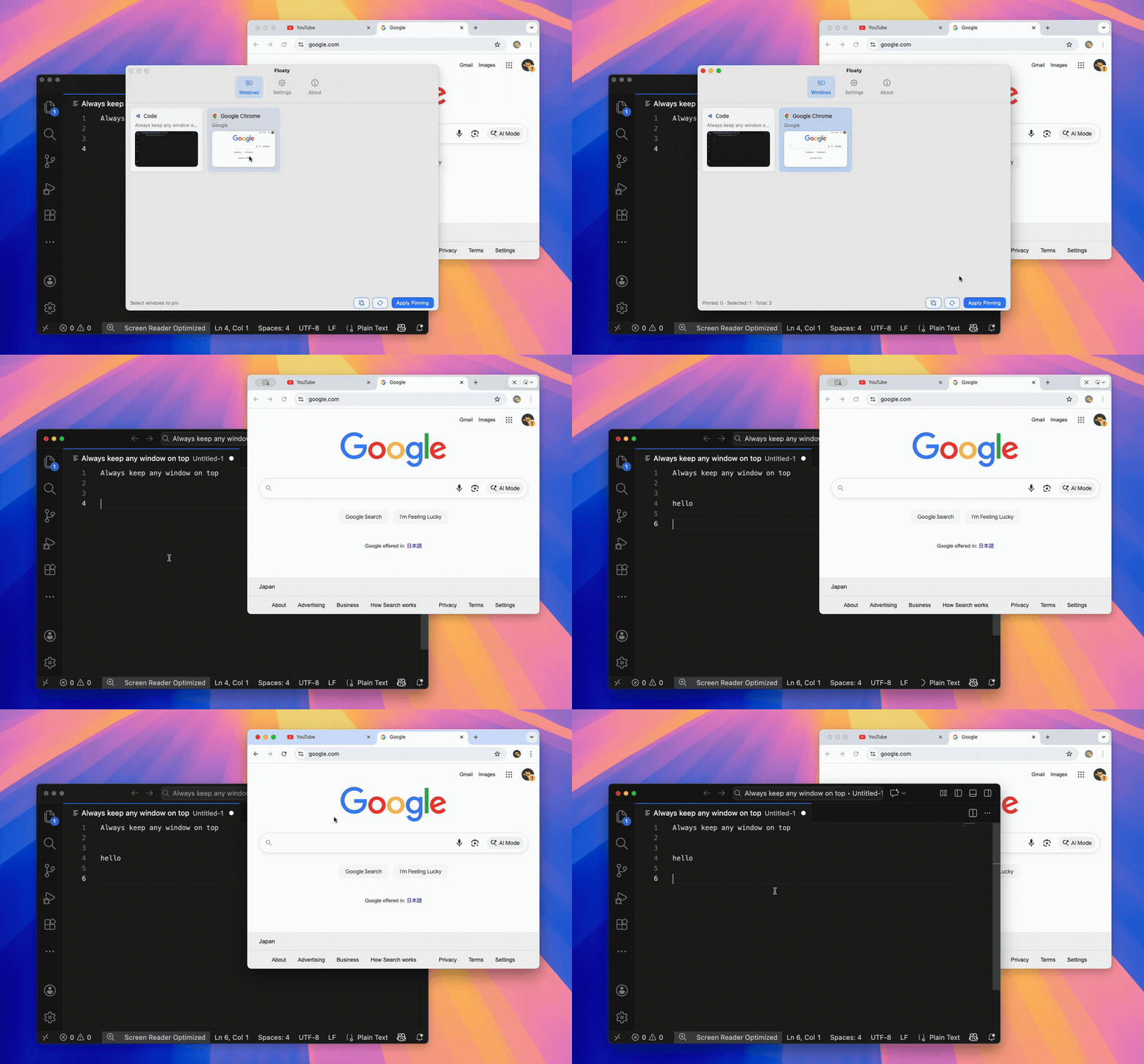
- Use Floaty if you want a normal app window to stay above other windows.
| Goal | Best option |
|---|---|
| Float a YouTube or browser video | Picture-in-Picture |
| Put two apps side by side | Split View |
| Group apps into workspaces | Stage Manager |
| Keep a PDF, note, browser, AI chat, or Terminal window visible | Floaty |
| Make a normal Mac window stay on top while another app has focus | Floaty |
If your search was floating window mac because a window keeps disappearing when you click somewhere else, you are probably looking for always-on-top behavior, not just layout.
Why macOS Does Not Have a Universal Floating Window Button
macOS is not missing a floating-window checkbox by accident. The system is designed around predictable focus, app ownership, privacy prompts, Spaces, full-screen apps, and sandboxing. If any app could freely force its windows above every other app, the desktop would get messy fast: chat popups, installers, utility panels, and helper apps could all fight for the top layer.
As a Mac app developer, I think this is the real reason Apple has never shipped a universal “Always on Top” toggle for every window. It is useful for power users, but risky as a default system feature.
Apple instead provides narrower tools: Picture-in-Picture for video, Split View for fixed layouts, Stage Manager for grouped switching, and app-specific floating panels. A normal Safari, Preview, Notes, Terminal, or ChatGPT window is different. It follows normal focus rules and usually drops behind the active app when you click somewhere else.
How Floating Windows Work on macOS
At a technical level, macOS windows live at different window levels. A normal document window, a menu, a floating panel, a screen saver, and a system alert do not all sit in the same layer. Apple’s AppKit framework exposes this concept through NSWindow.Level.
That helps explain why Picture-in-Picture can float: it is not a regular browser tab. The system treats the video tile as a special floating surface with strict behavior and limited scope.
Normal app windows are broader. A browser window can contain a video, form, checkout page, private document, login screen, chat, or full app UI. macOS does not give every normal window a built-in permissionless way to jump above the rest of the desktop.
| Floating surface | Why it can float |
|---|---|
| Picture-in-Picture video | Narrow system-supported video mode |
| App tool palettes | Controlled by the app that owns them |
| System panels and alerts | Reserved system or app-level surfaces |
| Normal app windows | Need a helper utility if you want always-on-top behavior |
This is also why full-screen apps and Spaces can be tricky. True macOS full-screen mode moves apps into separate Spaces, so a floating overlay that works over normal windows may not behave the same way there.
What Is a Floating Window on Mac?
People use “floating window” to mean a few different things:
- a small video that floats above other apps
- a browser window that stays visible while coding
- a note or checklist hovering above a meeting
- a PDF reference that stays visible while writing
- a Terminal log that remains on screen during testing
- a lightweight overlay you can make transparent or click-through
macOS supports some of these natively, but not all of them.
Picture-in-Picture can float supported videos. Split View can place apps beside each other. Stage Manager can group windows. But macOS does not include a universal “make this normal app window float above everything else” button.
That is why users search for terms like:
floating window macmac floating windowmacos floating windowhow to create a floating window on mackeep floating window on top mac
The underlying need is usually the same: one window should stay visible while the main work continues somewhere else.
Method 1: Use Picture-in-Picture for Video
Picture-in-Picture is the built-in floating window feature most Mac users already have.
It works well for:
- YouTube videos
- lectures
- webinars
- tutorials
- video calls or media players that support PiP
In Safari or Chrome, you can usually trigger Picture-in-Picture from the video controls, the browser media button, or the right-click menu.
PiP is the right answer when the content is only a video. It is lightweight, built in, and does not require another app.
The limitation is important: Picture-in-Picture floats the video player, not the whole app window. You usually lose comments, transcripts, playlists, documents, sidebars, chat, and page controls.
If you need the full browser window, read the YouTube while working on Mac guide.
Method 2: Use Split View or Stage Manager for Layout
Split View and Stage Manager are useful, but they are not the same as a floating window.
Use Split View when:
- you want two apps side by side
- the layout can stay fixed
- both windows deserve large screen space
- you do not need one window to hover above the other
Use Stage Manager when:
- you want to group apps
- you switch between sets of windows
- you want a cleaner desktop
- you do not need one window to stay visible across all work
These tools solve layout and switching. They do not solve persistent visibility.
For example, Split View can put a PDF beside Pages. But if you want a small PDF reference to hover above Pages while you keep writing, Split View is the wrong model. Stage Manager can keep a browser nearby, but the browser can still move out of view when you switch context.
Method 3: Use Floaty for Normal App Floating Windows
Floaty is for the version of “floating window” that macOS does not provide by default: keeping a normal app window always on top.
Use it when you want to float:
- ChatGPT or Claude while coding
- a PDF while writing
- Notes or Notion during a meeting
- Terminal logs while testing
- a browser documentation page above your editor
- a YouTube page when you need the full interface
- a dashboard or checklist on a single monitor
The workflow is simple:
- Open the window you want to keep visible.
- Open Floaty from the menu bar.
- Choose the window from the list.
- Apply pinning.
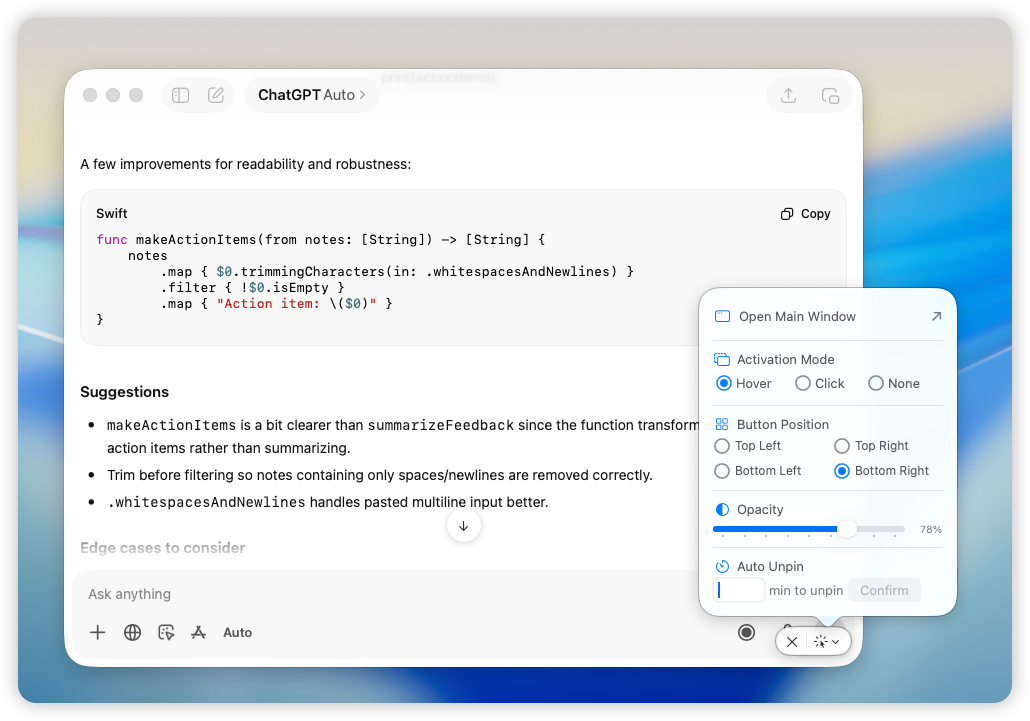
- Resize, move, or adjust opacity if needed.
- Unpin the window when the task is done.
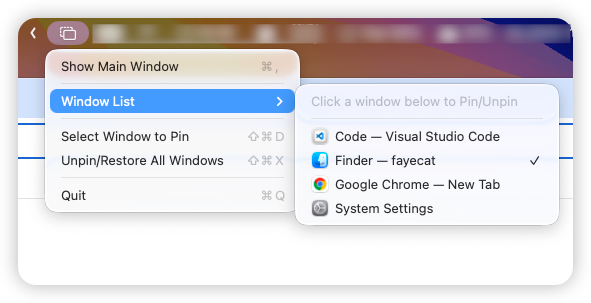
That turns a normal Mac app window into a floating reference window. It can stay visible while another app has focus, which is the part macOS does not offer as a native command.
For a broader comparison of all always-on-top options, read the Mac always-on-top landscape guide.
Floating Window Examples
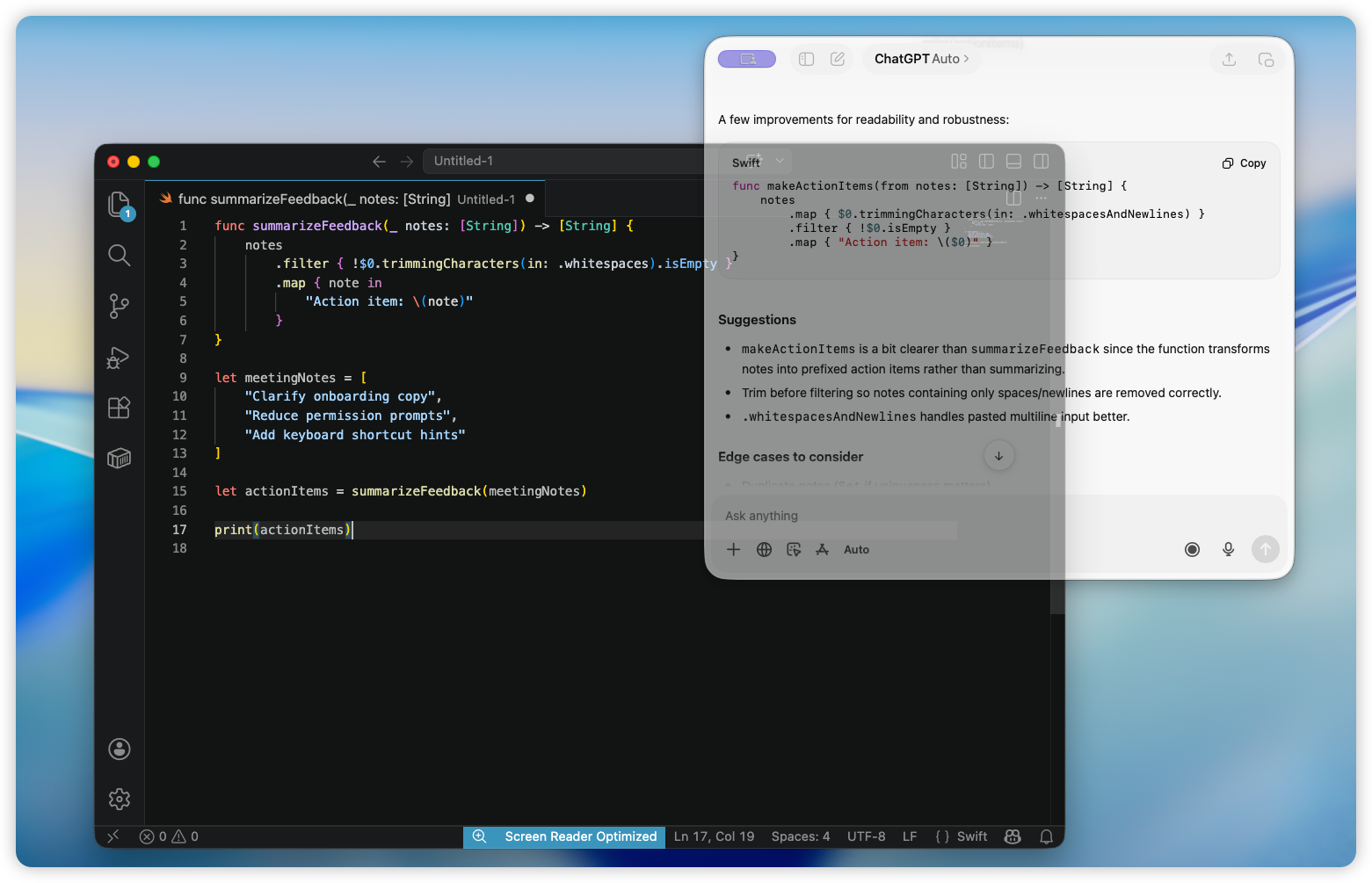
Floating AI Chat While Coding
Keep ChatGPT or Claude visible while you write code in VS Code, Xcode, Cursor, Terminal, or another editor.
This is useful when you want an explanation, code snippet, checklist, or prompt visible without switching back to the browser every few seconds.
Read the ChatGPT and Claude always-on-top guide.
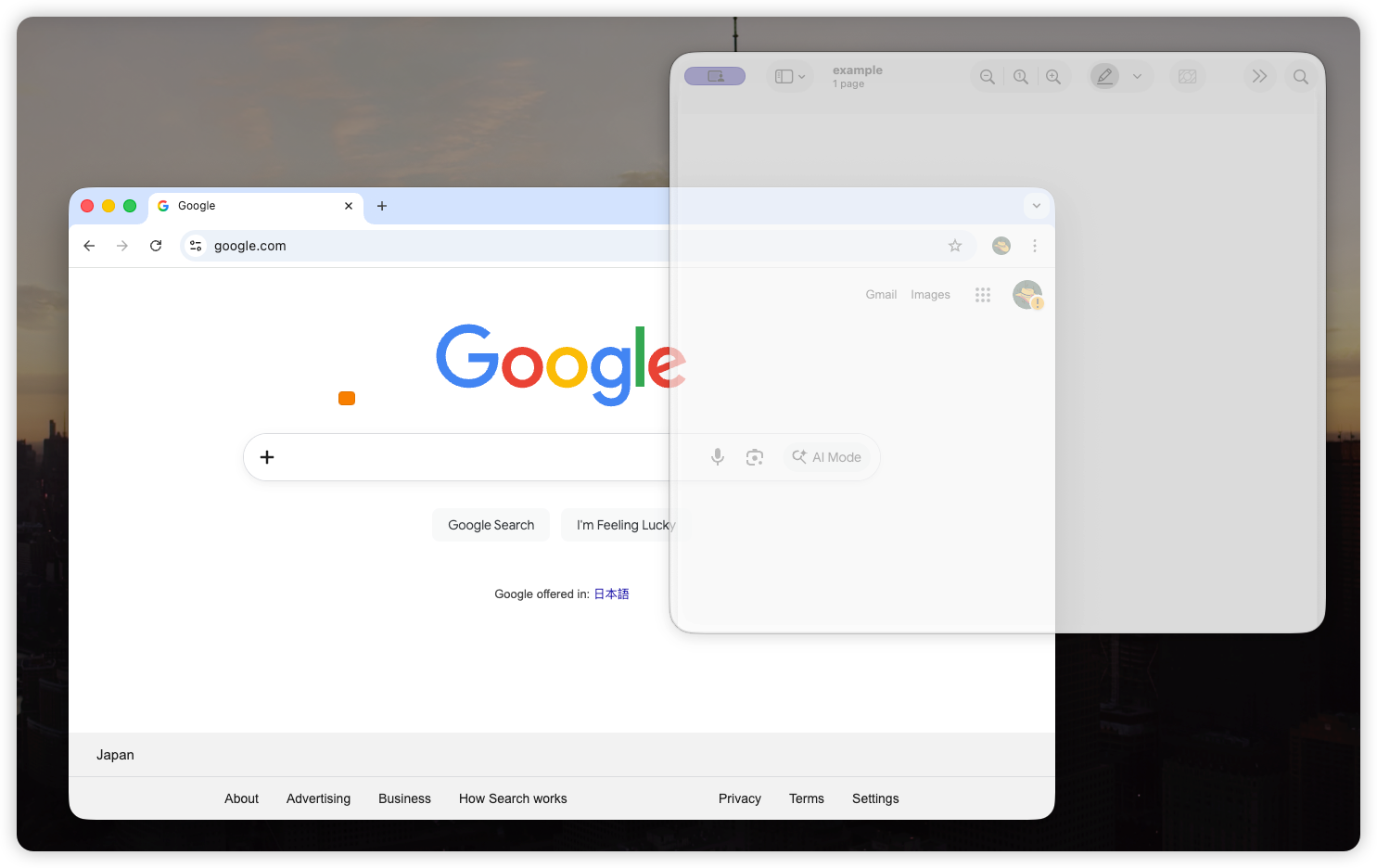
Floating PDF While Writing
Keep Preview, Adobe Acrobat, a browser PDF, or a research paper visible above your writing app.
This works well for contracts, specs, papers, textbooks, slides, and reference documents that you need to glance at while typing.
Read the PDF and Preview floating window guide.
Floating Notes During Meetings
Keep Apple Notes, Notion, Obsidian, or a meeting agenda visible while using Zoom, Google Meet, Keynote, a browser, or Slack.
The note does not need to take half your screen. It can sit as a small floating reference.
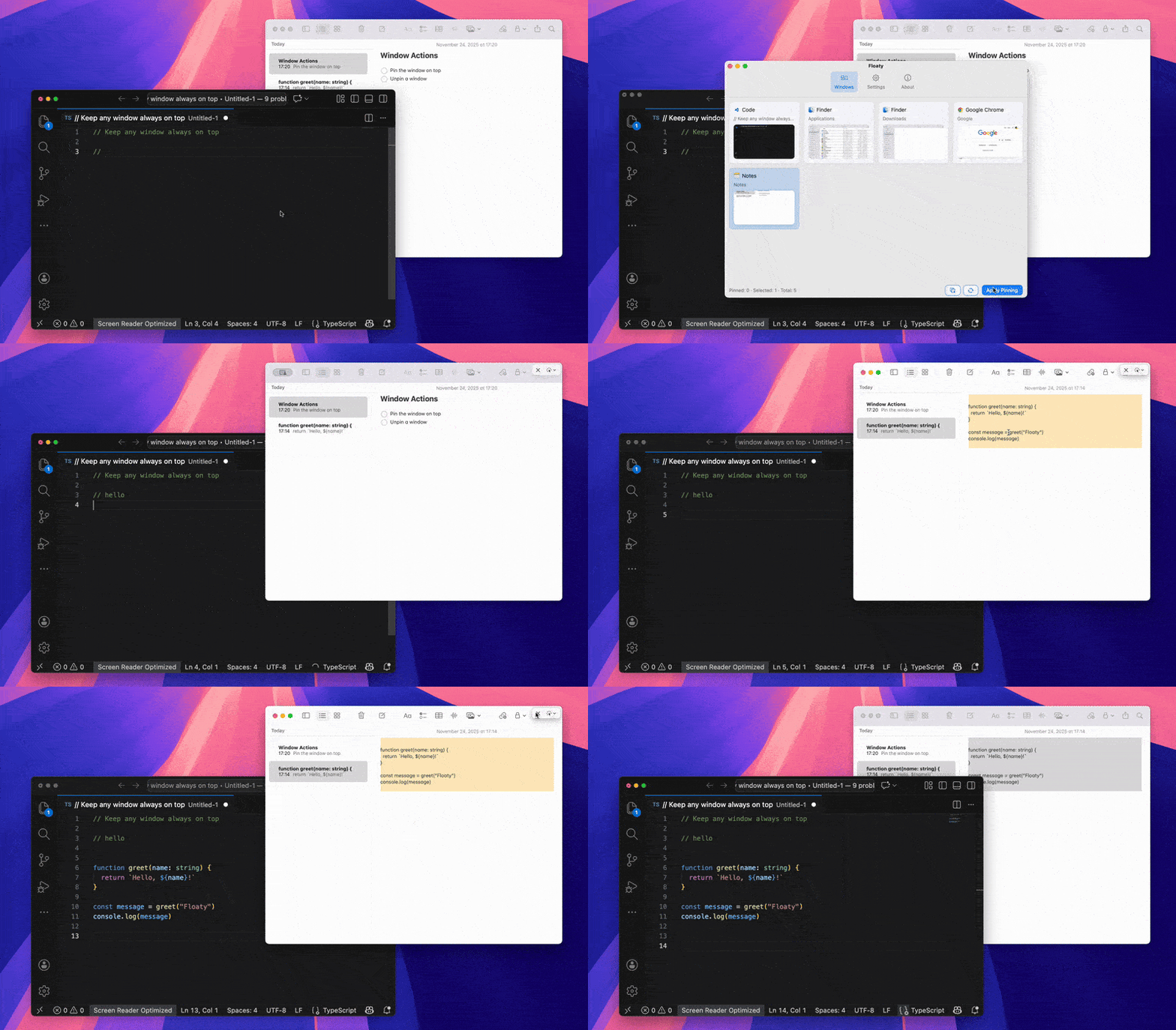
Read the Notes always-on-top guide or the Zoom always-on-top guide.
Floating Terminal Logs
Keep a Terminal window, server log, SSH session, test runner, or build output visible while you work in another app.
This is especially helpful when you need to watch a process without dedicating a full screen region to it.
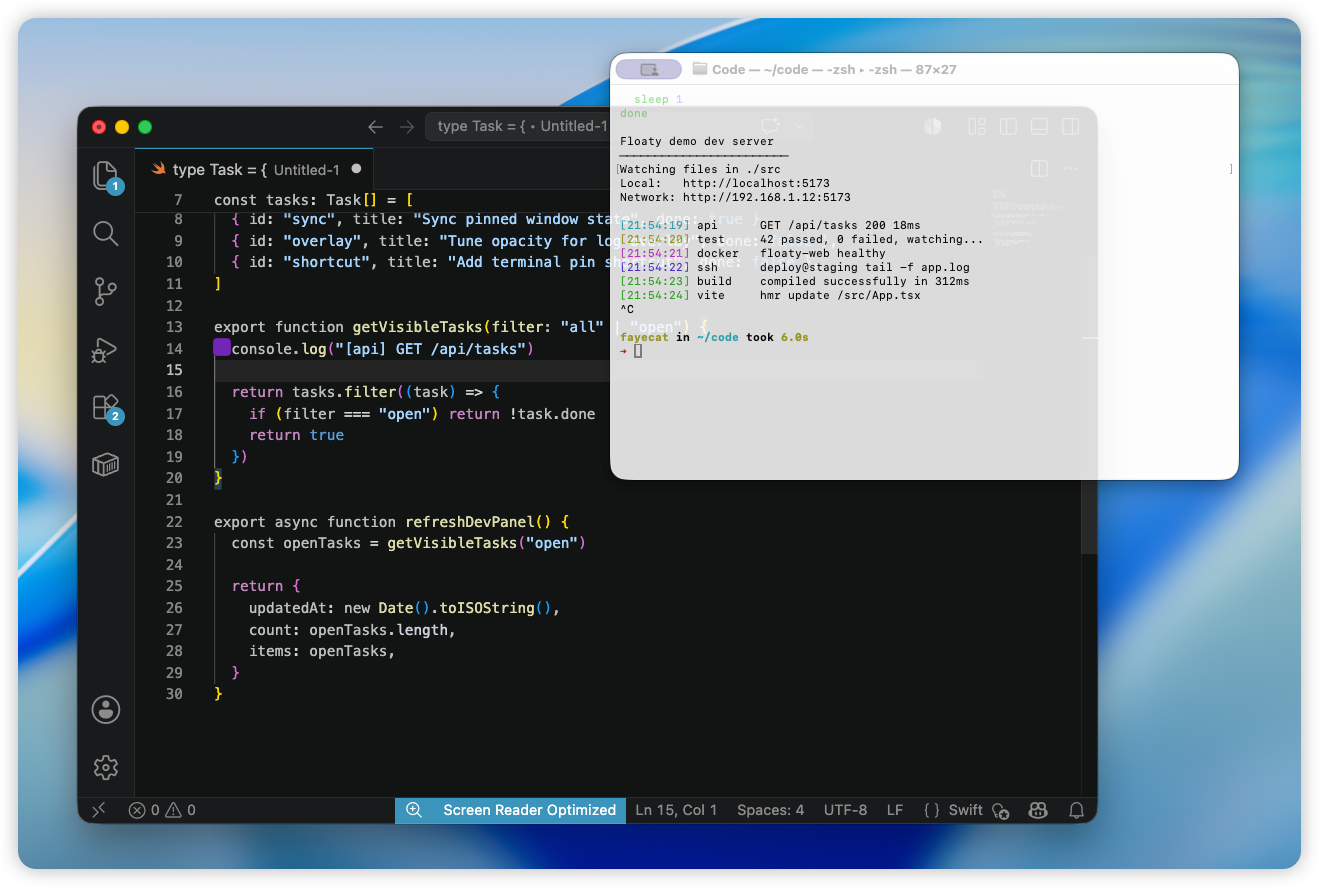
Read the Terminal always-on-top guide.
Floating Browser Documentation
Keep Safari, Chrome, Arc, or another browser visible above your main app.
This is useful for API docs, dashboards, translation pages, bug reports, admin panels, repair instructions, tutorials, and internal tools.
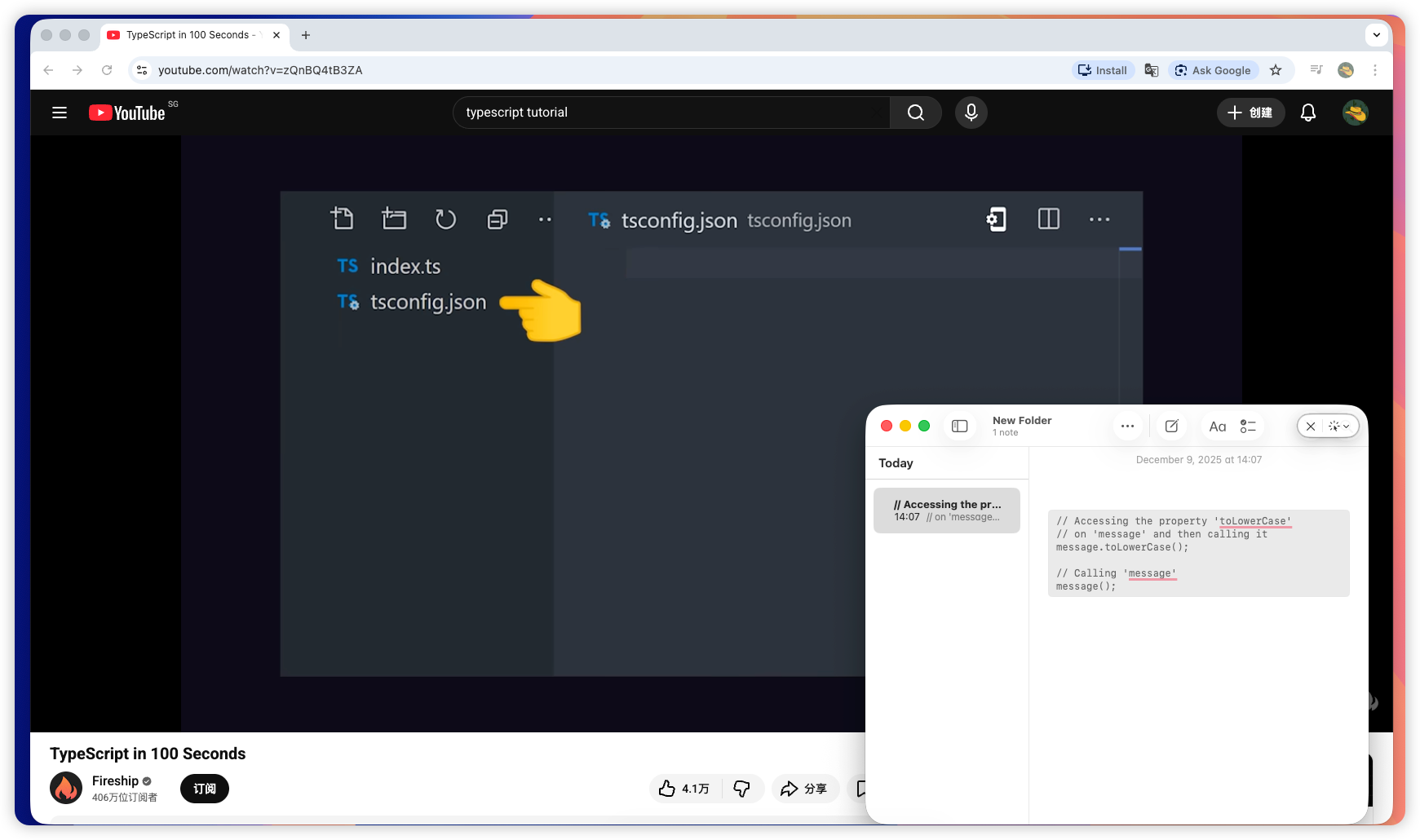
Read the Chrome and Safari always-on-top guide.
Real Floating Window Workflows
The strongest floating-window setups usually come from a specific job where one reference should stay visible.
| Workflow | Floating window | Why it helps |
|---|---|---|
| Lawyer reviewing contracts | PDF clause or comparison | Keeps the reference visible while the main document stays editable |
| Developer debugging | Terminal log, API response, local server output | Lets the log stay visible after clicking into the editor or browser |
| Trader or analyst monitoring | Dashboard, chart, alert stream | Keeps passive but important data visible without taking half the screen |
| Teacher presenting | Agenda, timer, Zoom chat, speaker notes | Keeps supporting material visible while slides or a browser have focus |
| Student studying | Lecture, transcript, PDF, AI explanation | Keeps learning context visible while notes stay editable |
These are not just layout problems. A side-by-side layout helps when both windows deserve equal space. A floating window helps when the reference should stay visible but small.
Floating Window vs Always-on-Top Window
These terms overlap, but they are not always identical.
| Term | Usually means | Limitation |
|---|---|---|
| Floating video window | Picture-in-Picture video tile | Video only |
| Floating browser window | A browser that stays visible | Needs a window-level tool if it should stay above other apps |
| Floating app window | A normal app window used as an overlay | macOS has no built-in universal toggle |
| Always-on-top window | A window pinned above other windows | Usually needs a utility on Mac |
If you only need a video, PiP is enough. If you need a normal Mac app window to stay visible, you are looking for an always-on-top window.
Tips for a Better Floating Window Setup
- Use a normal window instead of true macOS full-screen mode.
- Keep the floating window small enough that it does not hide your main work.
- Use opacity when the reference should stay visible but not visually dominate.
- Use click-through when you want to see a window without interacting with it constantly.
- Pin one strong reference window first; add more only when needed.
- Place reference windows near the edge of the screen, not in the middle of your main task.
FAQ
Does macOS have a built-in floating window feature?
macOS has Picture-in-Picture for supported videos and layout tools such as Split View and Stage Manager. It does not include a universal floating-window or always-on-top toggle for normal app windows.
How do I make a normal app window float on Mac?
Use a window-level utility such as Floaty. Open the app window, choose it in Floaty, and apply pinning so it stays visible above other windows.
Can I create a floating window without installing an app?
Only for limited cases. Picture-in-Picture works for supported videos, and Split View can place two apps side by side. For normal app windows that should stay above other apps, macOS needs a helper utility.
Is Picture-in-Picture the same as a floating window?
It is one type of floating window, but only for video. It does not turn Notes, Preview, Terminal, Finder, ChatGPT, or a normal browser page into a floating app window.
Why does Picture-in-Picture float but normal windows do not?
Picture-in-Picture is a narrow system-supported video mode. macOS can safely let it float because the surface is limited. A normal app window can contain almost anything, so macOS keeps it under the usual focus and window-layer rules.
What is NSWindow Level?
NSWindow.Level is Apple’s AppKit concept for placing windows at different layers, such as normal windows, floating panels, menus, alerts, and other special surfaces. It helps explain why some Mac windows can float while ordinary document windows follow normal focus behavior.
Can a floating window work with full-screen apps?
Not reliably. macOS full-screen mode uses separate Spaces, which limits how floating overlays can behave. Normal windows or Split View-style layouts are more predictable.
Is Floaty a window manager?
No. Floaty is focused on floating and pinning selected windows. It can work alongside window managers such as Magnet, Rectangle Pro, Moom, or BetterTouchTool if you also want snapping, layouts, or automation.
Try Floaty for Floating Windows on Mac
If your goal is a floating window that stays visible after you click somewhere else, Floaty is built for that exact workflow.
Start with one real task: float a PDF, note, browser doc, Terminal log, AI assistant, or tutorial window while you work in another app.
Related guides: