
Rectangle Pro is a window manager first. Floaty is an always-on-top app first. That difference matters more than the feature checklist.
Rectangle Pro and Floaty sit close enough in the Mac productivity category that people naturally compare them. Rectangle Pro is a broad window management app with snapping, window throwing, app layouts, stash-style workflows, and Todo Mode / Pin Mode for keeping a specified app visible. Floaty is a focused utility for keeping selected windows always on top.
If your main problem is moving, resizing, snapping, throwing, stashing, and arranging windows, Rectangle Pro is probably the better fit. If your main problem is keeping a note, browser, PDF, meeting, Terminal log, AI assistant, or reference window above the rest, Floaty is the more direct tool.
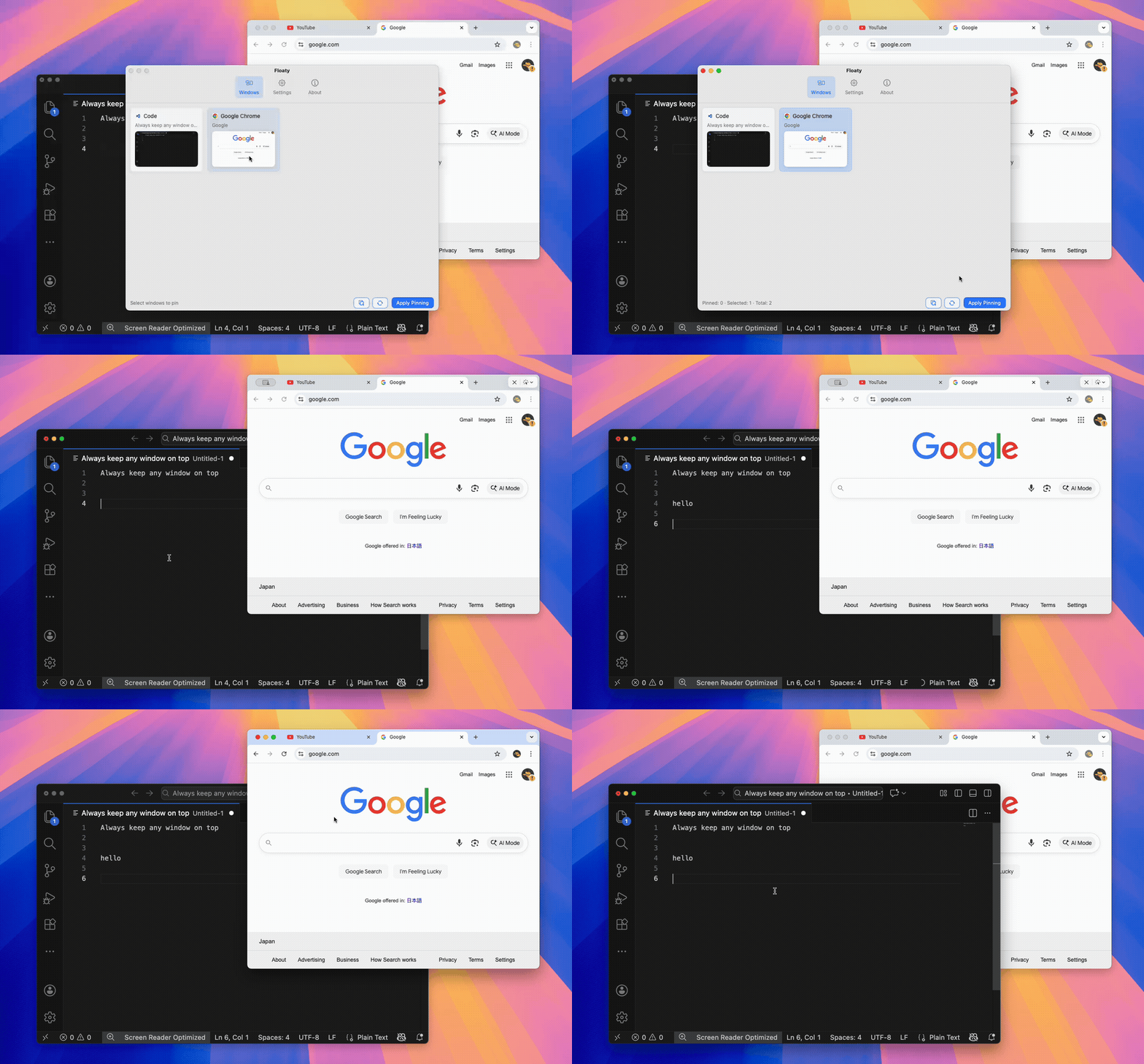
Quick Verdict
Choose Rectangle Pro if you want a full macOS window manager and always-on-top behavior is only one part of your layout workflow.
Choose Floaty if you want a focused always-on-top app for Mac with pinning, multiple floating windows, opacity, click-through, and a simpler mental model.
That is the whole comparison in one line. Rectangle Pro helps organize the desktop. Floaty helps keep important windows present.
Why People Compare Rectangle Pro and Floaty
Many Mac users first compare Rectangle Pro and Floaty because both appear to solve the same surface problem: keeping an important window visible.
That overlap is real, but it is only one part of the story. Rectangle Pro approaches visibility through a larger window-management workflow. Floaty approaches it through direct window pinning.
Users comparing Rectangle Pro and Floaty often also evaluate BetterTouchTool, Magnet, Moom, and older Afloat-style solutions. Those tools all live near the same problem space, but they do not answer the same question:
- Rectangle Pro, Magnet, and Moom are mainly window managers.
- BetterTouchTool is mainly an automation and gesture tool.
- Afloat was an older always-on-top style utility that no longer fits modern macOS well.
- Floaty is mainly a dedicated always-on-top app.
So the real question is not “which app has more features?” It is “which workflow do you want to live in?”
What Rectangle Pro Is Best At
Rectangle Pro is built for window management. Its official product page describes it as “Superior window management on macOS,” and that positioning is accurate: it is mainly about moving windows into useful places quickly, then giving power users more ways to repeat, customize, and restore those layouts.
Rectangle Pro makes sense when you care about:
- Keyboard shortcuts for window positions
- Throwing windows into predefined sizes
- Snap areas and custom layouts
- Repeated window actions
- Managing a workspace of apps
- Stashing windows at the edge of the screen
- Syncing configuration across Macs
- Extending the free Rectangle workflow
If you already use Rectangle every day, Rectangle Pro is a natural upgrade path. It keeps your workflow centered around layout: left half, right half, thirds, quarters, custom sizes, window throw, multi-window commands, multi-monitor movement, and app arrangements.
Its always-visible workflows are most useful when they support that larger layout system. Rectangle’s own comparison page describes Todo Mode / Pin Mode as a way of keeping a specified app visible, and the Pro page describes picking one app to pin to a side. That is useful for task-list and side-panel workflows, especially if the rest of your desktop already follows Rectangle Pro shortcuts.
The trade-off is not that Rectangle Pro is small. It is the opposite: Rectangle Pro does a lot. Always-visible behavior is one capability inside a broader window manager.
What Floaty Is Best At
Floaty is built around one specific job: choose a Mac window and keep it above other windows.
That focus makes it a better fit when you do not want a full window manager just to solve a visibility problem. You open Floaty, pick the window, pin it, adjust how it behaves, and keep working.
Floaty is especially useful for:
- Keeping ChatGPT, Claude, or a browser tool visible while coding
- Pinning Terminal logs above VS Code, Xcode, or a browser
- Keeping Preview, PDFs, docs, or specs visible during review
- Keeping Notes, Notion, Obsidian, or checklists in sight
- Watching a meeting, tutorial, or dashboard without losing the window
- Floating more than one reference window at the same time
The extra controls are part of the reason Floaty feels different from a window manager:
- Multiple pinned windows when one floating window is not enough
- Opacity for reference overlays that should remain visible without blocking everything
- Click-through for windows you want to see but not interact with constantly
- Menu bar window list for choosing a window without hunting through the desktop
- Quick unpinning when the task is done
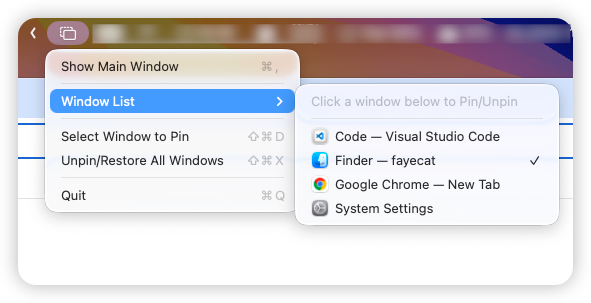
If your search starts with “how do I keep this window on top,” Floaty is closer to the intent than a general-purpose window manager.
Feature Comparison
| Feature | Rectangle Pro | Floaty |
|---|---|---|
| Main purpose | Full macOS window management | Dedicated always-on-top window pinning |
| Always-on-top support | Todo Mode / Pin Mode for keeping a specified app visible | Core always-on-top workflow |
| Window pinning | Side-oriented app visibility workflow | Selected-window floating and pinning |
| Opacity control | Not presented as a core Rectangle Pro workflow | Built in |
| Click-through mode | Not presented as a core Rectangle Pro workflow | Built in |
| Multiple floating windows | Not the main Rectangle Pro use case | Built for multiple pinned windows |
| Window snapping | Core feature | Not the product focus |
| Keyboard shortcuts | Core feature | Available for pinning-focused actions |
| Broader workspace tools | Window throw, snap areas, app layouts, stash, iCloud sync | Not the product focus |
| Learning curve | Low to medium if you already like window shortcuts | Low for pinning-focused workflows |
| Menu bar window picker | Not the main product pattern | Built in |
| Best user | Someone who wants a stronger Rectangle | Someone who wants an Afloat-style modern pinning app |
Pricing Comparison
Pricing matters because many people searching for Rectangle Pro vs Floaty are already close to choosing a tool.
| Pricing question | Rectangle Pro | Floaty |
|---|---|---|
| Pricing model | Paid one-time purchase listed on Rectangle Pro’s official site | Free version plus optional Pro version |
| Trial / free path | Free trial listed on the official Rectangle Pro page | Free download available |
| Best value if you need | Full window management, layouts, shortcuts, snapping, app workspaces | Dedicated always-on-top pinning, opacity, click-through, and multiple floating windows |
The fair way to think about pricing is simple: Rectangle Pro is worth it if you want a stronger window manager. Floaty is worth trying first if your buying intent is specifically “I need a window to stay on top.”
The Real Difference Is Workflow
Most comparisons focus too much on whether two apps have overlapping features. The better question is: what do you want to think about while working?
With Rectangle Pro, you think in layouts. Where should this app go? Which screen should it move to? Should this window be one third, one half, centered, or part of a saved arrangement?
That is powerful if window organization is your main pain.
With Floaty, you think in visibility. Which window should stay in front? Should it be solid or transparent? Should clicks pass through it? Should more than one window float?
That is better if your main pain is losing the one window you needed to see.
Where Rectangle Pro Wins
Rectangle Pro wins when always-on-top is only a small part of a larger desktop system.
Pick Rectangle Pro if:
- You already use Rectangle and want more power.
- You want keyboard-first window movement.
- You care about snapping, custom sizes, and workspace layouts.
- You want one app to handle most window positioning.
- You want features like window throw, snap areas, stashed windows, app layouts, and synced settings.
- You do not need opacity, click-through, or selected-window floating overlays as core controls.
For people who live in keyboard shortcuts and layout commands, Rectangle Pro can make macOS feel much faster. The always-visible part is useful because it belongs to the same layout habit.
Where Floaty Wins
Floaty wins when the job is specifically always-on-top.
Pick Floaty if:
- You want the simplest path to pinning a normal Mac window.
- You want to keep multiple reference windows visible.
- You need opacity for overlays.
- You need click-through so a floating window does not steal input.
- You want a dedicated replacement for old Afloat-style behavior.
- You do not want to adopt a full window manager.
This is why Floaty is often the better answer for people searching for Afloat alternatives, Windows-style always-on-top behavior, Rectangle Pro alternatives for pinning, or a dedicated Mac pin-window app.
Example Workflows
Developer workflow
If you mostly want to move your editor, browser, simulator, and terminal into clean positions, Rectangle Pro is a strong fit.
If you want one Terminal log, local server, AI assistant, or docs page to stay above your editor while you type underneath, Floaty is usually more direct. For a deeper example, read the Terminal always-on-top workflow.
Meeting workflow
Rectangle Pro helps arrange Zoom, Notes, Calendar, and a browser into a clean meeting layout. If your meeting workflow is mostly about placing windows quickly and restoring a known workspace, it is the stronger tool.
Floaty helps keep the agenda, transcript, chat, or reference doc visible even after you click into another app. Opacity is useful here because the floating window can stay present without fully blocking the meeting.
Research workflow
Rectangle Pro is good when you want a browser, PDF, and writing app tiled into fixed regions.
Floaty is better when the reference source needs to hover above the writing surface. That could be Preview above Pages, a PDF above Figma, or a browser note above VS Code.
Windows switcher workflow
If you are coming from Windows and miss PowerToys Always on Top, Floaty is usually easier to understand first: choose a window and keep it on top.
Rectangle Pro may still be useful later if you also want a Mac replacement for Windows-style snapping and layout shortcuts. For the broader transition, read the Windows switcher always-on-top guide.
Which One Should You Install?
Install Rectangle Pro if your core need is window management and you want always-visible behavior as one part of a larger layout toolkit.
Install Floaty if your core need is window pinning and you want a dedicated utility that handles always-on-top behavior directly.
You can also use both. That is not redundant if you let each app do its own job: Rectangle Pro for arranging the desktop, Floaty for keeping selected windows visible.
FAQ
Is Rectangle Pro the same kind of app as Floaty?
No. Rectangle Pro is mainly a macOS window manager with many layout and workspace features. Floaty is mainly an always-on-top window pinning app. They overlap around visibility, but their product focus is different.
Does Rectangle Pro replace Floaty?
It can for some users, especially if you only need a visible helper app inside a broader window management workflow. It is less direct if you want opacity, click-through, multiple pinned reference windows, or a pinning-focused menu bar flow.
Does Floaty replace Rectangle Pro?
Not for window management. Floaty does not try to replace Rectangle Pro’s snapping, throwing, custom layouts, or workspace management. It is designed to solve the always-on-top part more directly.
Which app is better for always-on-top windows?
For dedicated always-on-top workflows, Floaty is the better fit. For users who mainly want a full window manager and only occasionally need one window to stay visible, Rectangle Pro may be enough.
Can I use Floaty with Rectangle Pro?
Yes. Many users can treat them as complementary: Rectangle Pro arranges windows, Floaty pins the important ones.
Try Floaty for Dedicated Window Pinning
If what you actually need is not a larger window manager but a reliable way to keep important Mac windows visible, Floaty is built for that job.
Still not sure?
The easiest way to decide is to try Floaty for a few minutes and see whether your workflow is centered around window pinning or window management.
Related guides:
- Always-on-top app for Mac
- Afloat Alternative for macOS in 2026
- Magnet vs Floaty: Window Snapping vs Always-On-Top on Mac
- BetterTouchTool vs Floaty: Always-On-Top Windows on Mac
- Best macOS tools to pin windows always on top
- macOS always-on-top landscape guide
- How to Pin Any Window on Top on Mac
- A Windows Switcher’s Guide to Keeping Apps on Top on Mac
Source notes: this article references Rectangle Pro’s official product page at rectangleapp.com/pro, Rectangle’s official comparison page, and Floaty’s own product documentation and screenshots.