
Picture-in-Picture works well for a simple video in the corner.
But a lot of Mac work needs more than the video frame. You might need the YouTube transcript, a course sidebar, a PDF, ChatGPT, Terminal logs, meeting notes, or a dashboard to stay visible while another app has focus.
At that point, you are not really looking for a better video player. You are looking for a way to keep a normal Mac window visible.
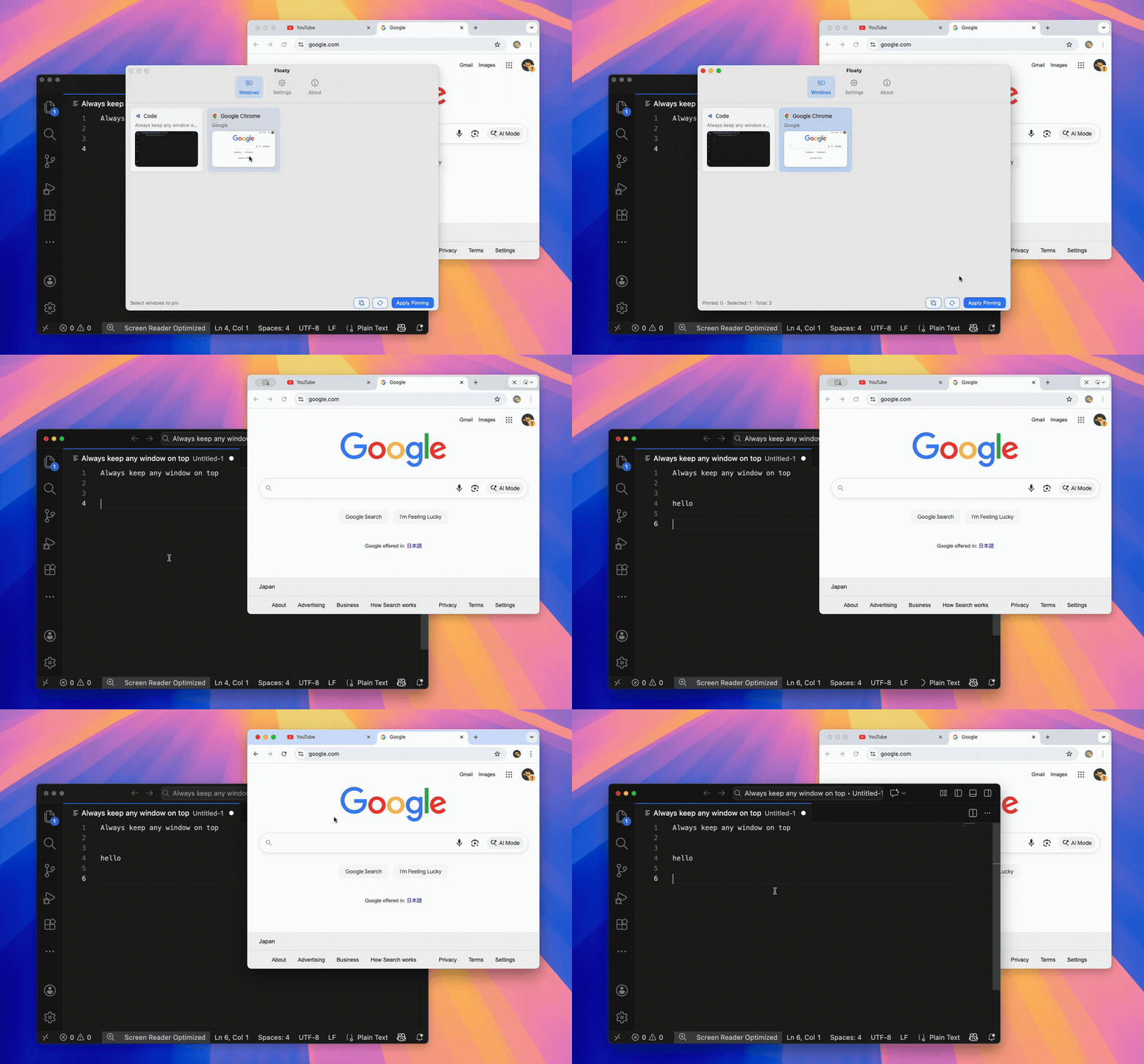
Quick Verdict
| Need | Best fit |
|---|---|
| Float a supported video | Picture-in-Picture |
| Float a full browser window | Floaty |
| Keep ChatGPT, Notes, PDF, Terminal, or Zoom notes visible | Floaty |
| Watch YouTube with transcript, comments, or course navigation | Floaty |
| Put two apps side by side | Split View |
| Organize app groups | Stage Manager |
| Snap windows into screen regions | Magnet, Rectangle, Moom, Rectangle Pro |
Short version: PiP floats video. Floaty floats normal Mac windows.
Where Picture-in-Picture Works
If the video frame is all you need, do not overthink it. Use the built-in PiP.
Use it for:
- YouTube videos
- lectures
- tutorials
- webinars
- passive video reference
It is built into macOS and feels right for passive watching. No extra app needed.
Where Picture-in-Picture Breaks
PiP gets awkward when the useful part is outside the video.
Common limits:
- no YouTube transcript
- no comments, playlists, or course navigation
- no full browser page
- no PDFs, Notes, Terminal, Finder, or ChatGPT
- some websites hide or disable PiP
- limited resizing compared with a normal window
That is the important distinction. Many people searching for a Picture-in-Picture alternative for Mac are not asking for a better video tile. They want a normal work window to stop disappearing.
For a deeper explanation, read How to Create a Floating Window on Mac.
Best PiP Alternatives for Mac
1. Floaty - Best for Floating Normal Mac Windows
Floaty is the best fit when the thing you want to float is a real app window, not a video player.
Use it for:
- ChatGPT or Claude while coding
- PDFs while writing
- Notes or Notion during meetings
- Terminal logs while debugging
- full YouTube pages with transcript and controls
- browser documentation above an editor
- dashboards, timers, checklists, and agendas
The workflow is simple:
- Open the window.
- Choose it in Floaty.
- Apply pinning.
- Resize, move, adjust opacity, or use click-through if needed.
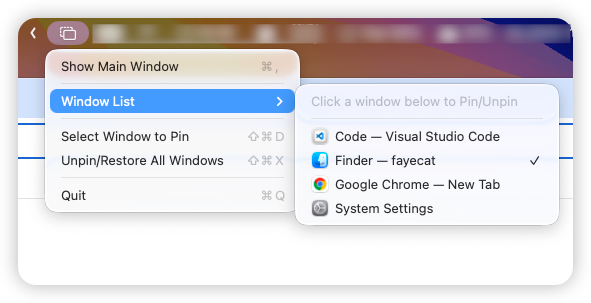
Think of it as the workflow people often wish PiP had: a small reference window that stays present while you keep working.
2. Browser PiP - Best for Simple Video
Browser PiP is enough when:
- you only need the video
- the website supports PiP
- you do not need transcript, comments, or page controls
- you do not need opacity, click-through, or multiple floating references
If your main use case is YouTube, read How to Watch YouTube While Working on Mac.
3. Split View - Best for Two Fixed Apps
Split View is useful when two apps deserve equal space.
It works for:
- browser and writing app
- PDF and notes
- editor and documentation
- spreadsheet and dashboard
But it is rigid. It does not make one window hover over another. Use Split View for stable two-pane work. Use Floaty when the reference should stay small and visible above the main app.
4. Stage Manager - Best for App Groups
Stage Manager helps organize app groups, but it is not a universal floating-window tool.
It is useful for switching between projects. It is weaker when one note, transcript, log, or dashboard must stay visible across context changes.
5. Window Managers - Best for Arrangement
Magnet, Rectangle, Moom, and Rectangle Pro are useful when the problem is placement.
They help with snapping, shortcuts, layouts, and multi-monitor arrangement. Useful, but different. A neatly arranged window can still disappear behind the app you click next.
If you are deciding between layout and visibility, read Magnet vs Floaty or Rectangle Pro vs Floaty.
Comparison Table
| Feature | Picture-in-Picture | Floaty | Split View | Stage Manager |
|---|---|---|---|---|
| Best for | Supported video | Normal app floating windows | Two fixed apps | App groups |
| Works with PDFs | No | Yes | Side by side only | As part of a group |
| Works with Notes | No | Yes | Side by side only | As part of a group |
| Works with Terminal | No | Yes | Side by side only | As part of a group |
| Keeps a normal window above another active app | No | Yes | No | Not reliably |
| Shows a full browser page | No | Yes | Yes, but fixed layout | Sometimes |
| Opacity / click-through | No | Floaty Pro | No | No |
Real Workflows Where PiP Is Not Enough
Coding with ChatGPT or Claude
PiP cannot float an AI assistant because ChatGPT and Claude are not video players. Floaty can keep the browser or app window visible while you write code.
Watching YouTube with transcript or comments
PiP is fine for passive video. It is not enough when the transcript, comments, playlist, chapter markers, or course navigation matter.
Reading a PDF while writing
PiP does nothing for Preview, Acrobat, browser PDFs, or research papers. A floating PDF window is useful when you need a clause, spec, paper, or textbook visible while typing.
Watching Terminal logs while debugging
Terminal logs, local server output, SSH sessions, and test runners are passive references, but they often need to stay visible.
Keeping meeting notes visible
This is one of those cases where PiP is simply the wrong tool. Meeting notes are not a video.
If you are jumping between Zoom, slides, a browser, Slack, or a calendar, a small floating note can be easier to live with than forcing everything into a fixed split-screen layout.
FAQ
What is the best Picture-in-Picture alternative for Mac?
If you only mean video, I would just use the built-in Mac PiP.
If you mean “I want this window to stay visible while I work somewhere else,” then Floaty is the better match. That covers things like PDFs, notes, browser pages, ChatGPT, Terminal logs, and meeting agendas.
Can I use Picture-in-Picture for any Mac app?
No. PiP is mostly a video feature.
It can float a supported video player, but it will not turn Preview, Notes, Terminal, Finder, or a normal browser page into a floating window.
How do I float a whole browser window on Mac?
Use a tool that pins the window itself, not just the video inside it.
With Floaty, open the browser window, choose it from the window list, and pin it. The full page stays visible, including transcripts, comments, docs, dashboards, or whatever else is in that window.
How do I keep YouTube always on top on Mac?
For background watching, PiP is fine.
For tutorials, courses, or anything where you need the transcript, comments, playlist, or chapter markers, pin the full browser window instead.
Is Floaty the same as Picture-in-Picture?
No. PiP is a video feature.
Floaty works at the window level, so the use case is broader: browser pages, PDFs, Notes, Terminal, AI chats, dashboards, and other normal Mac windows.
Does Floaty work with full-screen apps?
Not reliably. macOS full-screen mode uses separate Spaces, which limits floating overlay behavior. Floaty works best with normal windows or Split View-style layouts.
Try Floaty as a PiP Alternative for Mac
If all you need is a small video tile, use macOS Picture-in-Picture.
If what you actually want is a normal Mac window that stays visible, try Floaty with one real task: a PDF, AI chat, browser page, Terminal log, meeting note, dashboard, or full YouTube page.
Related guides: