
Working on one Mac screen is not the problem. Losing context every time you switch apps is the problem.
With a second monitor, you can leave Slack, docs, a PDF, a dashboard, or an AI chat open on the side. On a single monitor, that same context keeps getting buried. You switch to the browser and lose your notes. You open a PDF and cover your editor. You check Terminal logs, then lose the page you were writing.
On a single screen, not every window needs the same amount of room. The app you are writing, coding, or browsing in can stay large, while the PDF, notes, or Terminal output you keep checking sits off to the side.
The Mac already has a few ways to arrange windows. They each work well for different jobs, and Floaty is useful when you want one normal app window to remain visible above the one you are working in.
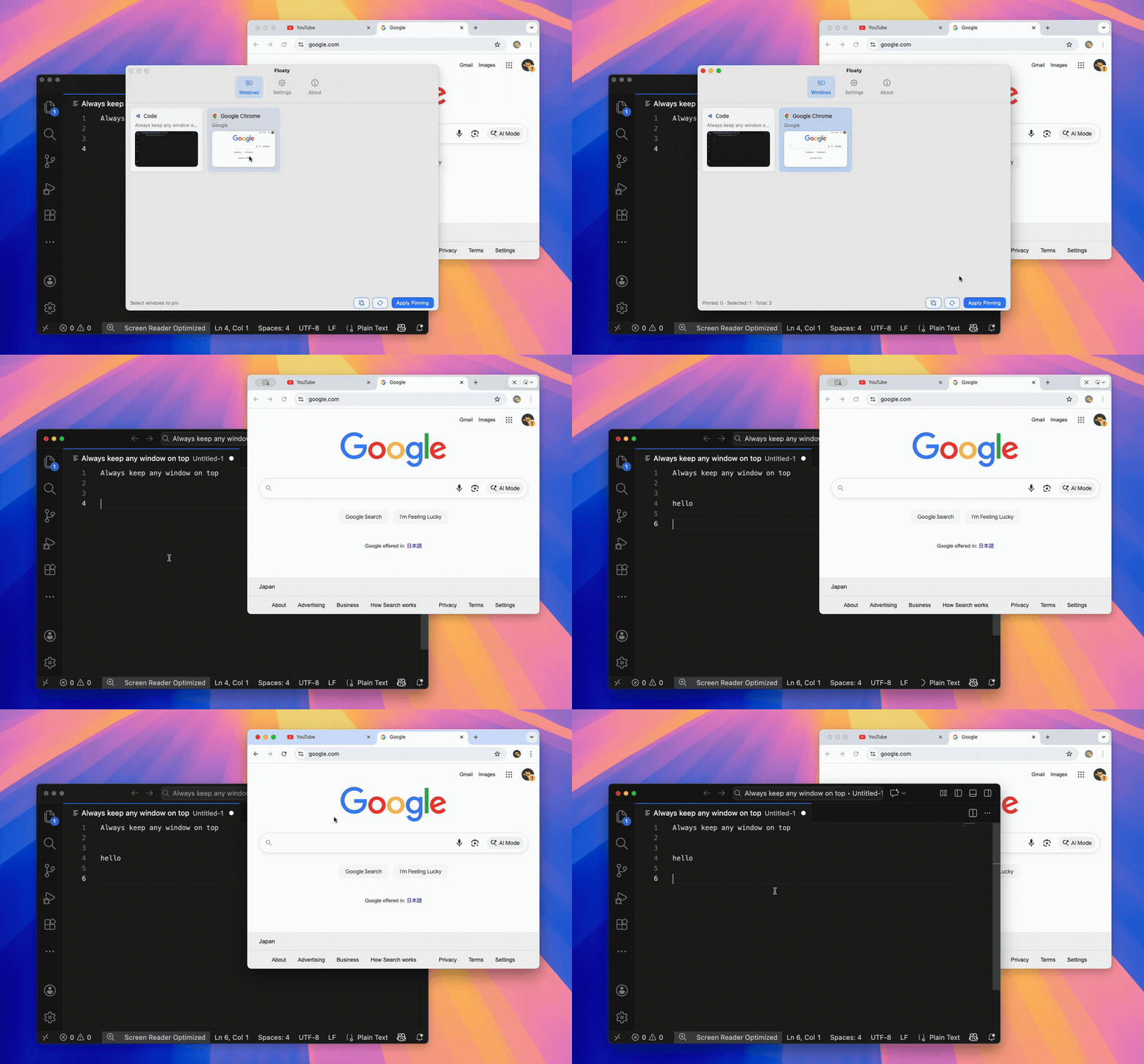
Quick Setup
If you only want the short version, start here:
| Problem | Best Mac tool |
|---|---|
| Two apps both need large space | Split View |
| You switch between groups of apps | Stage Manager |
| You need to jump across windows quickly | Mission Control |
| You only need a video visible | Picture-in-Picture |
| You need a small reference window visible | Floaty |
| You need to arrange windows quickly | Magnet, Rectangle, Moom, or Rectangle Pro |
The best single-monitor setup is usually not a perfect grid. A cleaner setup is:
- one main app for the real work
- one small reference window
- as little window switching as possible
If the reference is a normal app window, not a video tile, that is the Floaty use case.
Why One Mac Screen Feels Cramped
One monitor feels cramped when every window wants to be the main window.
That happens a lot:
- Safari wants full width for docs.
- VS Code wants full width for code.
- Preview wants enough room for a PDF.
- Notes wants to stay visible during a call.
- Terminal logs need monitoring.
- ChatGPT or Claude may need to stay nearby.
- A dashboard needs attention, but not full focus.
The mistake is treating every window as equal. On one screen, they are not.
Most single-screen work has two layers:
| Layer | Example | Screen behavior |
|---|---|---|
| Main work | writing, coding, designing, spreadsheet work | should get most of the screen |
| Reference | notes, PDF, AI chat, docs, log, agenda | should stay visible without taking over |
Once you separate main work from reference work, the right Mac feature becomes easier to choose.
Why macOS Needs More Than One Feature
macOS has several good window features, but none of them is the whole answer.
Split View gives two apps space. Stage Manager groups windows. Mission Control helps you find things. Picture-in-Picture floats supported video. Window managers snap windows into place.
All of that helps. It just does not solve the case where you want a regular app window to stay on top while you work in another app. For single-monitor work, that case comes up a lot.
Use Split View for Two Big Windows
Split View is good when both apps deserve real space.
Use it for:
- writing beside a browser
- code beside documentation
- spreadsheet beside a dashboard
- notes beside a lecture
- PDF beside a document
The downside is rigidity. Split View turns the screen into two large regions. That is fine when both windows are equally important. It feels wasteful when one window only needs to be a small reference.
If your PDF, note, or AI chat only needs a corner of the screen, Split View can make both apps feel worse.
Use Stage Manager for Grouped Work
Stage Manager is helpful when your problem is switching between projects.
It works well for:
- separating work and personal apps
- grouping browser, notes, and chat for one project
- reducing desktop clutter
- keeping related windows nearby
But Stage Manager is still mainly a switching tool. It does not guarantee that one small reference stays visible after you click into another app.
That distinction matters. If the problem is “my workspace is messy,” Stage Manager can help. If the problem is “my reference keeps disappearing,” it may not be enough.
Use Mission Control for Finding, Not Focusing
Mission Control is great for finding windows. It is not a productivity system by itself.
Use it when:
- you have lost a window
- you need to move between desktops
- you want a quick overview
- you are cleaning up a crowded screen
The cost is that every trip through Mission Control interrupts the task. It helps you recover context, but it does not keep context visible.
For single-monitor work, the goal is to need Mission Control less often.
Use Picture-in-Picture for Video Only
Picture-in-Picture is useful when the reference is a video.
Use it for:
- YouTube videos
- lectures
- webinars
- tutorials
- passive watching
But PiP is limited. It floats the video, not the full page. If you need the transcript, comments, playlist, course sidebar, or the whole browser window, PiP is not enough.
For the broader comparison, read Best Picture-in-Picture Alternatives for Mac.
Use Floaty for Small References
Use Floaty when a reference should stay visible without becoming half your screen.
Good examples:
- ChatGPT or Claude while coding
- a PDF clause while writing
- Apple Notes during Zoom
- Terminal logs while debugging
- documentation above your editor
- a dashboard while working in a spreadsheet
- a timer, checklist, or meeting agenda
Floaty keeps a normal Mac window above other windows, so your main app can stay large while the reference remains visible.
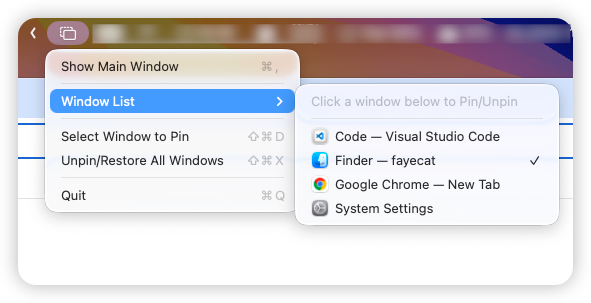
For a step-by-step version, read the guide to creating a floating window on Mac.
Use Window Managers for Placement
Window managers are useful when the problem is arranging windows quickly.
Tools like Magnet, Rectangle, Moom, and Rectangle Pro help with:
- snapping windows
- moving windows between halves or thirds
- keyboard shortcuts
- repeatable layouts
- multi-monitor setups
They are helpful, but they solve a different problem. A neatly arranged window can still disappear behind another app.
If you are choosing between layout and visibility, read Magnet vs Floaty or Rectangle Pro vs Floaty.
A Practical One-Screen Workflow
For most one-screen Mac work, use a setup like this:
- Keep the main app large.
- Keep only one small reference visible.
- Use Split View only when both apps need equal attention.
- Use PiP only for simple video.
- Use Floaty for notes, docs, PDFs, AI chats, logs, or dashboards.
- Avoid true full-screen Spaces when you need overlays.
- Close or hide windows that are neither main work nor reference.
This sounds simple, but it changes the feel of one-screen work. You stop trying to recreate a second monitor and keep only the windows you actually need close by.
The result is less time spent bringing the same notes, PDF, or reference page back to the front.
Single-Monitor Workflow Examples
| Work | Main app | Reference |
|---|---|---|
| Coding | VS Code, Xcode, Cursor | ChatGPT, docs, Terminal logs |
| Writing | Pages, Google Docs, Obsidian | PDF, notes, browser research |
| Meetings | Zoom, Meet, Keynote | agenda, notes, timer, chat |
| Studying | Notes, Notion, Word | lecture, PDF, translation, AI explanation |
| Analysis | spreadsheet, browser app | dashboard, alert stream, report |
The pattern is the same: keep the work big, keep the context small, and avoid switching when a glance would do.
FAQ
How can I be productive on one Mac monitor?
Use one main app and one reference at a time. Split View helps when both windows need real space. Floaty helps when a smaller note, PDF, AI chat, browser page, or Terminal log should stay visible while you work.
Is a second monitor necessary for Mac productivity?
No. A second monitor helps, but many workflows work well on one screen if you reduce switching and keep only the right reference visible.
Is Split View good for single-monitor work?
Yes, when both apps deserve large space. It is less useful when the second window is just a small reference.
Is Stage Manager better than Split View?
They solve different problems. Stage Manager is better for app groups and switching. Split View is better for two fixed windows. Neither is a universal always-visible reference layer.
What is the best single-monitor setup for coding on Mac?
Keep the editor large. Use a small floating reference for ChatGPT, docs, or Terminal logs. Use Split View only when the browser or terminal needs equal space.
Can Floaty help with single-monitor productivity?
Yes. Floaty is useful when one reference window should stay visible while your main app keeps most of the screen.
Try Floaty for Single-Monitor Work
If your single-monitor problem is constant switching, start by keeping one reference visible.
Try it with a PDF, note, AI chat, Terminal log, browser doc, dashboard, or meeting agenda. If that reduces Command-Tabbing, the setup is working.
Related guides: