
Keeping a reference window visible still takes extra work on the Mac. Apple has added widgets, Stage Manager, and smarter multitasking helpers, yet a native “keep window on top” toggle remains missing. Search terms like “pin window mac,” “always-on-top mac app,” and “mac window manager overlay” spike every week because people expect a built-in control and come up empty. This 2026 field report organizes the options that actually work so you can choose the route that fits your workflow without sifting through outdated forum threads.
If you’re here for the practical answer first, start with:
Quick start for 2026
- Choose a dedicated always-on-top tool (the cleanest route on modern macOS).
- Grant Accessibility + Screen Recording permissions when prompted.
- Pin one reference window (docs/notes/video) and keep your main window as your primary workspace.
1. Why 2026 still needs an always-on-top answer
The multitasking pain is evergreen: the Zoom agenda, research PDF, or transcription window you need disappears the instant you click somewhere else. Recent macOS releases tightened privacy guardrails, refreshed widgets, and infused more on-device intelligence, but the WindowServer still lacks a first-party overlay API. There’s no built-in always on top mac tool or checkbox, so third-party utilities remain essential.
Search data backs it up. “pin window on top mac” and “mac window manager floating window” queries keep growing each quarter, especially among remote workers pairing Macs with external monitors and Stage Manager. People are still tripping over broken SIMBL plugins before they discover which apps actually work on Apple Silicon and modern macOS builds.
2. The three 2026 routes to pin a window on macOS
Rather than list every app, think in terms of ecosystems—each carries different trade-offs.
| Route | Best for | What you get | Typical drawbacks |
|---|---|---|---|
| Window manager add-ons | People already using snapping/automation daily | A quick “stay on top” toggle inside a larger tool | Limited controls (often no opacity/click-through), weak visual indicators |
| Legacy plugins / SIMBL | Tinkerers experimenting on personal Macs | Old-school “always on top” behavior | Fragile on modern macOS, can break after updates, often blocked on managed Macs |
| Dedicated pin-window utilities | Most users in 2026 who want reliability | Purpose-built UX: pin indicators, opacity, click-through, multi-window workflows | Requires permissions; fullscreen limitations still apply |
Route A — Window manager add-ons
Rectangle Pro, BetterTouchTool, and similar utilities bolt a pin shortcut onto their snapping/automation toolkits. They ride on sanctioned APIs and feel trustworthy, but the pinning feature is still binary: on/off, no visual indicators, minimal transparency control. They work best when you already live inside a mac window manager workflow and just need a quick “stay visible” command.
Route B — Legacy plugins and SIMBL injections
Afloat-era utilities injected code into WindowServer or bypassed SIP entirely. Some of them technically launch on modern versions of macOS, but newer transparency requirements and stricter notarization blocks make them unreliable, especially on corporate-managed Macs. They still get recommended on old blog posts, yet every minor update risks breaking them, so they’re poor choices in 2026.
Route C — Focused, standalone pin-window utilities
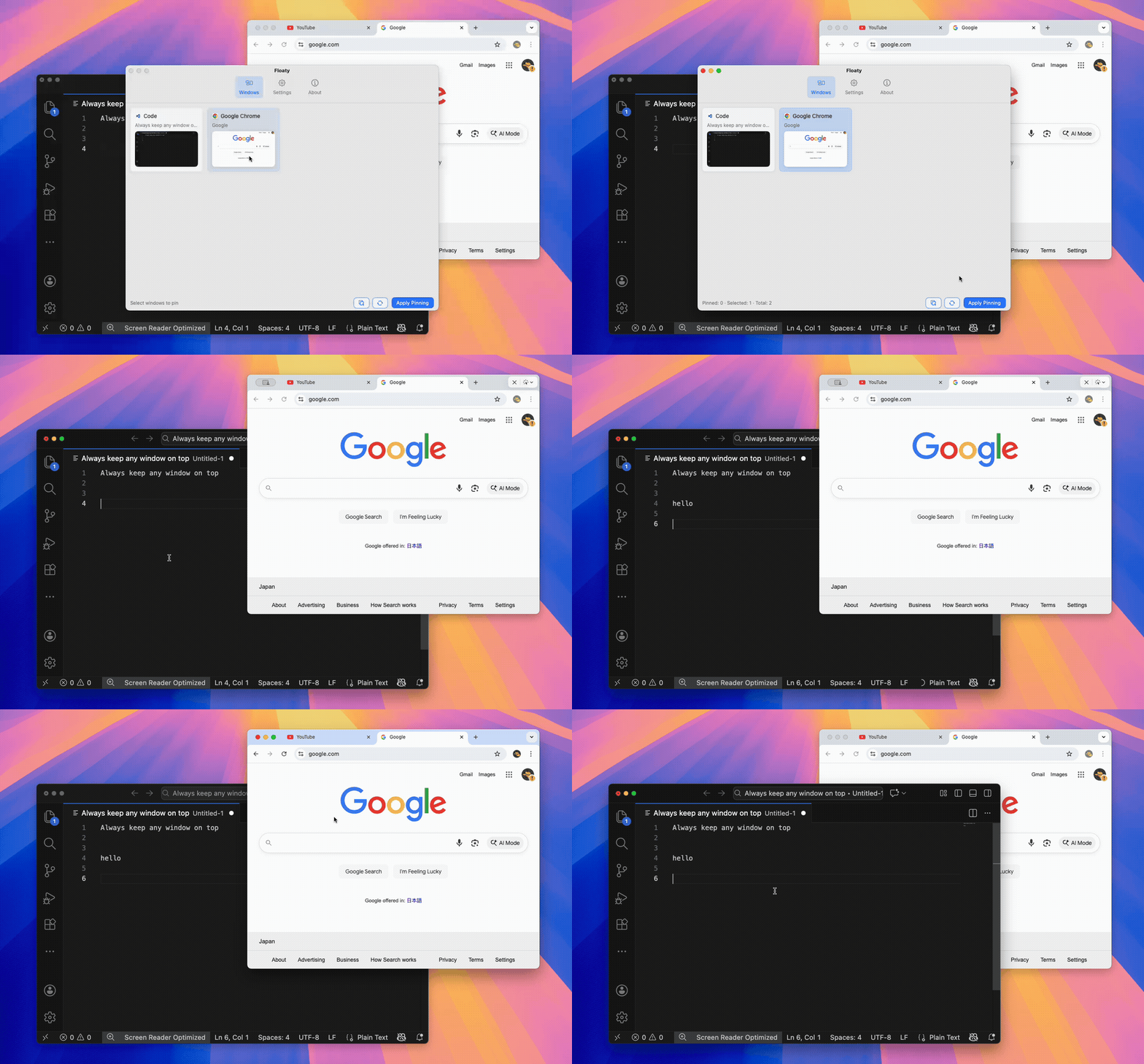
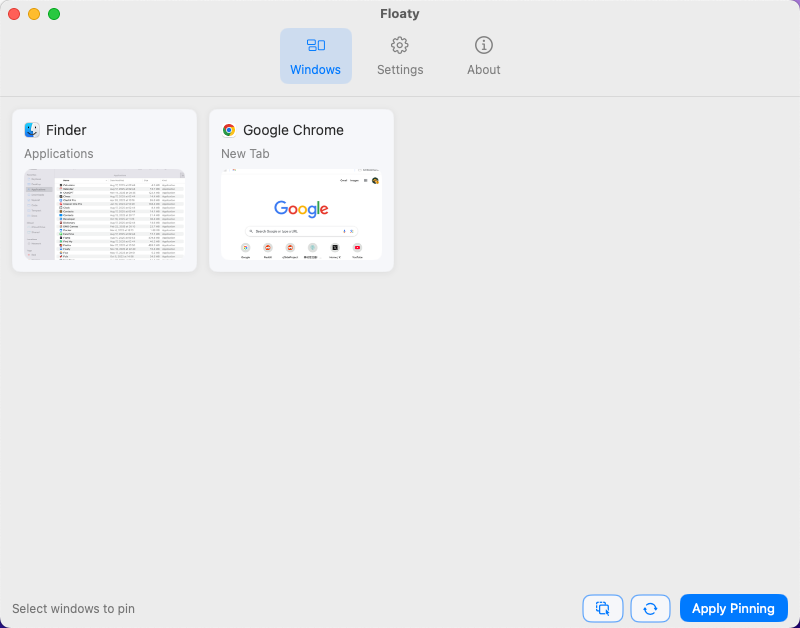
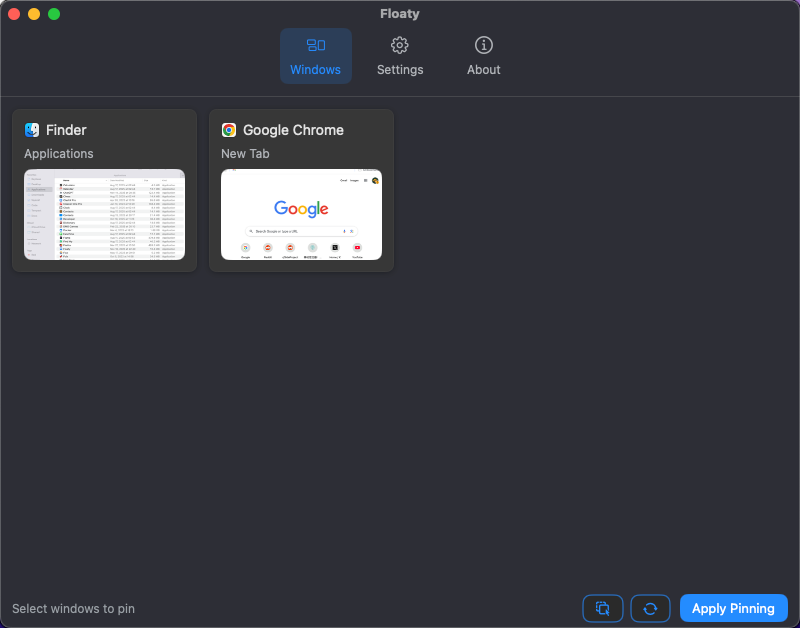
Dedicated tools such as Floaty treat pinning as the main job: clean overlays, opacity sliders, click-through toggles, multi-window awareness, and onboarding flows that walk you through Accessibility + Screen Recording permissions. They aren’t bloated window managers; they’re purpose-built for the macOS always on top workflow, which means they iterate quickly when Apple tweaks WindowServer behavior.
3. Real-world strengths and weaknesses
Window manager route — Pros & Cons
Pros - Fits naturally into existing grid/hotkey muscle memory. - Reliable because the pin feature piggybacks on trusted mac window manager apps. - Minimal onboarding—just map a shortcut and go.
Cons - Pinning is an afterthought with no click-through or opacity controls. - Visual feedback is easy to miss when juggling multiple monitors. - Requires scripting or automation to unlock advanced behavior.
Old plugin route — Pros & Cons
Pros - Historically free and infinitely tweakable. - Once provided features Apple never exposed.
Cons - Conflicts with SIP, notarization, and macOS’s tightened transparency permissions. - Can destabilize WindowServer or fail silently after an update. - Blocked outright on many company-managed or education Macs.
Standalone always-on-top route — Pros & Cons
Pros - Purpose-built UX: floating HUD controls, per-window indicators, and polished onboarding. - Multi-window pinning with transparency/click-through keeps complex workflows clear. - Designed around Apple’s permission flows, so setup takes minutes.
Cons - Accessibility + Screen Recording prompts still intimidate new users. - Fullscreen apps and Mission Control limitations apply no matter which always on top mac tool you use. - Smaller indie teams mean you have to vet alignment with your support expectations (though updates tend to be fast).
4. Picking the right route by persona
Everyday users
Need notes visible during meetings? A focused pin tool delivers the pin window mac experience with one hotkey and obvious visual cues.
Office multitaskers
Hybrid workers jumping between dashboards, decks, and chat apps can layer a lightweight pin tool on top of a mac window manager. Automation handles layout; pinning keeps the critical overlay visible.
Developers & designers
Logs, simulators, canvas overlays, and design systems often need transparency/click-through. Standalone always on top mac tool apps match that need and integrate with custom shortcuts.
Students & researchers
Lecture replays and research papers stay readable when you float the note-taking app above the video or PDF. Look for opacity sliders and per-window labels so you always know what’s pinned.
Creators & presenters
During screen recordings or live demos, creators keep checklists, chat, or monitoring widgets pinned. Reliability and a clean UI matter more than bloated window-management feature lists.
5. Why the trend favors specialized tools in 2026
macOS privacy changes continue to reward notarized, sandbox-friendly utilities. Dedicated pin tools lean into that reality by designing permission onboarding, shipping updates without dragging a huge feature matrix, and adding extras—scene presets, per-app defaults, automation hooks—that generalist tools rarely prioritize. Meanwhile, SIP keeps deprecating old injections, and the shift to hybrid work means polished overlays are now table stakes for knowledge workers.
FAQ: quick answers
Does “always on top” work with fullscreen apps on macOS?
Not reliably. Fullscreen windows live in separate Spaces, which limits how overlays can behave. If you need a pinned reference, keep the main app in standard windowed mode (or use Split View) before pinning.
Why do always-on-top tools ask for Accessibility and Screen Recording permissions?
Accessibility enables window selection/control, while Screen Recording is commonly used for drawing window previews/overlays. Reputable tools should be transparent about what they do with those permissions.
Will a pin-window tool slow down my Mac?
In typical workflows, no. The biggest performance impact usually comes from pinning many live-updating windows at once. Start with one reference window and expand only if you need it.
What’s the safest option in 2026?
Avoid legacy injection plugins. Prefer notarized utilities that rely on standard macOS permission flows.
What should I read if I just want the step-by-step tutorial?
6. Conclusion: match the route to your workflow
There still isn’t a universal winner. Window managers shine when you already rely on automation; standalone tools like Floaty deliver the friendliest day-to-day macOS always on top experience; legacy hacks belong in the past. Until Apple surprises us with a system-wide “keep window on top” button, third-party utilities are the only reliable answer. Floaty is the lightweight tool I built for my own workflow—unpin when you’re done, float what matters, and move faster in 2026.