
macOS is clean, fast, and thoughtfully designed—but when you need to keep a single window always on top, the default experience still breaks your flow. If you’ve ever studied with a video lesson, coded while checking documentation, compared two designs, or monitored dashboards across multiple monitors, you know the pain: reference windows vanish, context switching explodes, and your macOS multitasking workflow slows to a crawl.
This guide walks through the complete floating-window workflow that power users rely on in 2025. You’ll learn how always-on-top overlays unlock a true side-by-side experience, why a lightweight tool like Floaty is the best picture in picture alternative mac users have, and how to tailor the setup for studying, coding, design, research, and multi-monitor control rooms.
Why Multitasking Feels Hard on macOS
Apple ships Split View, Stage Manager, and Spaces, yet none of them solve the simplest request: “keep this mac floating window visible while I work.” As soon as you switch tasks, the important pane disappears and you’re mashing ⌘ just to check a single value.
- Split View locks you into two panes and hides everything else, so a PDF or AI prompt vanishes when you need it.
- Stage Manager pushes non-active apps into its strip, turning a pinned checklist or chat into a thumbnail you forget to reopen.
- Spaces and full-screen modes move windows to other desktops, which means more trackpad swiping instead of getting things done.
Meet Floating Windows — The Missing Piece of macOS Multitasking
Floating windows give you a persistent, lightweight overlay—exactly what the native stack lacks.
- Pin any app on top of all other windows.
- Resize it into a compact overlay and drag it anywhere.
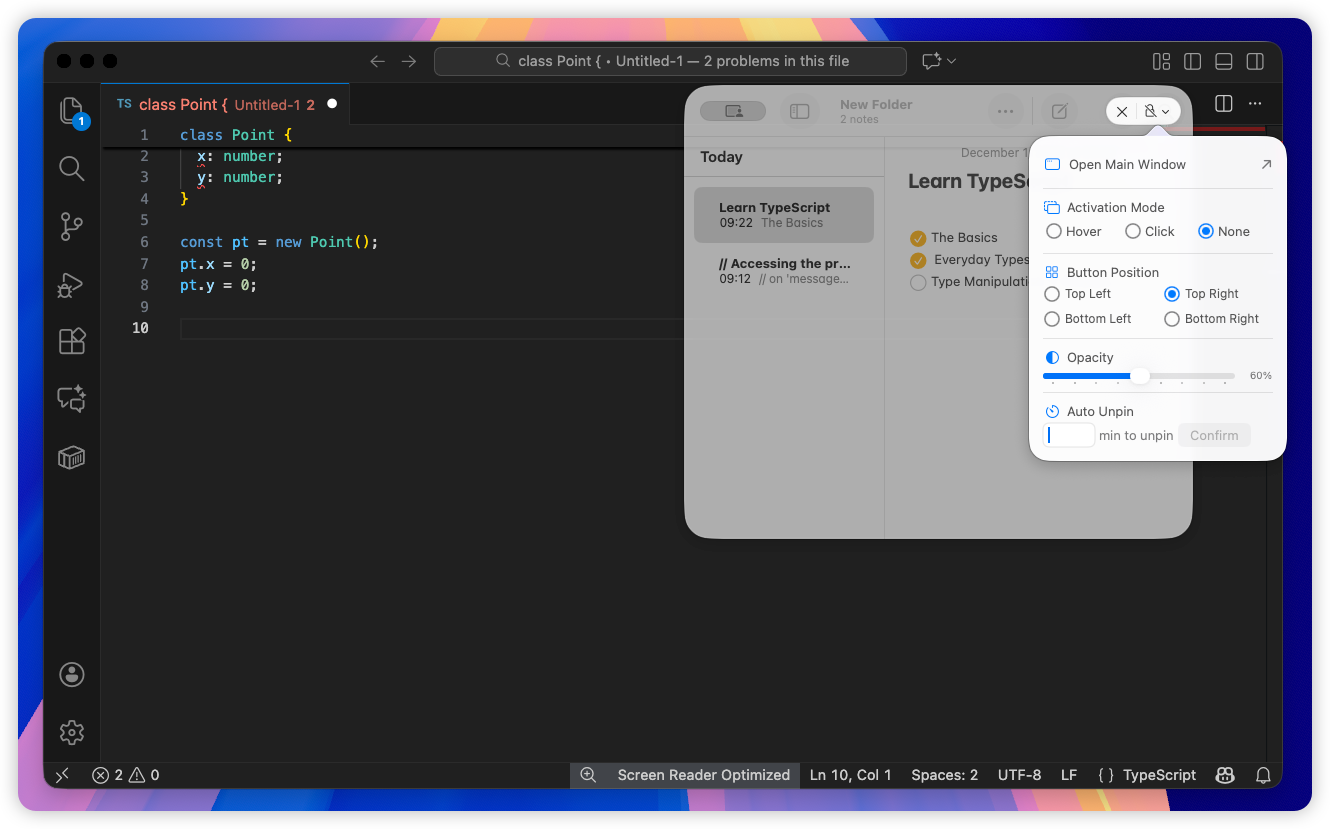
- Adjust opacity so you can read and compare windows side by side mac users love.
- Choose whether the overlay is click-through or interactive.
- Keep your main workspace visible while the reference floats nearby.
That combination makes Floaty feel like the missing mac overlay window layer Apple never shipped.
👉 Learn how to pin any window on top →
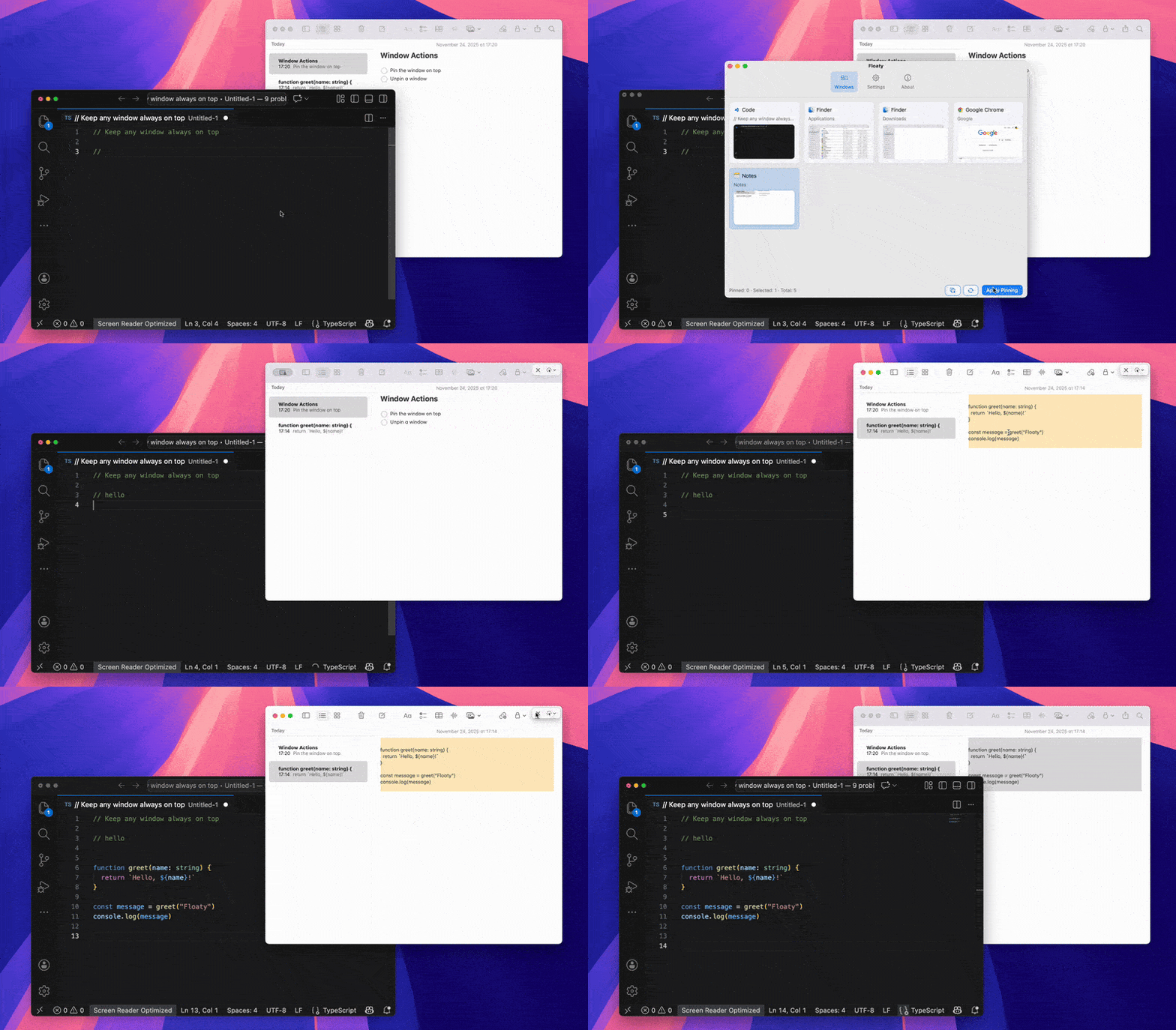
The Ideal macOS Multitasking Workflow (Simple Framework)
Every efficient setup follows the same three-part framework.
1. Main Window = Your primary task
Writing, coding, designing, research, editing—keep this front and center without distractions.
2. Floating Window = Your reference
Video tutorials, PDF chapters, documentation, Figma previews, AI copilots, dashboards, or even a float notes mac list—convert any app into a handy overlay.
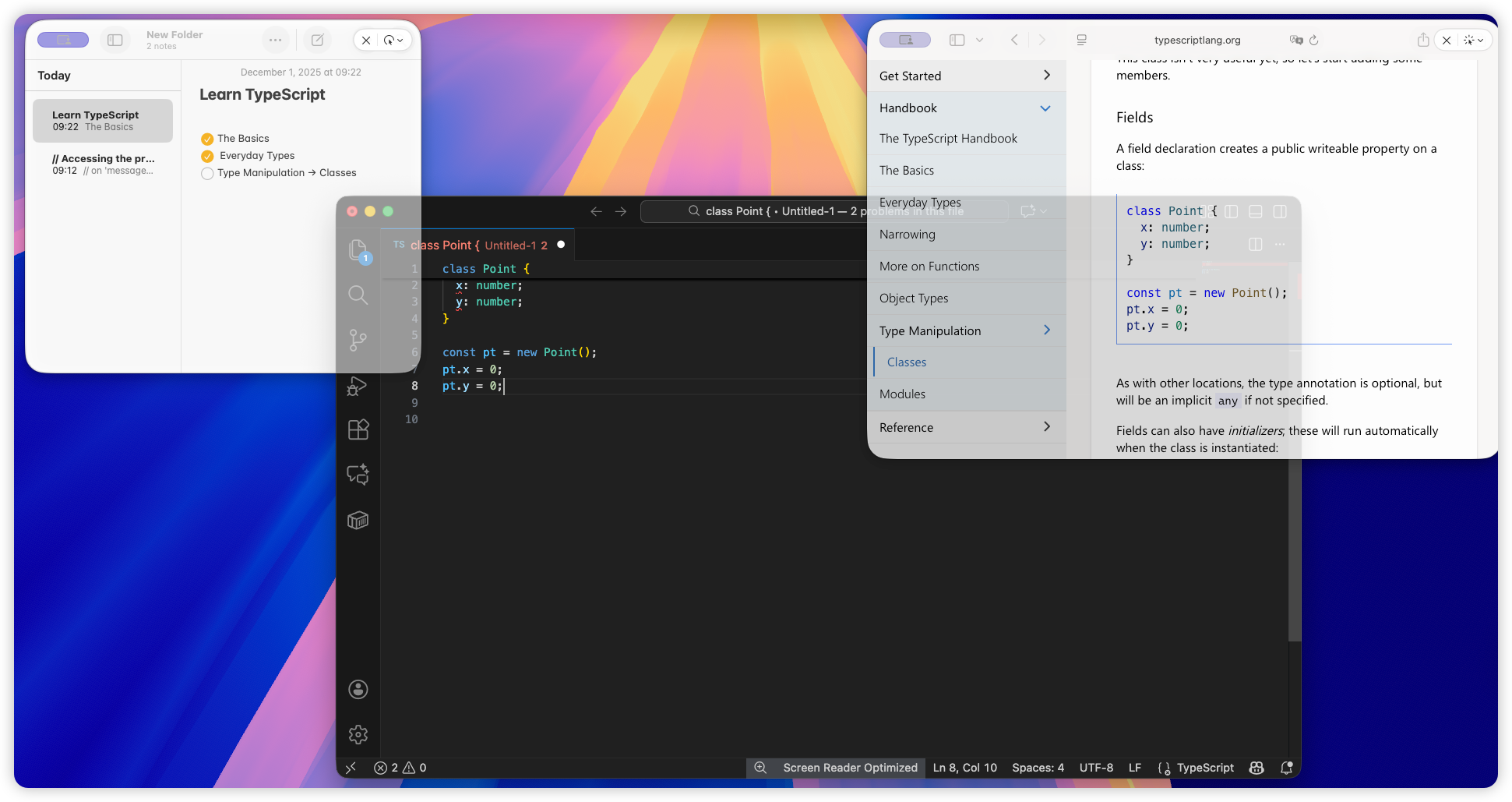
3. Reduce context switching by 60–80%
When you stop Command-Tabbing every 20 seconds, your brain stays locked on the work that matters. Floating windows make it feel like macOS finally supports true compare windows side by side mac workflows on a single display.
Real-World Workflows (That Actually Boost Speed)
For Students — Video + Notes Workflow
Keep the lecture video floating while you type in Apple Notes, Notion, or Word. Set the overlay opacity around 60% so subtitles are readable without hiding your notes. It’s the fastest way to follow tutorials, language lessons, or recorded lectures without losing context.
👉 Full guide: How to keep notes always on top →
For Developers — Code + Docs / API / Terminal
Pin API docs, Stack Overflow snippets, a terminal window, or even a Notes-based checklist above VS Code/Xcode. One overlay can track logs while another references SDK methods or TODOs, letting you ship features faster without hunting for the right tab.
For Designers — Reference Image + Canvas
Use floating windows to keep moodboards or color palettes visible while you sketch in Figma or Photoshop. Drop opacity to 30–40% so the inspiration hovers in view without stealing focus from your canvas.
For Multi-Monitor Users — Keep Tools Visible Across Screens
If you run dual displays, floating overlays are even more powerful. Pin Slack, analytics dashboards, or an AI assistant on the side monitor so critical data stays visible while you present, edit, or demo on the main screen.
How to Create Floating Windows on macOS
Native macOS doesn’t offer an always-on-top toggle, so you need a third-party helper. Legacy hacks are brittle, and heavyweight window managers bury the feature. Floaty keeps it simple:
- Download Floaty and grant Accessibility + Screen Recording permissions (needed for any always-on-top utility).
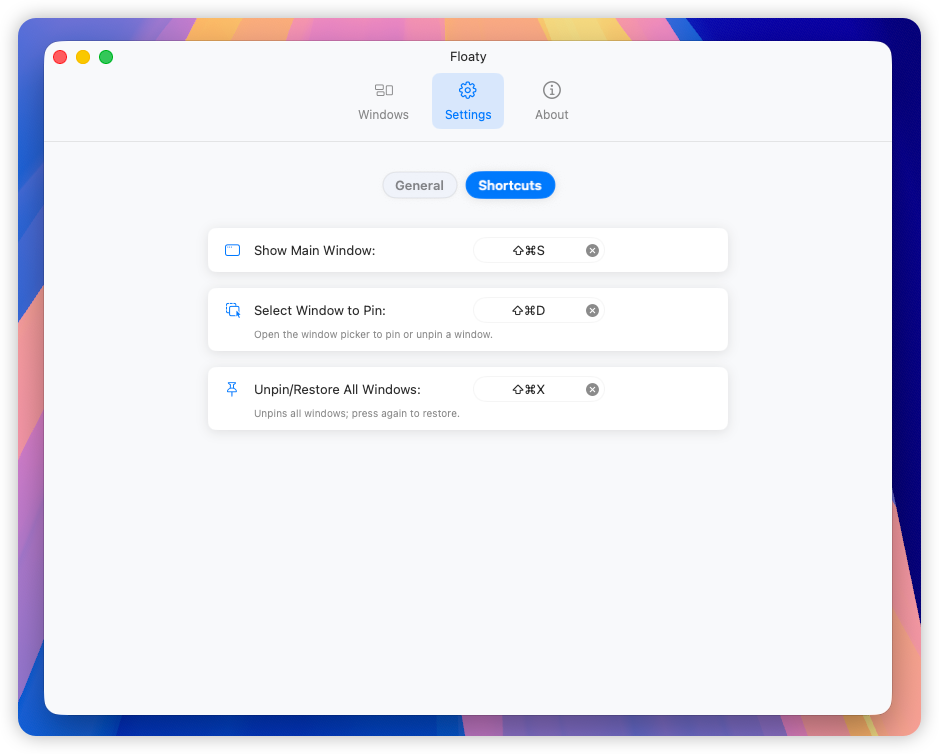
- Assign your favorite “Pin window” shortcut—many people use
⌘⇧P, but any combo works. - Set an opacity preset (e.g., 60%) for quick dimming, and switch Activation Mode to None when you want an overlay to be click-through.
- Add troublesome apps (Keynote, Plex, FaceTime) to Floaty’s excluded list so they behave normally during presentations.
Why Floaty Works Well for Multitasking
- ⚡ Lightweight, native macOS multitasking workflow enhancer.
- 🪟 Float multiple windows at once and manage them per space.
- 🔧 Customizable shortcuts for pinning, opacity, and quick toggle.
- 🫥 Adjustable opacity plus Activation Mode controls for click-through work.
- 🎬 Perfect picture in picture alternative mac users can trust for tutorials, coding, and research.
- 🔐 No data collection; runs entirely on your Mac with macOS 13+ support.
Try the Workflow Yourself
Test these combinations today:
- Video + notes or transcription overlays.
- Coding + docs/API/terminal references.
- Reading + highlighting or research synthesis.
- Image reference + design iterations.
FAQ
How do I keep a window always on top in macOS? macOS has no native “always-on-top,” so tools like Floaty use overlays and accessibility permissions to keep windows visible.
Do floating windows slow down macOS? No. Floaty uses lightweight overlays with minimal CPU or memory impact.
Do floating windows work with multiple monitors? Yes. Floaty supports multi-display setups. Only macOS full-screen mode may reset window layers.
Is using a floating window tool safe? Yes. Floaty doesn’t read or store window content; it only adjusts window layering.
Will macOS updates affect floating window tools? Usually no. You may only need to re-grant accessibility permissions after major updates.
Conclusion
👉 More floating-window tutorials →
🚀 Try the multitasking workflow yourself
Floaty makes any window stay on top — perfect for studying, coding, designing, and multi-monitor setups.
Floaty Pro unlocks:
- Multiple floating windows
- Custom shortcuts
- Opacity
- Click-through
- App exclusion
Ready to go deeper?